
Table of contents
- 📄Create a new project
- 🔖Add talents to shortlist and contact them
- Save a Talent Profile
- Find Your Saved Talent Profiles
- Hide a Talent Profile
- 📈Track your project's performances
Do you have recruitments planned in the coming months and want to start your talent search now? Then it's time to create your project on Talent Sourcing!
📄 Create a new project
The "Project" feature offers a flexible way to organize your talent searches without the need to immediately create job offers. This is ideal if you anticipate future recruitments but are not yet ready to announce them on your Welcome to the Jungle page.
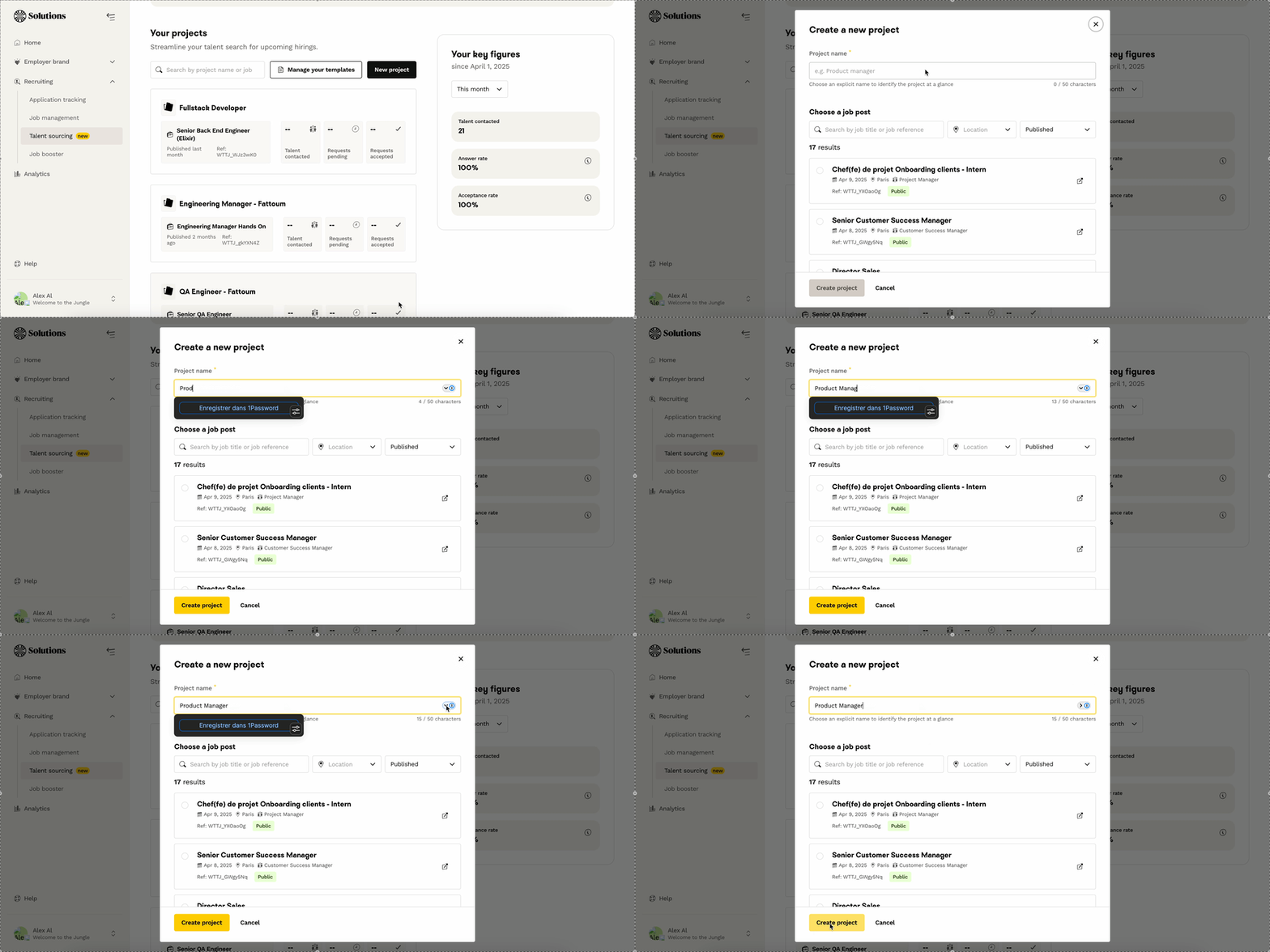
To start, go to Sourcing homepage:
- Click on the “New Project” button.
- Give your project a name and save it.
It's not necessary to link a job offer at this stage, you will only need to do this when you decide to contact a talent.
Here is a gif that shows you step by step how to proceed:
In your project, you can:
- View the talents you have added to favorites.
- Continue searching for new talents.
- Manage your contact requests with candidates.
⚠️ Important Note: At the moment, it is not possible to archive or delete projects. However, you can rename them if needed.
If a job offer has already been associated with a project, you cannot replace it with another. You will need to create a new project to use a different offer.
🔖 Add talents to shortlist and contact them
Once your project is created, you can start searching for talents. You can save interesting profiles or hide those that do not match your criteria.
Save a Talent Profile
When a profile catches your attention, you can save it for later contact. Simply click on the “bookmark” icon located on the desired profile and add it to a specific project:

You can also check if you have already viewed a profile thanks to the "Already Seen" label, visible at the top left of the talent's profile:
Find Your Saved Talent Profiles
Find all the talents saved under the “Favorites” tab of your project:
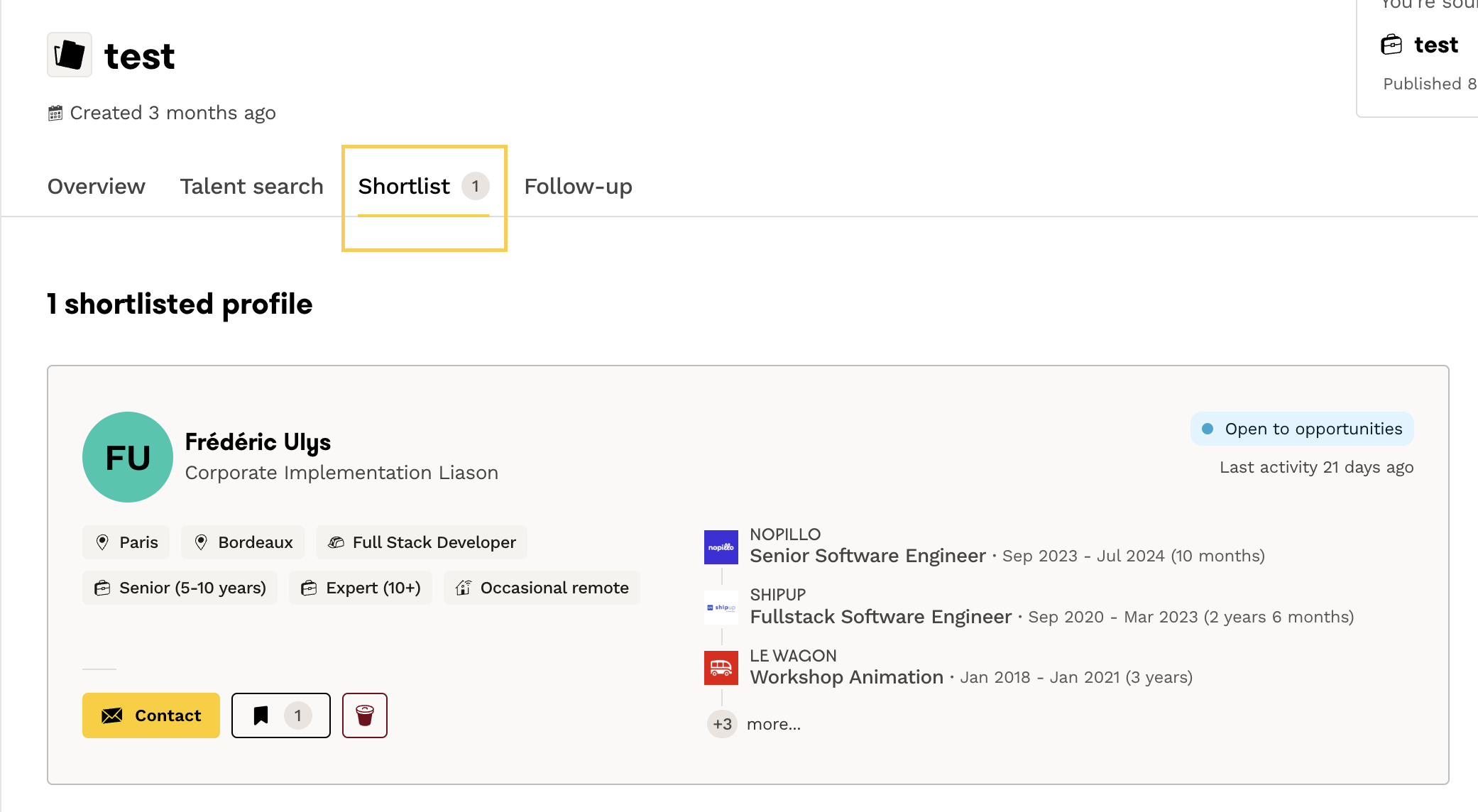
To contact a candidate, first select a job offer to associate with your project:
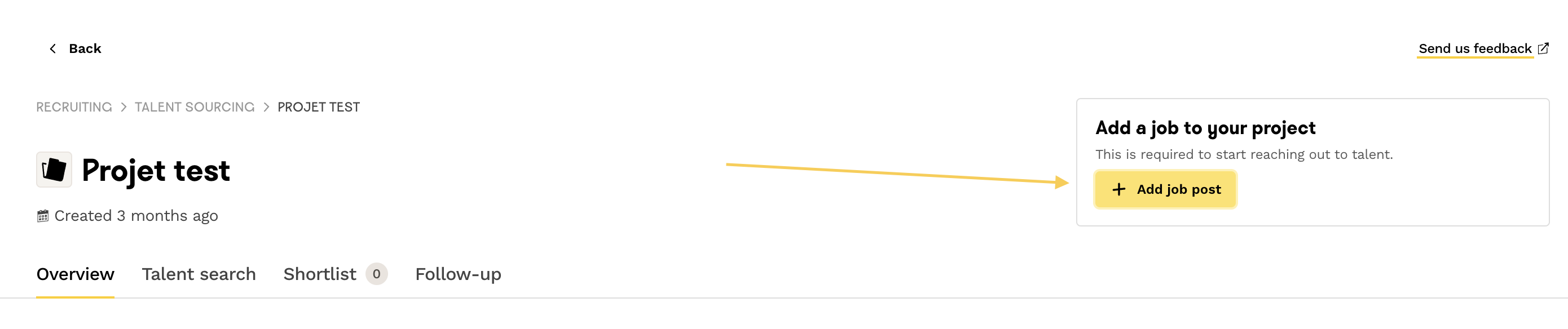
Once the offer is linked, you will be able to send messages to the talents.
💡 For more details, this article from our Help Center explains how to contact talents.
Hide a Talent Profile
⚠️ This option is available when you use the feature "Source for a job".
If a profile does not meet your expectations, our Sourcing tool allows you to hide it so that it does not appear in your search results again.
To do this, click on the eye icon located at the bottom left of the profile:
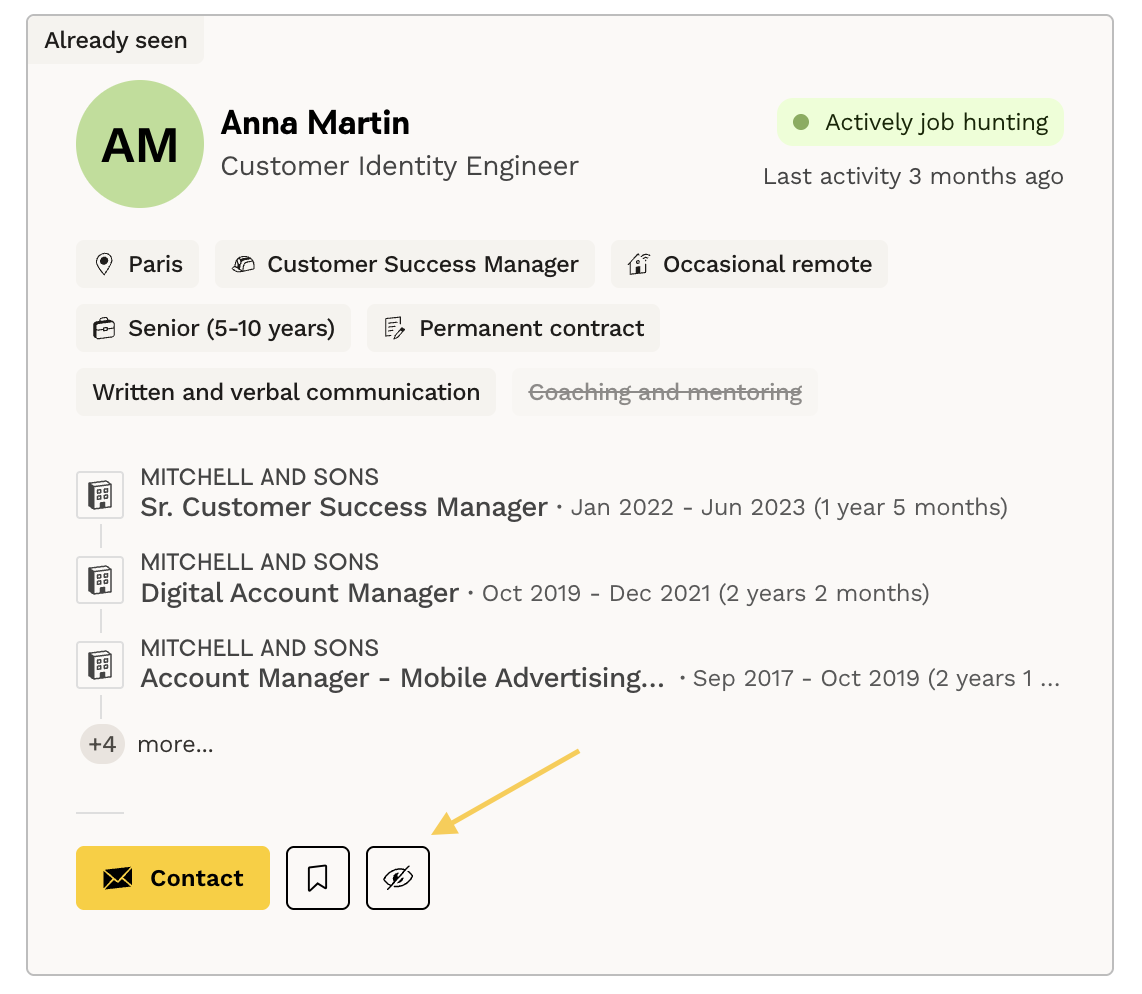
You can always access hidden profiles by enabling the "Show Hidden Profiles" option located at the top of the search results page:
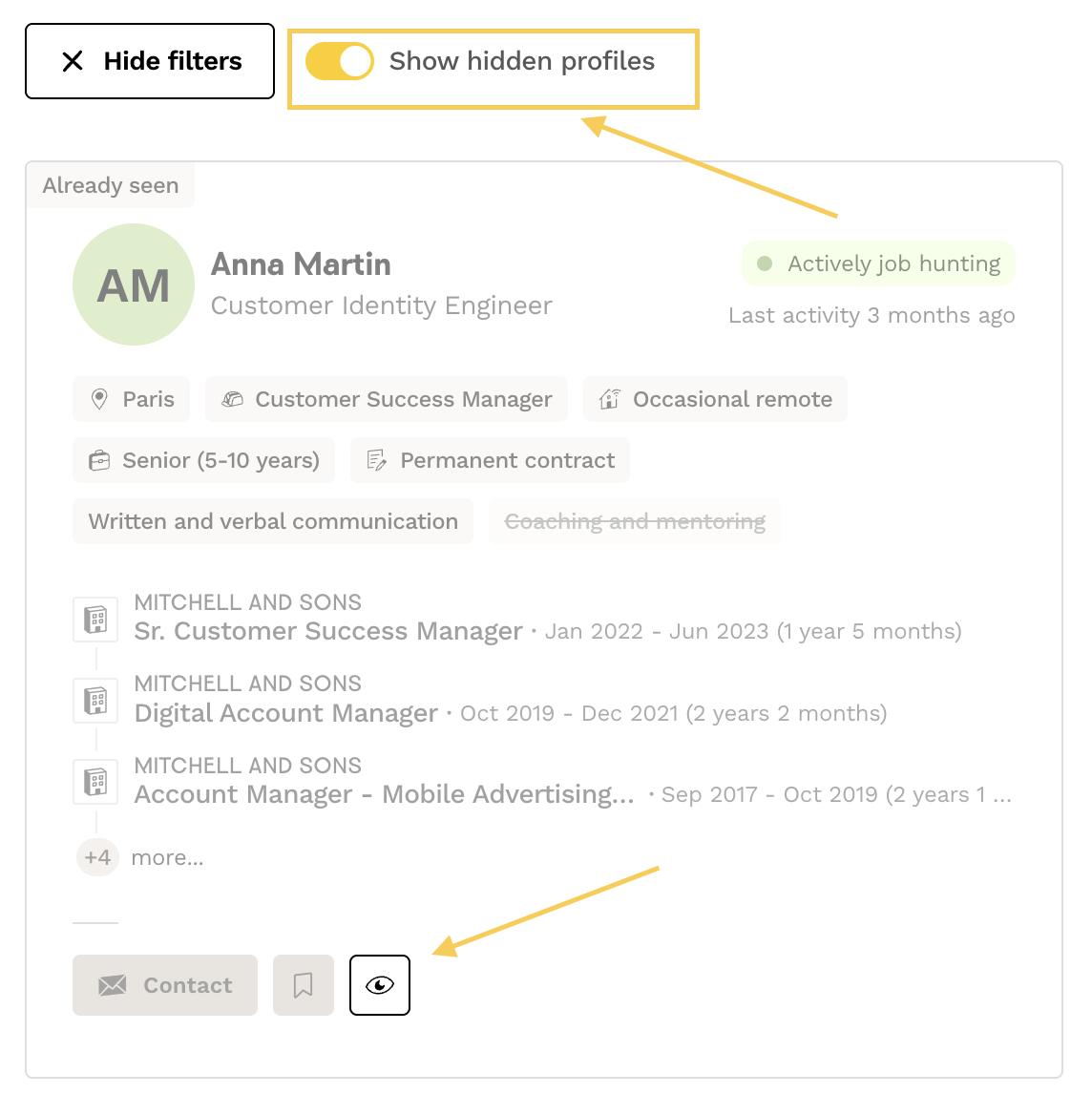
Hidden profiles will appear grayed out and can be reintegrated into your search results by clicking again on the eye icon.
📈 Track your project's performances
By clicking on a project's line, you will access a general overview of your favorites, contact follow-ups, and your project's performance:
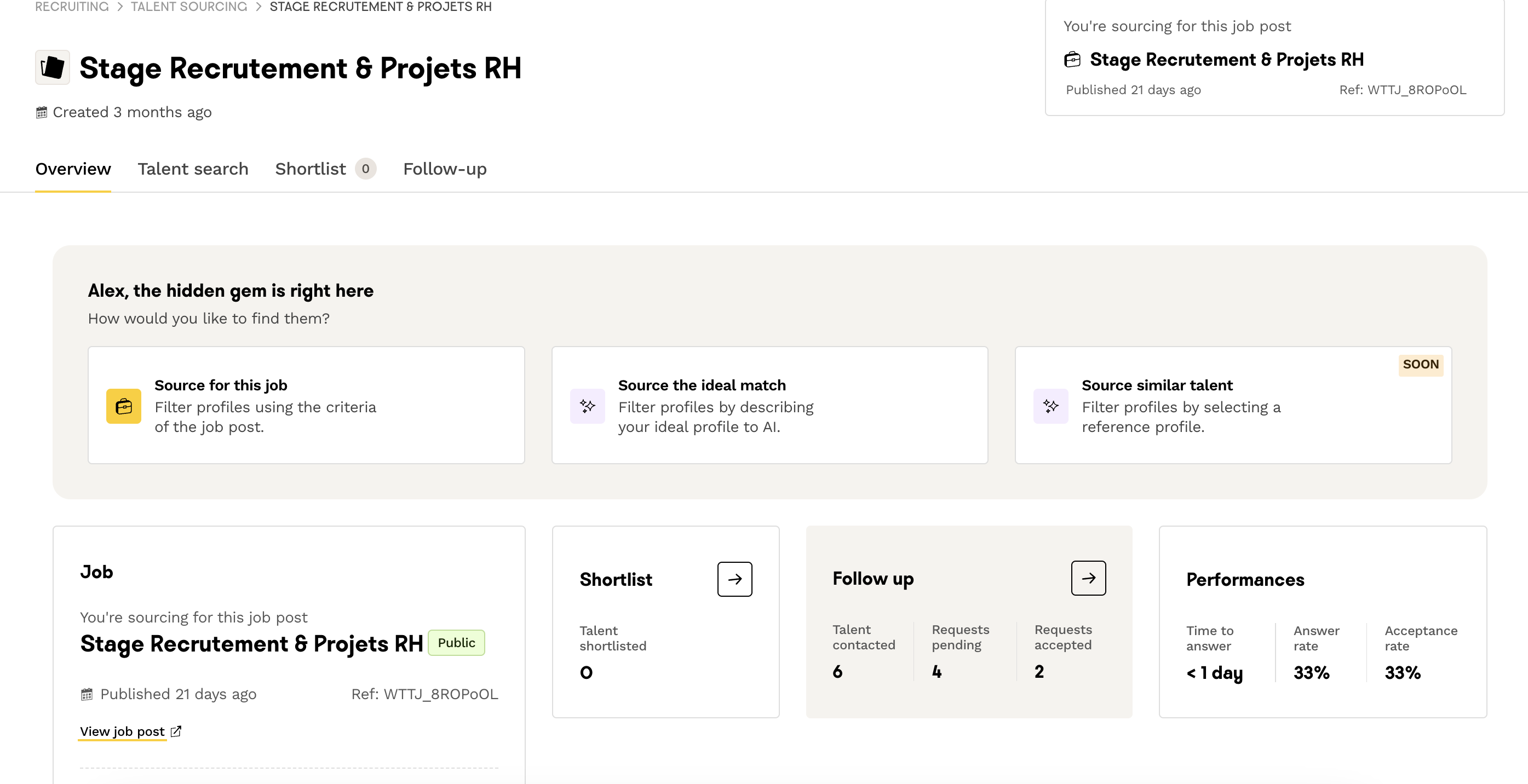
Performance is evaluated based on the responses obtained from your contacts with talents.
💡 Currently, the displayed performance includes all your interactions since the project's creation, without the option to select a specific period.
You can also find the key figures of your various projects from the Talent Sourcing tool's homepage:
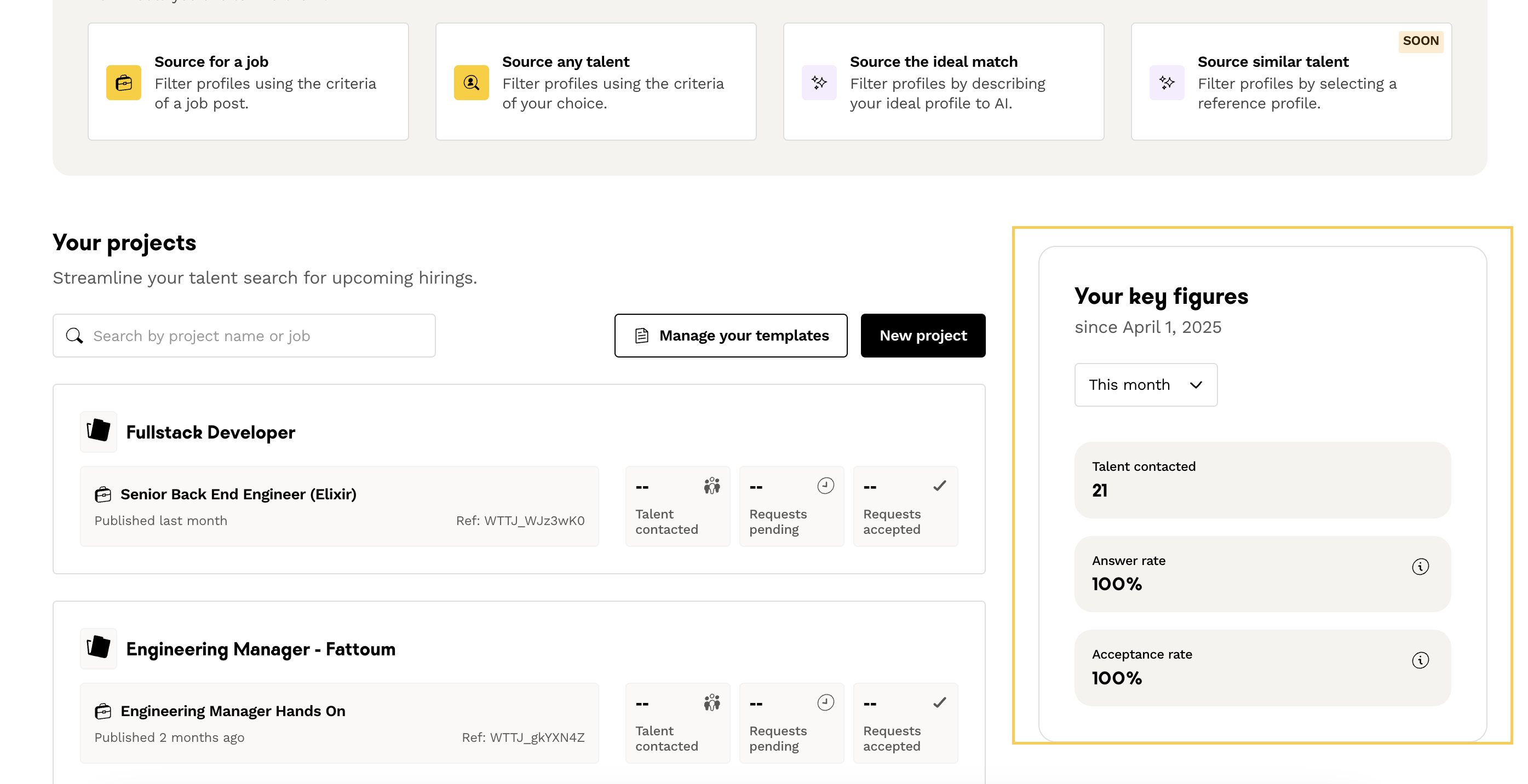
Now that you understand how projects work within Talent Sourcing, it's time to start your search for the ideal candidate 🔭..
🆘 If you have any further questions, you can contact us using the support widget at the bottom right, or the contact form at this link