
Table of contents
- Overview 👀
- Additional Content 💎
- 1) Perks & benefits
- 2) Skills & expertise
- 3) Activities summary
- 4) Job summary
- 5) Key missions
- 6) Meet your team
- Hide additional content on a particular job 🫣
💡 The "Job Management" section has been designed to provide you with an overview of the job posts currently published on your platform, allowing you to manage them effectively from a single space. Whether you're using the Welcome to the Jungle ATS or an external ATS, this information will be available in both cases!
This article explains how this part is structured.🦴
Overview 👀
In this tab, you will find a table that centralizes all the information related to your online jobs and your visibility data on:
- The job title
- Additional contents: which additional content is active for this job
- The number of times the page has been viewed
- The number of clicks on "Apply"
- If the job is boosted and since when
- The date of the last post
- The type of contract for the job
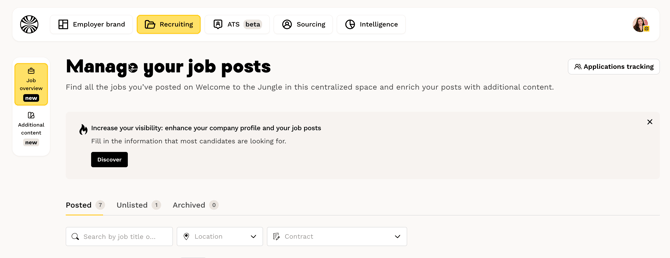
You can look at the same table for your archived jobs in the "archived" section.
You can also perform quick actions on them:
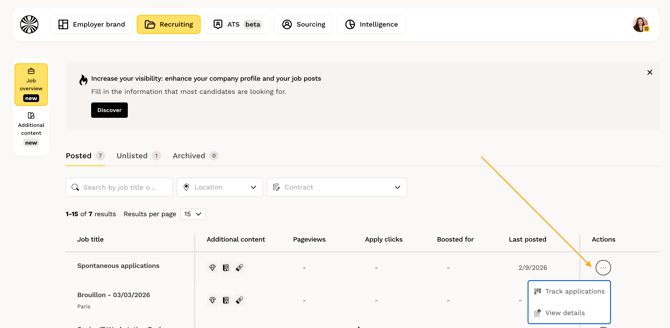
- "View job online": View the job on your profile.
- "Track Applications": This shortcut allows you to access the job's pipeline. (accessible only for companies using the Welcome to the Jungle Solutions ATS)
- "View Details": Gives you access to all the key information of the job.
- "Edit": Allows you to modify the job post directly from this space (accessible only for companies using the Welcome to the Jungle Solutions ATS).
Additional Content 💎
You can add additional content to your job posts to better inform the candidates !
💡 To be able to edit additional content, you must have the role of "Manager" for the “Employer Brand” product. This article explains how to check your various access rights on the WttJ Solutions platform.
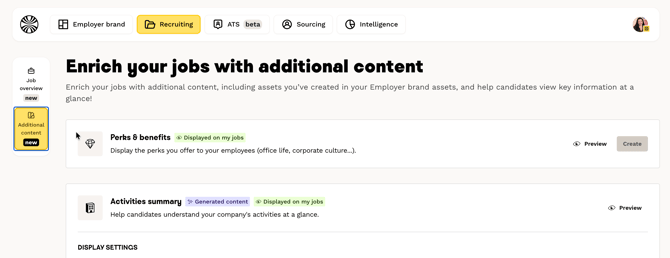
From this page, you can choose to activate or deactivate by default all additional content on all your jobs, including:
1) Perks & benefits
Perks & benefits allow companies to communicate differently about their employer brand and give more information about the working conditions in all areas: teleworking, parenting, social security, CSR, etc.
For more information about this asset, read this article.
2) Skills & expertise
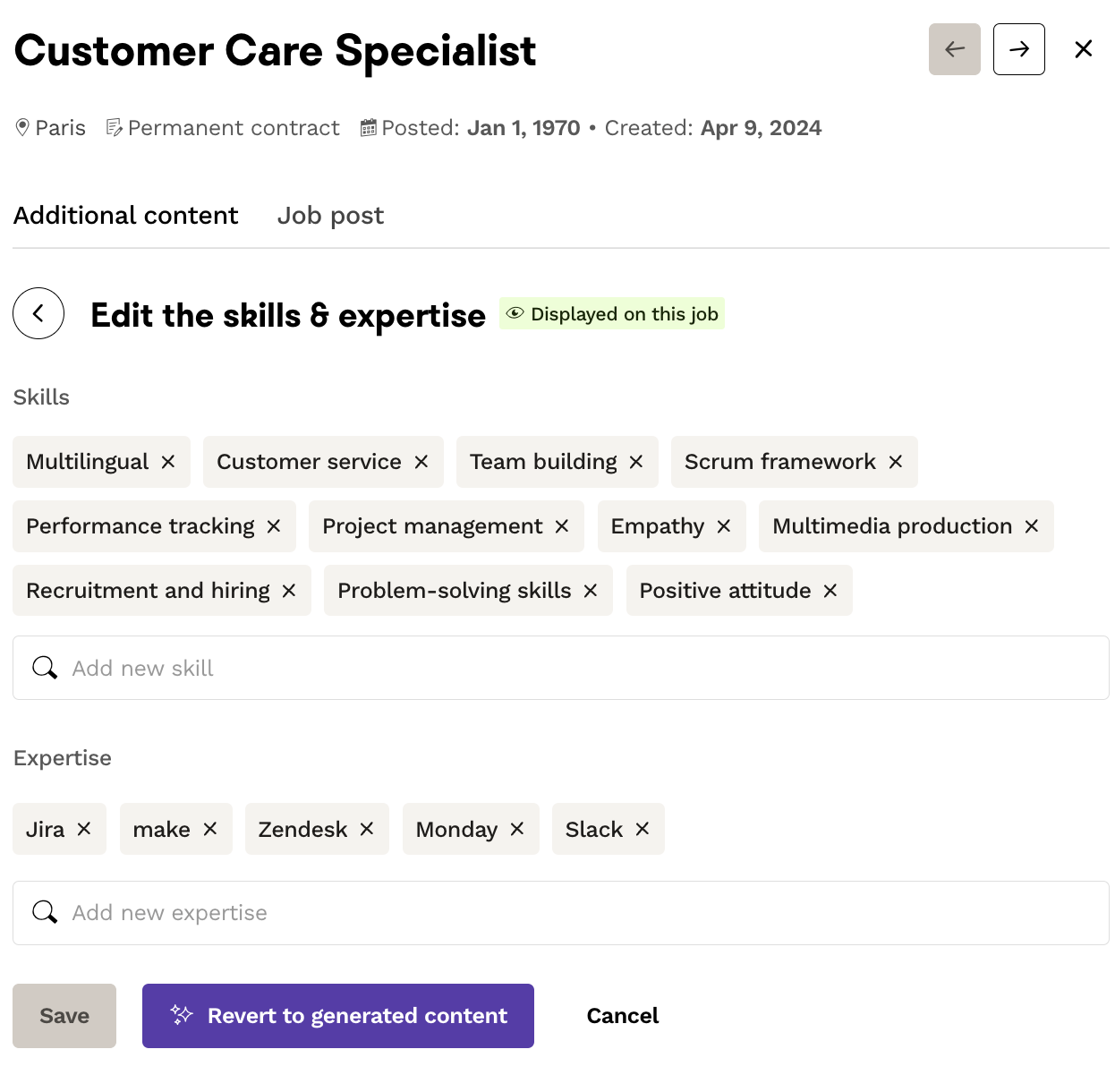
This feature allows you to automatically display an overview of the skills required for the job. It is generated by default by an AI, but it is possible to edit this information from the job post in question, by clicking on the additional content "skills & expertise" then "edit":
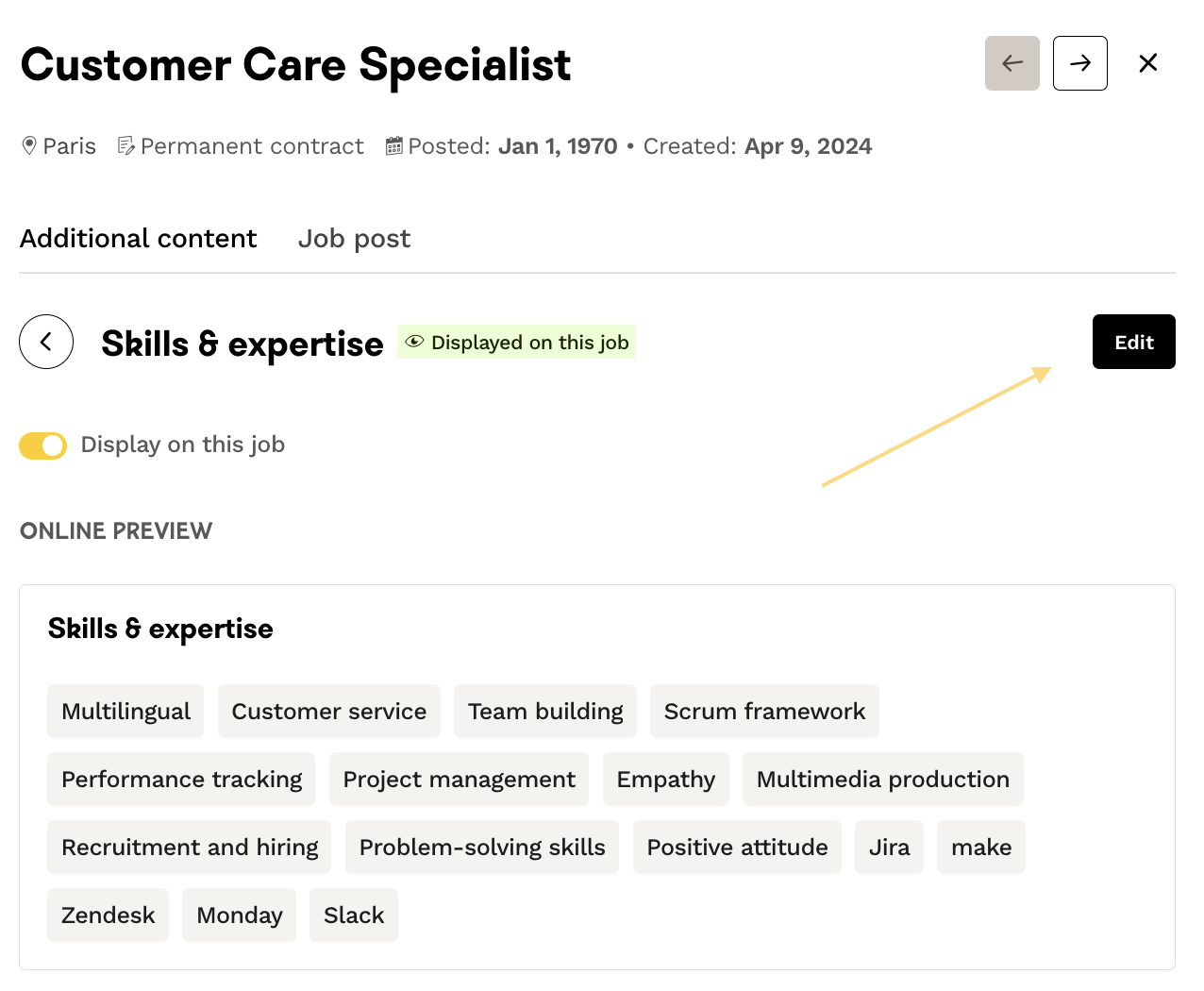
You can delete and add skills or expertises manually:
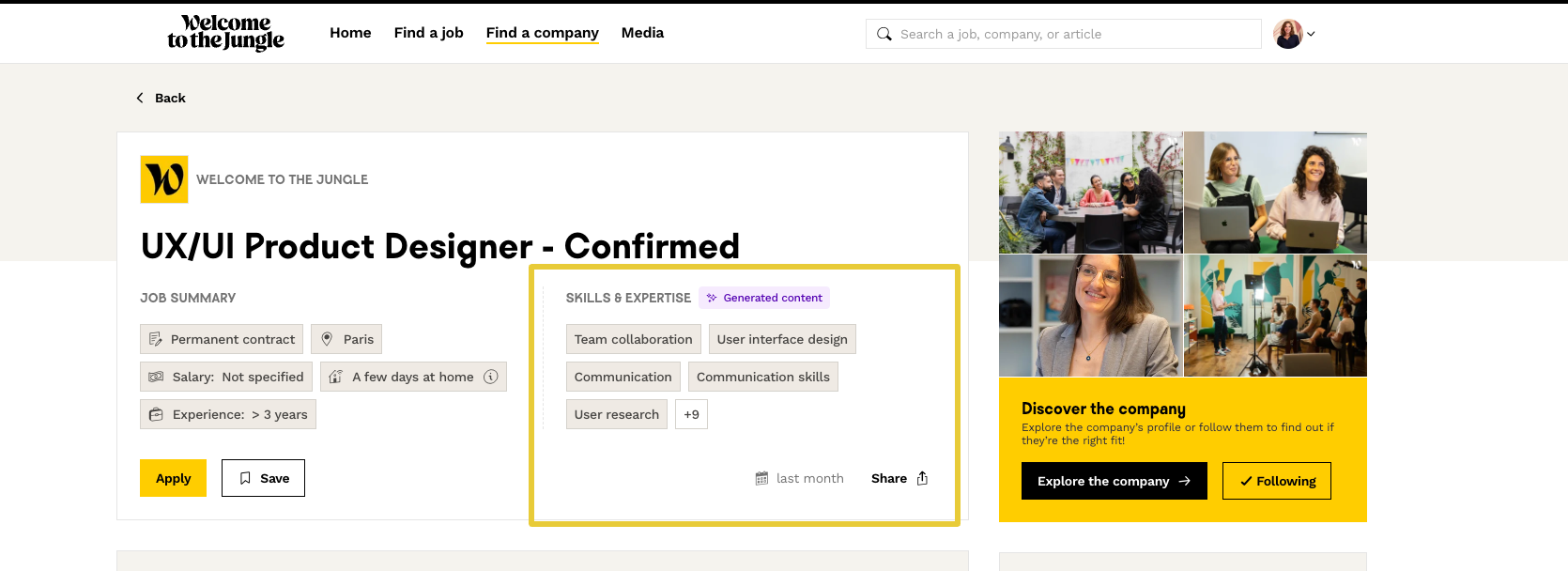
On the candidate side, the skills & expertise appear on the job like this:
3) Activities summary
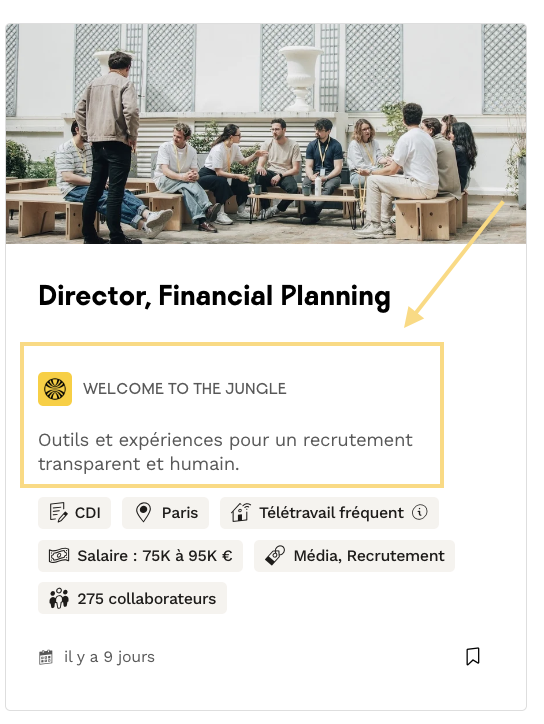
Help candidates understand your company's activities with this summary generated by our AI and editable from the Additional content section.
4) Job summary
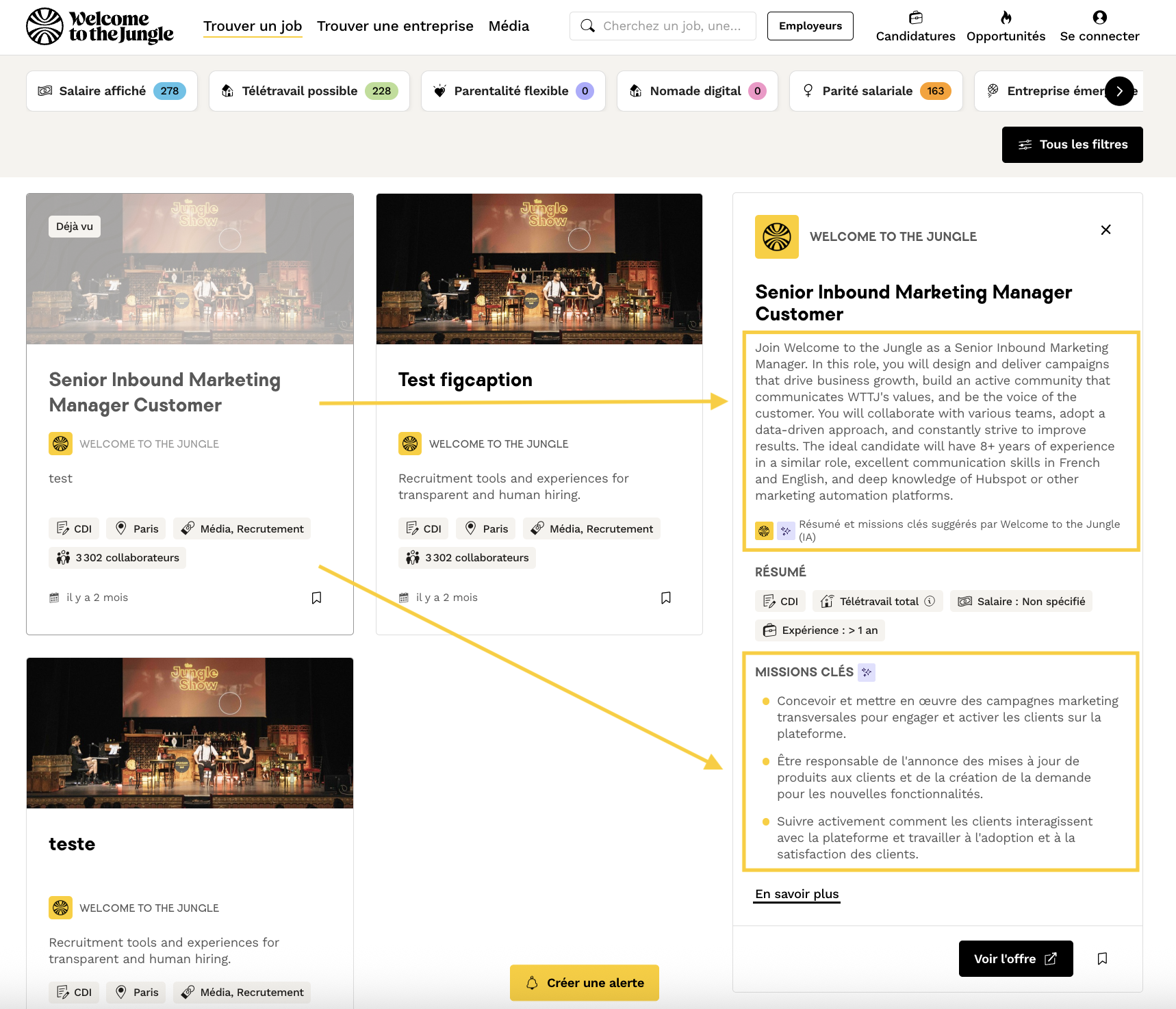
You have the option of adding a summary of the job that will be visible to candidates as a preview in the search results. This allows them to view the key information of a job quickly and save time. The summary is generated by default by our IA tool in English or French, depending on the language of the job. However, you can edit the information and write a new summary.
5) Key missions
Complete your job post with a summary of the job's key missions! They will be visible in the job preview.
6) Meet your team
Here you have the option to associate a team to the corresponding job to help candidates project themselves. To create a team, read this article.
Hide additional content on a particular job 🫣
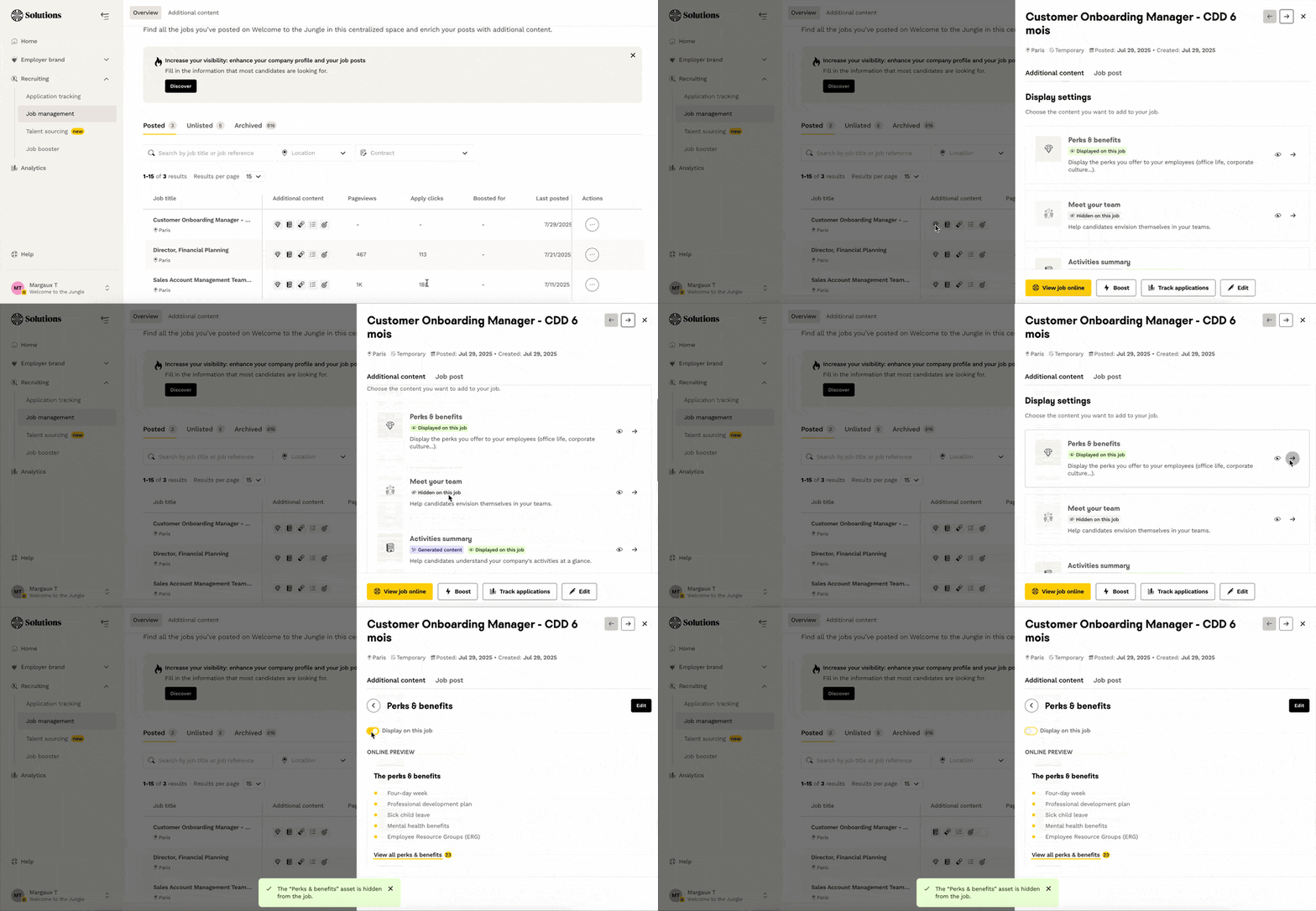
Don't panic, if you want to display these contents by default, but some jobs are not relevant, you can manage the display from the table in the "overview" section.
Here's how to do it:
• Go to the job post in question.
• Click in the "Additional Content" column.
• Manage the display settings for the relevant content(s).
🆘 If you have any other questions, you can contact us using the support widget at the bottom right, or on the contact form at this link