
Table of contents
- User permissions and roles
- Where to find your job posts?
- Create a job post with Welcome AI
- Create a job post manually
- Job post statuses
- Accessing a specific job post
- Sharing a job post
- FAQ
Whether you choose to use Welcome AI or create your job posts manually, you have all the tools you need to publish your listings and distribute them across multiple platforms. This article walks you through every step to create, customize, and share your job posts.
User permissions and roles
In the new ATS, two roles are available for your team members:
- Recruiter: can access all ATS features
- Contributor: can only access the job offers they have been invited to
These roles can be adjusted from the organization settings, under the Members tab.
Only users with the Administrator or Collaborator Management role at the organization level can make these changes.
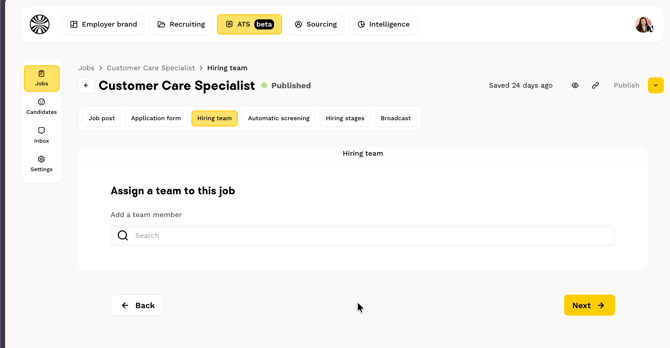
💡 To invite a contributor to a job post, go to the pipeline settings of the relevant job, under the Hiring Team tab, add the desired member, then save the change.
Where to find your job posts?
All your job posts are centralized on the Job posts page, accessible from the main navigation in the ATS.
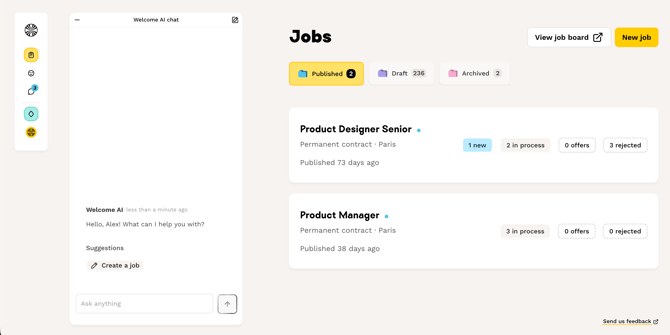
From this page, you can:
- View all your job posts (draft, published, archived).
- Create new job posts.
- Access your public career page by clicking "View on site".
Create a job post with Welcome AI
Welcome AI is your intelligent assistant that helps you create your job posts. This optional but recommended feature saves you valuable time.
How does it work?
- Click on Welcome AI in the navigation bar.
- Describe the job post you want to create with as much detail as possible.
- The job post is automatically built in the form on the right.
- Welcome AI asks follow-up questions to refine the job post, suggest questions for the application form, and recommend screening criteria.
- You can edit all fields manually at any time.
- Once you're satisfied, ask Welcome AI to publish your job post!
💡 Note: The job post starts with a "draft" status. Once published, it will automatically be available on your career page AND distributed on the Welcome to the Jungle marketplace.
To learn more about how Welcome AI works, check out this dedicated article.
Create a job post manually
If you prefer to create your job post yourself, the process is divided into 5 clear steps.
Step 1: The job description
Fill in the following information, which will be displayed publicly:
Job details:
- Job title* (required).
- Contract type* (permanent, fixed-term, apprentice, volunteer, internship, freelance).
- Team.
- Location*.
- Work mode* (100% remote, 100% on-site, hybrid).
- Annual gross salary.
- Currency (EUR, USD, GBP).
- Salary range (K).
Role details:
- Role summary.
- Key missions and responsibilities.
- Ideal profile.
- Benefits.
- Hiring process.
Step 2: The application form
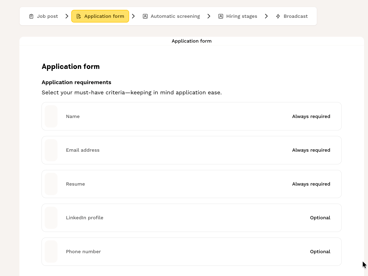
The application form requires the candidate's name, email address, and resume.
The LinkedIn profile and phone number fields are optional.
⚠️ Warning: These fields cannot be modified or removed from the application form at this time.
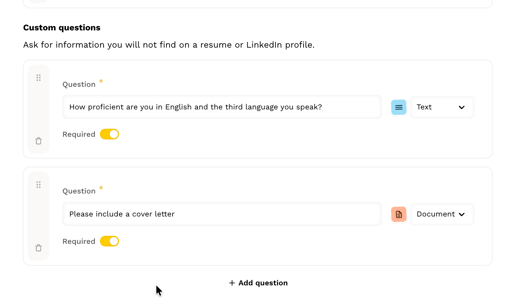
Custom questions:
- Click Add a question.
- Enter your question.
- Choose the answer type: Yes or No, Free text or Document.
- Decide whether to make it mandatory or not
If you need to request an additional document, such as a cover letter or a portfolio, you can use the custom questions by selecting the “Document” option.
💡 Tip: You can activate Welcome AI at any time to get suggestions for custom questions tailored to your job post.
Step 3: Automatic screening
You can add up to 5 screening criteria to help with your pre-selection. Welcome AI will automatically analyze candidates' resumes and assign a score out of 5.
The final score depends on the number of criteria added: if you only add 3 criteria, the score will be out of 3.
You can publish a job post without defining any scoring criteria. Once applications are received, you can add criteria to a published job post at any time to activate scoring. After adding criteria, Welcome AI will automatically re-analyze all resumes already received and assign a score to each application based on the new criteria. Future applications will also be evaluated using the same criteria.
💡 To learn more about how automatic screening works and how Welcome AI can help you create criteria, check out our dedicated article.
Step 4: Hiring stages
When creating a job post in the ATS, the "Hiring stages" step lets you organize your process and automate your communications with candidates.
Each job post has two pipelines:
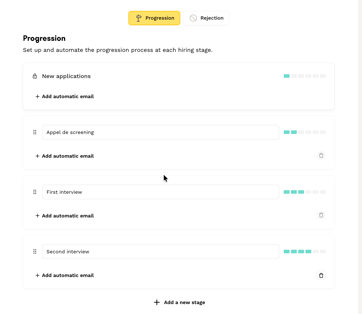
- A progression pipeline, to track applications throughout your active recruitment process.
- A rejection pipeline, to indicate precisely at which stage an application was declined.
You can preview both pipelines directly from the job post creation form using the dedicated buttons.
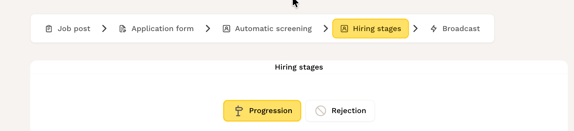
Configuring your hiring pipeline
By default, the progression pipeline includes the following stages:
- New applications.
- Screening call.
- First interview.
- Second interview.
- Job offer.
- Hired.
The rejection pipeline includes the same stages, except "Hired."
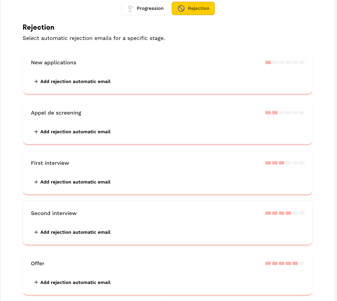
⚠️ Note: You can freely modify, rename, add, or delete stages to adapt your pipelines to your hiring process (except for the "New applications," "Job offer," and "Hired" columns).
Adding automated emails
For each stage in your pipelines (progression and rejection), you can associate automated email templates. These will be sent to candidates when they move from one stage to the next or when they are declined.
How to proceed:
- Click "+ Add an automated email" below the relevant stage.
- Select the desired email template from your list of templates.
- Save your selection.
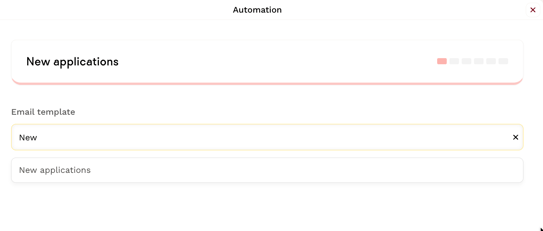
💡 Good to know: Make sure you have already created your email templates in the ATS settings. To learn more about creating and customizing templates, check out our dedicated article.
Step 5: Visibility and distribution
This final step lets you configure how your job post will be visible and where it will be distributed:
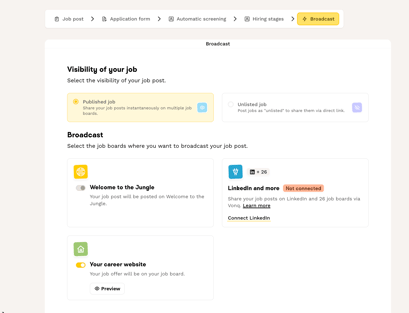
There are two visibility options:
- Published job post: the job post will be accessible from our search results, as well as on all the recruitment platforms selected in the "Distribution" section.
- Unlisted job post: the job post will not appear in search results on our site or on search engines. It will only be accessible via a direct link.
In the Distribution section, here are the options currently available:
- On your company's Welcome to the Jungle company profile.
- On your career page.
- On LinkedIn (and our partner job boards).
Once you're satisfied, preview your job post by clicking the 👁️ icon, then publish it!
💡 To configure multi-posting to LinkedIn, follow the instructions in this article!
Job post statuses
Your job posts can have 4 different statuses:
- Draft: visible only to your team, not published.
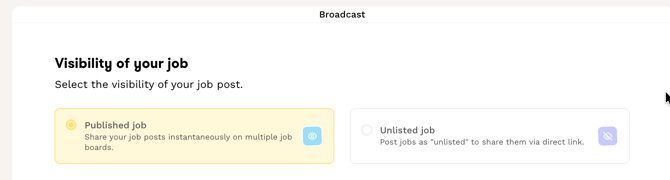
- Published: a "published" job post can be either listed or unlisted. You choose this option in the Distribution tab of the job post creation form.
- If you select "Listed," the job post will be publicly visible on your career page and on the marketplace.
- If you select "Unlisted," the job post remains active but will not be publicly visible (accessible only via its direct link).
- Archived: visible only to your team, removed from publication.
Accessing a specific job post
There are 2 ways to access a job post:
Method 1: Go to Job posts, click on the job post to access the hiring pipeline, then click the … icon and select View job post.
Method 2: Click on Job posts, then View on site to access your career page, and click on the relevant job post.
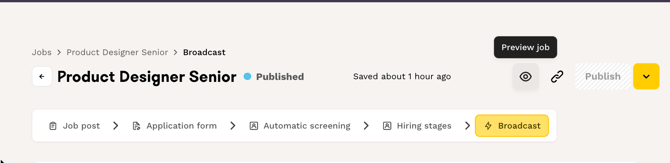
💡 Tip: When working on a draft job post, you can preview it at any time by clicking the "eye" icon.
Sharing a job post
Each job post has its own public URL that you can share on social media, by email, or during recruitment campaigns.
To copy a job post link:
- When editing a job post, click the 🔗 icon.
- Or go to Job posts, click on the job post, then click the … icon and select Copy link to job post.
FAQ
- Is using Welcome AI mandatory? No, using Welcome AI is optional but strongly recommended to save time. You can perform all recruitment actions manually (creating job posts, managing applications, etc.).
- Can I edit a job post after publication? Yes, you can edit a published job post at any time. If you have activated multi-posting, changes will be synchronized on LinkedIn and other job boards within 48 to 72 hours.
- Where can I find draft job posts? All your job posts, regardless of their status, are accessible from the Job posts page in the ATS. You can filter by status to view only drafts.
- Can I create a confidential job post? Yes, create an "unlisted job post" that will not appear on your career page, but whose direct link you can share.
🆘 If you have any other questions, you can contact us via the support widget at the bottom right, or through the contact form at this link.