
Table of contents
- Access the Profile editor
- Replace your photos and videos
- Add/Remove Photo and Video Blocks on the Profile Tab
- Edit the mini map address
- Edit the texts of the different tabs
- Manage the Team tab (Starter/Standard/Pro/Pro+/Premium)
- Add tabs (Pro/Pro+/Premium)
- Hide sections (Subscription plans:Pro/Pro+/Premium/Master/Expert)
- Translation (Subscription plans: Pro+/Premium/Master/Expert)
- FAQ
Welcome to the Jungle's Profile editor allows you to customize your company profile on your own. Whether you want to replace photos, edit texts, or reorganize your content, this feature puts you in control!
Access the Profile editor
The Profile Editor feature is located in the “Employer Brand” section of the Welcome to the Jungle Solutions platform.
To access it, click here!
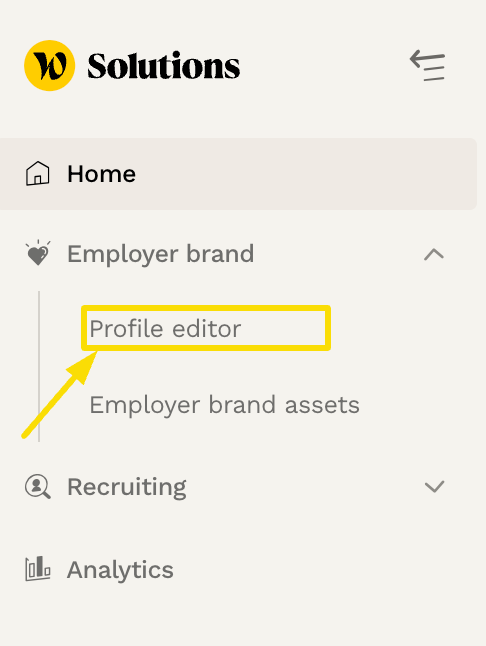
⚠️ If you are unable to access the Profile Editor, there are two possible reasons:
- You do not yet have the necessary permission: in this case, please refer to this article in our Help Center, which will guide you on how to gain access to the Editor.
- Your company is on a Light plan: In this context, the profile does not include any photos or videos, and access to the Profile Editor is not available.
Replace your photos and videos
1. The cover photo
To change your cover photo:
- Click on the photo block to display the banner on the right side of the screen
- Select a new photo among those from your shoot
- Click on the little arrow at the top to confirm your selection
- Tip: you can drag and drop the photo to place it where you like

2. Other photos and videos on your profile
To edit other visual elements:
- Click on the photo or video you wish to replace
- The banner on the right side appears with your content gallery
- Select the new element of your choice
- Confirm your choice by clicking on the small arrow
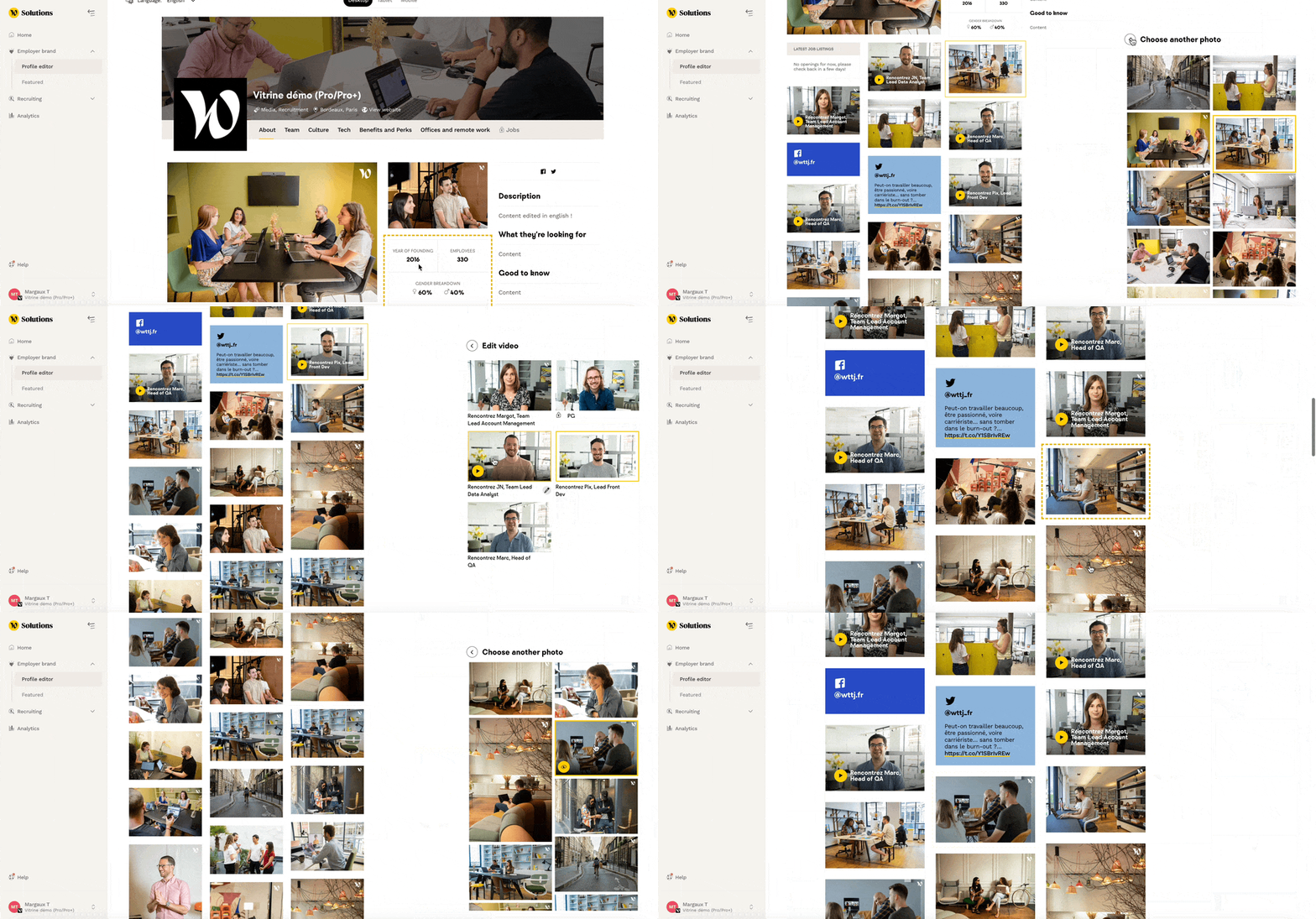
Important: Only the content of your Welcome to the Jungle shoot will be available.
For Master/Expert plans, you can ask to add external content via the support team.
Add/Remove Photo and Video Blocks on the Profile Tab
All subscription plans can now independently add photo and video blocks to the “Profile” tab.
You can also remove any you no longer need.
Please note: With the exception of Master/Expert subscriptions, which allow you to add as much content as you like to your pages, other subscriptions have a limit on the number of videos and photos you can add to your profile:
-
Maximum of 10 videos
-
Maximum of 30 photos
⚠️ If you want to permanently delete photos or videos from your gallery, contact our Care team, who will take care of it for you.
Edit the mini map address
To edit the address displayed on the map thumbnail:
- Click on the map block
- Select the office of your choice from the drop-down list
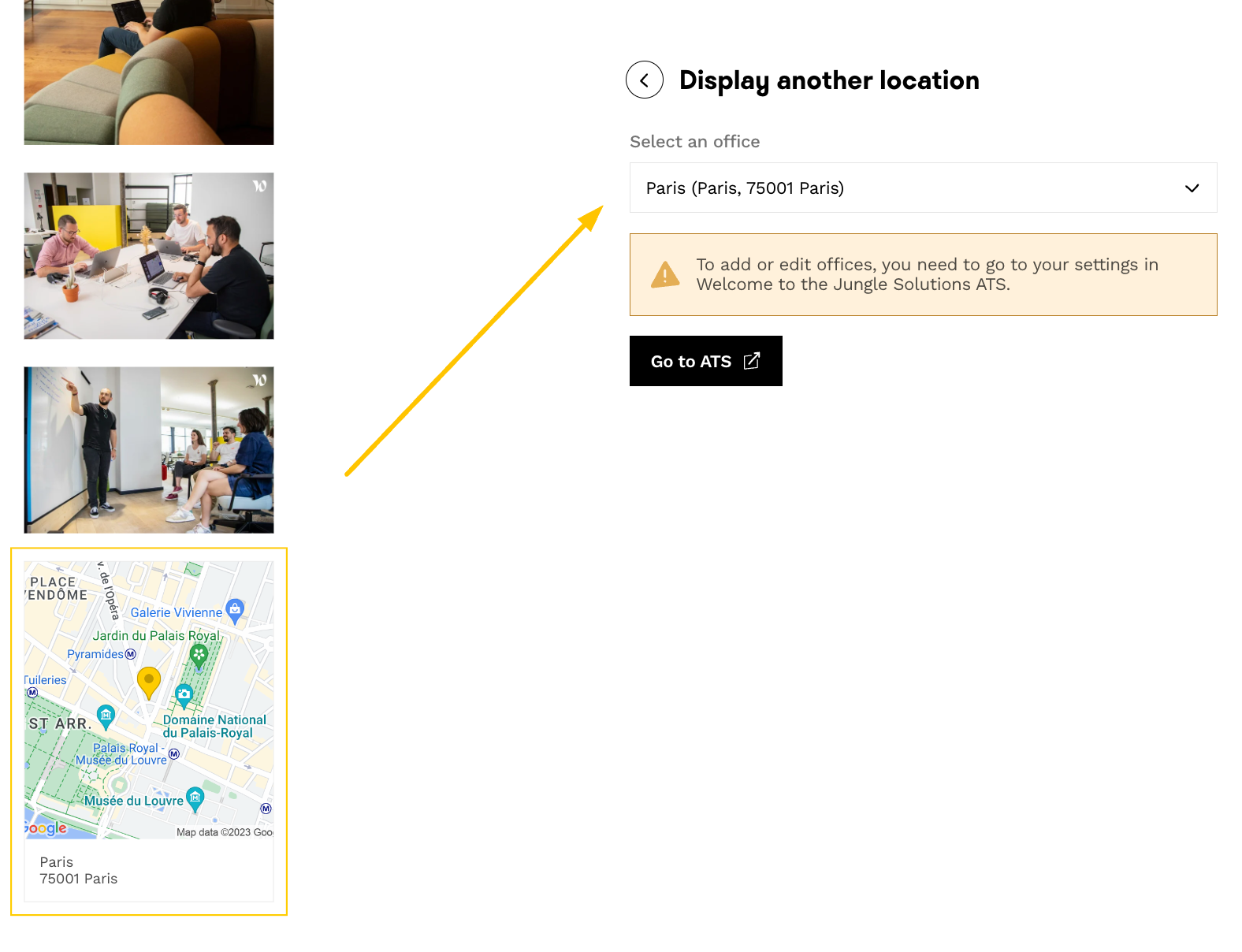
If your office doesn't appear in the list, click on the "Go to ATS" button to add your new location. If needed, this article tells you how to add a new office on Welcome to the Jungle Solutions: ATS.
Edit the texts of the different tabs
You can directly edit the texts in your Profile:
Company presentation
Edit the presentation texts to the right of your profile tab by clicking on them.

Key figures
Update your key figures by clicking on the corresponding blocks.

Other texts
Editable sections are framed by yellow dotted lines.
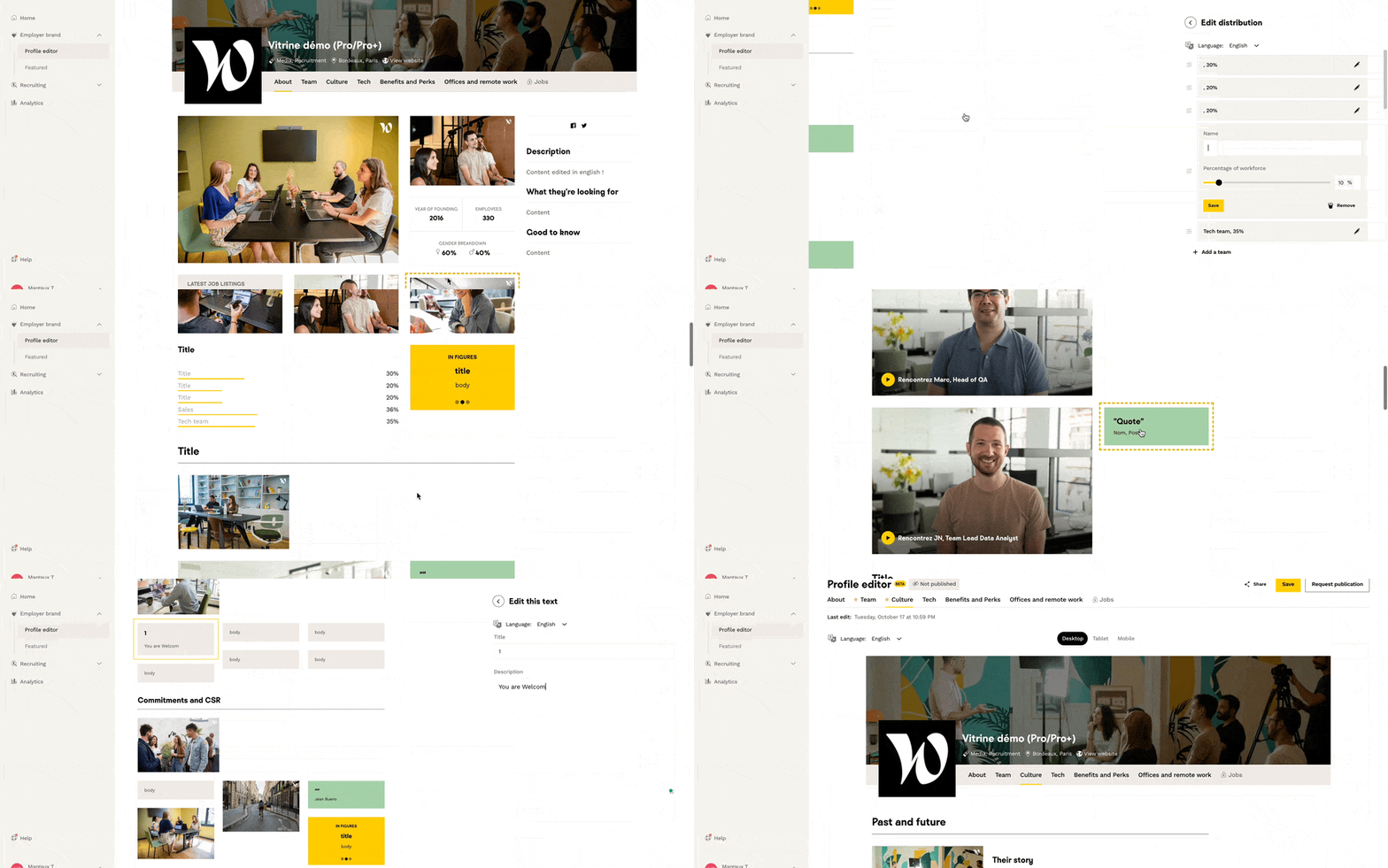
Pro/Pro+/Master/Expert profiles: certain headings can't be changed to maintain consistency (Overview, Values, Commitment and CSR...).
Manage the Team tab (Starter/Standard/Pro/Pro+/Premium)
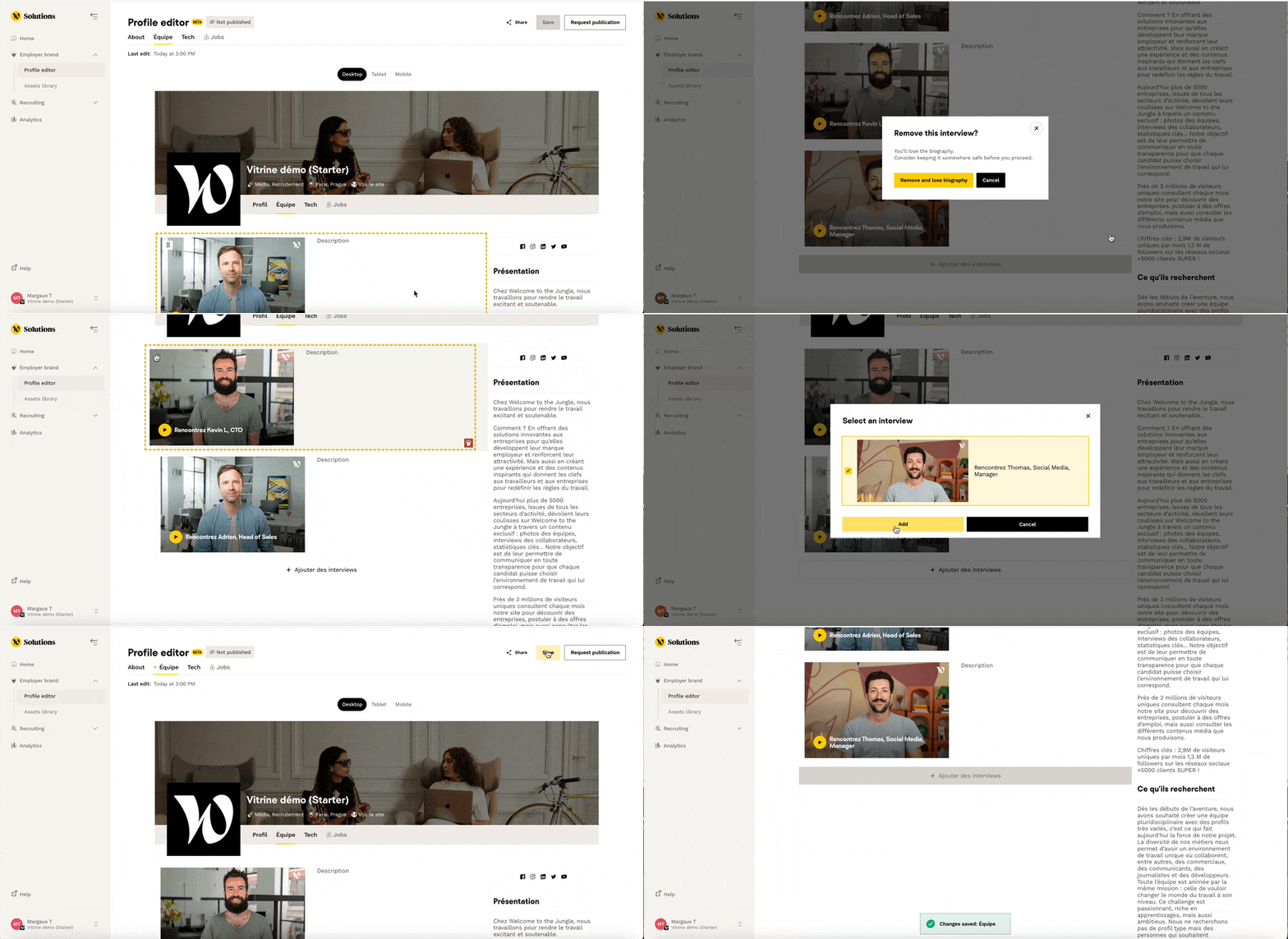
In the team tab, you can:
- Rearrange the order of interviews by moving them around
- Delete existing videos
- Add new videos from your gallery
Add tabs (Pro/Pro+/Premium)
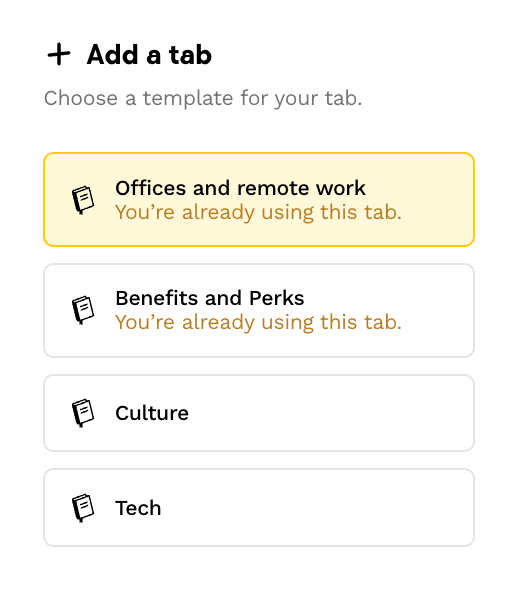
With a Pro/Pro+ or Premium subscription, you can add up to 2 additional pro tabs:
- Click on "Add a tab":

- Choose from the tabs available according to your subscription plan
- Manage your tabs via "Manage my tabs"
 Here you can add a new tab or delete an active one :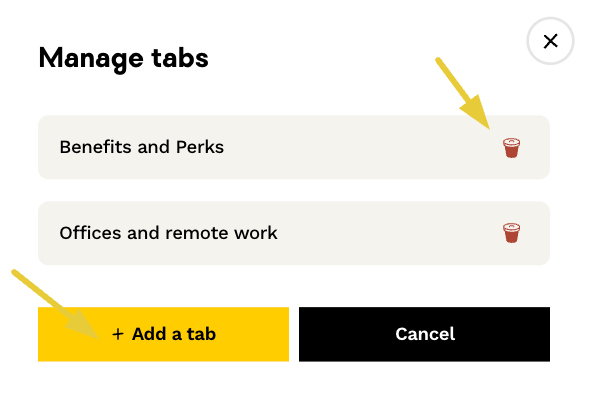
You can leave a tab "unpublished" while you complete it
Warning: If you delete a tab, you will permanently lose all of its content.
For Master/Expert customers, please contact the Customer Care team to request adding tabs.
Hide sections (Subscription plans:Pro/Pro+/Premium/Master/Expert)
You can temporarily hide sections of your profile:
- Click on the hide icon of the section you wish to hide
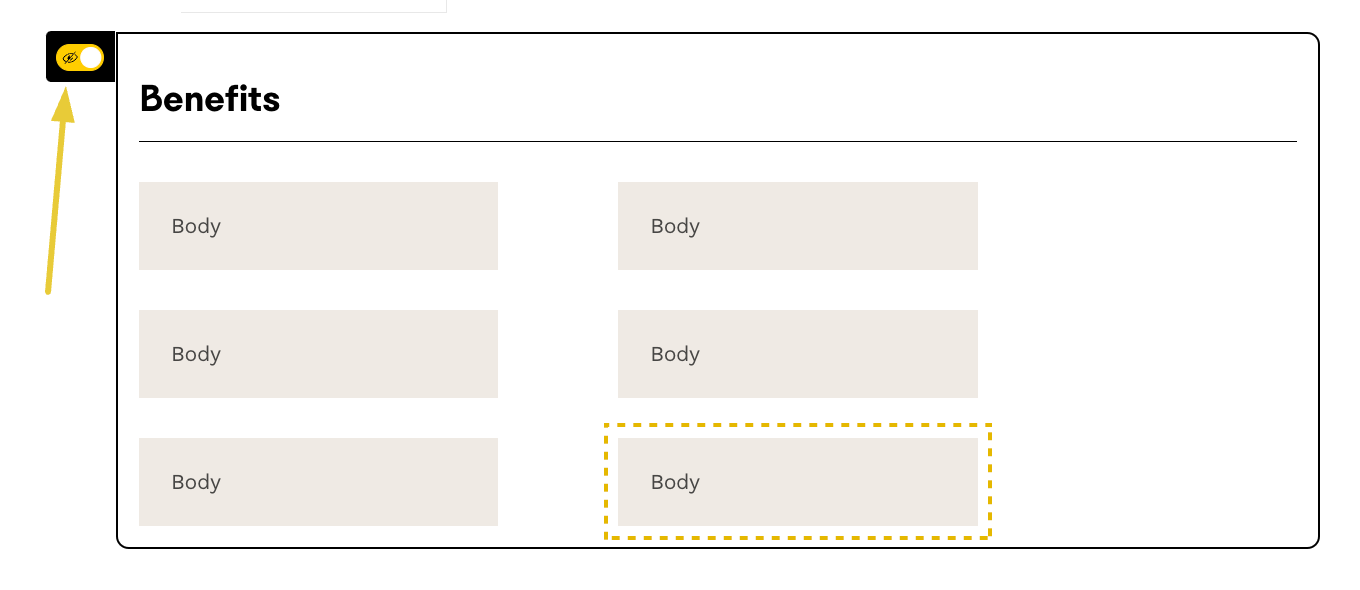
- The section will appear in gray in the editor and will not be visible on your profile
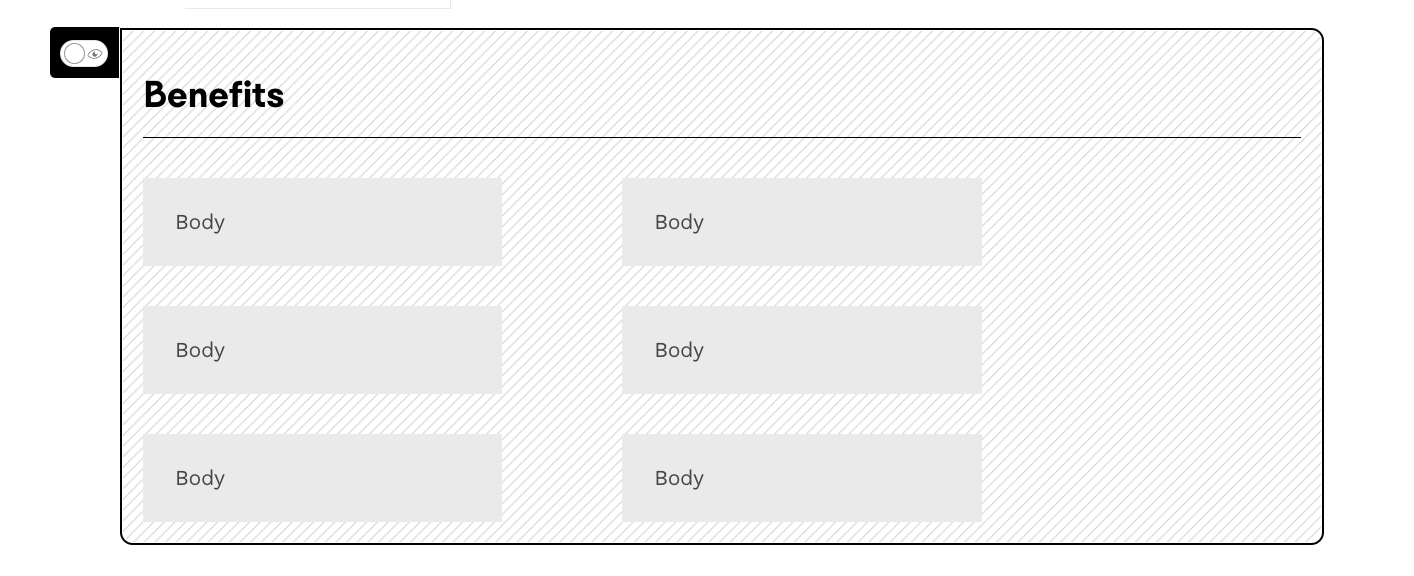
- To reactivate it, click again on the cursor
Translation (Subscription plans: Pro+/Premium/Master/Expert)
For Pro+ and higher subscription plans, you have the possibility to:
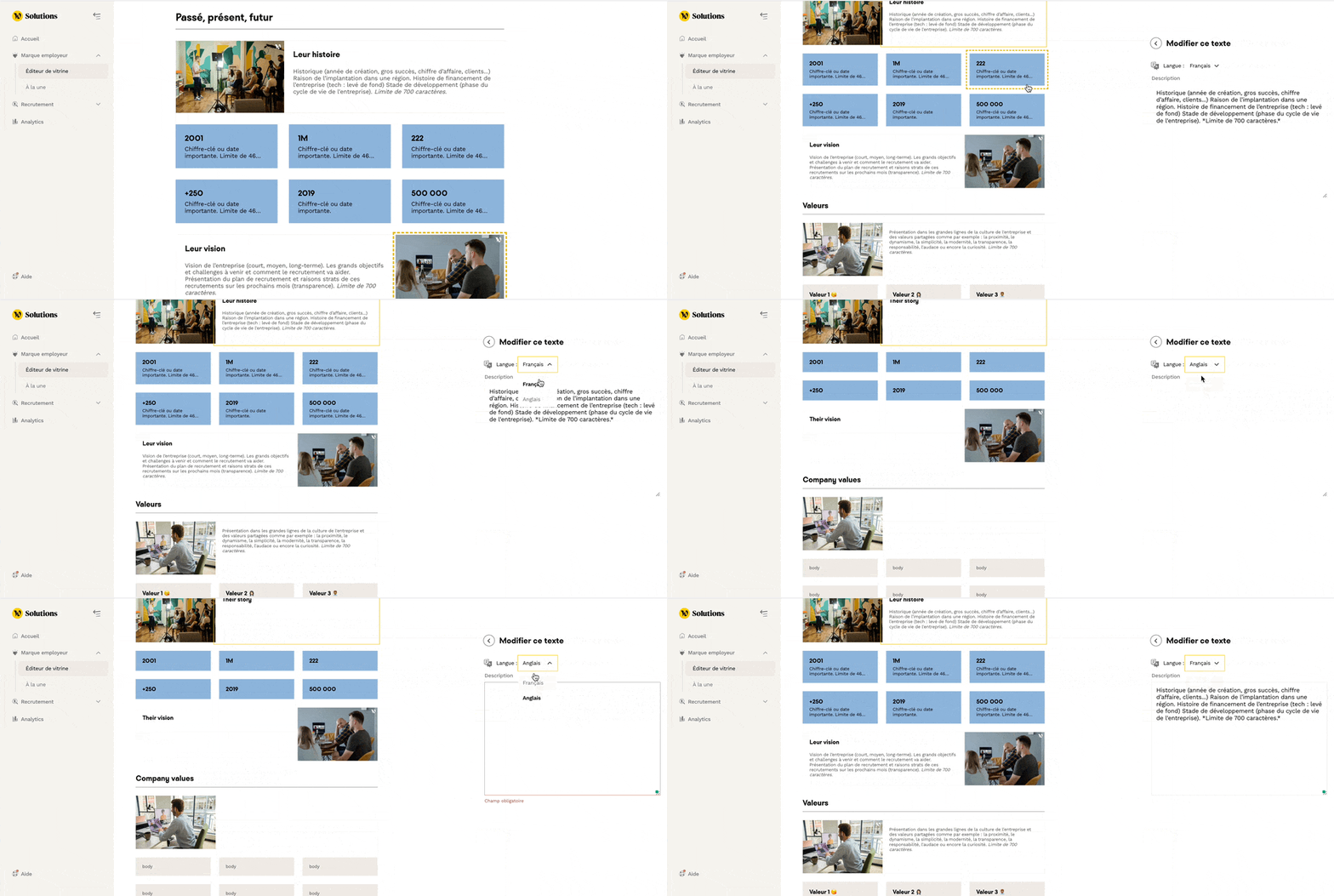
- Switch between English and French versions directly from the text blocks
- Edit and translate your content in both languages
- Easily manage your multilingual profile
FAQ
Q : Can I use my own photos?
A: Only Master/Expert plans can request the addition of external content. To change your subscription plan, please contact support.
Q: What can I do if I don't have access to the Profile editor?
A: Check that you have the necessary access rights and that your subscription plan is not the Light plan. Go to our Help Center for access details.
Q : Can I cancel my edits?
A: Edits are saved automatically. Be careful, if you delete tabs, you cannot retrieve them later.
Q : How do I access the multilingual versions?
A: This feature is available for the Pro+ and higher plans. You can switch between languages directly from the text blocks.
🆘 If you have any questions about the Profile Editor, you can contact us using the support widget at the bottom right or through the contact form.