
Table of contents
- Starting a conversation with a candidate
- Receiving and managing candidate replies
- Organizing and sorting your conversations
- Archiving a conversation
- FAQ
All your exchanges with candidates are now gathered in a single space within the ATS, so you can save time and never miss a message again!
Starting a conversation with a candidate
To get in touch with a candidate, you can start a conversation directly from several places:
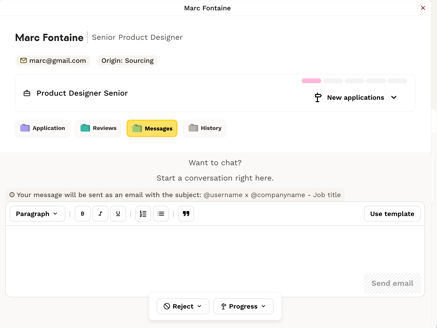
- From the application: Open the candidate's application and go to the Messages tab.
- From the Candidates page: If you've added the candidate manually, open their profile from the Candidates page, then click on the Messages tab.
Once you're in the Messages tab, write your message and click "Send". The candidate will receive your message by email.
⚠️ Please note: The email subject line is not customizable at this time and will default to: "@candidatename x @yourcompanyname - [Job title]"
Receiving and managing candidate replies
Being notified of a new message
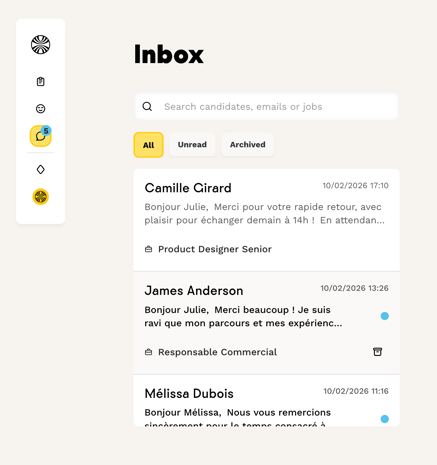
Once a conversation has been started, you can find all your exchanges directly in the inbox, accessible from the main navigation bar of the ATS.
When you receive a new message from a candidate, you're notified in several ways:
- A blue badge appears on the "Inbox" item in the navigation bar, showing the number of unread messages.
- A badge also appears on the Messages tab of the candidate's profile.
- In the message list, unread messages are indicated by a blue dot.
Replying to a candidate
You have several options for replying to a candidate:
- From the inbox: Click on the conversation, write your reply and click "Send".
- From the application: Go to the Messages tab of the application.
- From the candidate profile: If no application has been linked to the profile, you can open the profile from the Candidates page, under the Messages tab.
A separate email conversation is automatically associated with each application.
In practice, if you open a first application and send a message from that record, the exchange will be linked to that application only. If you then open another application and send a new message from it, a second independent thread will be created, linked to that other application.
⚠️ Important: Email conversations are not shared across applications. Exchanges linked to two different applications will not be grouped into the same thread.
Organizing and sorting your conversations
By default, you land on the "All" tab, which groups all active conversations. Conversations are sorted from most recent to oldest.
You can easily filter your conversations to display only:
- All active conversations.
- Unread conversations only.
- Archived conversations.
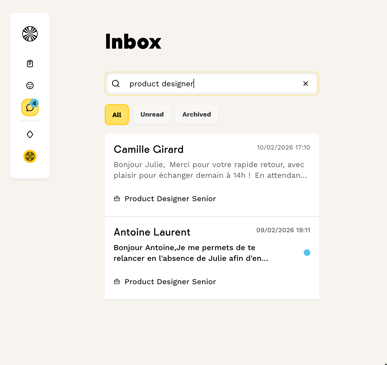
You can also search for a conversation using the search bar in the inbox by entering one of the following:
- The candidate's name.
- Their email address.
- The job title.
Archiving a conversation
Archived conversations are completed conversations. You can archive a conversation in two ways:
- Automatically: A conversation can be automatically archived after approximately 1 month if the candidate has been moved to the "Rejected" or "Hired" stage of the recruitment pipeline.
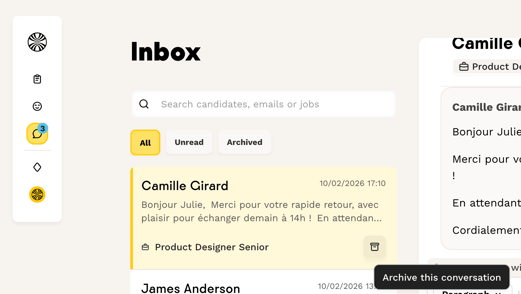
- Manually: When hovering over a conversation, an archive icon appears. Click on it to archive the conversation.
💡 Reactivating an archived conversation: If you'd like to resume an archived conversation, simply send a new message and it will reappear in your active conversations.
❓ FAQ
- How do I contact a candidate for the first time? You need to start the conversation from the Messages tab of the candidate's profile or their application. Write your message and click "Send". The candidate will receive an email.
- How do I know if I've received a new message from a candidate? A blue badge showing the number of unread messages appears on the "Inbox" item in the navigation bar. A blue dot also indicates unread messages in the conversation list.
- Where can I see all my exchanges with candidates? All your exchanges are centralized in the inbox, accessible from the main navigation bar of the ATS.
- What happens to conversations with rejected or hired candidates? They are automatically archived after approximately 1 month. You can still view them in the "Archived" tab and reactivate them by sending a new message.
🆘 If you have any other questions, you can reach us via the support widget at the bottom right, or through the contact form at this link.