
Table of contents
Automatic screening saves you valuable time when processing applications by letting you define evaluation criteria that our artificial intelligence will automatically analyze on each resume received.
What is automatic screening?
Automatic screening is a feature that analyzes candidates' resumes based on criteria you define when creating your job post.
Welcome AI then assigns a score to each application to help you quickly identify the most relevant profiles.
⚠️ Important: The score assigned by the AI is a decision-support tool, not an automatic rejection decision. No candidate is automatically rejected.
How to set up automatic screening?
You can add screening criteria in two ways:
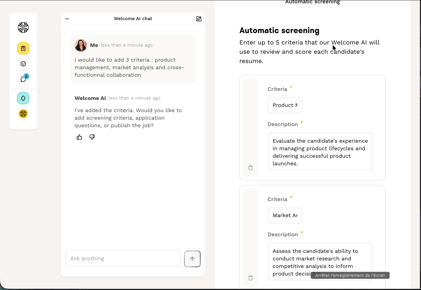
With Welcome AI (recommended)
- Click on Welcome AI (diamond icon) in the navigation bar.
- Describe the job post with as much detail as possible.
- Welcome AI will automatically suggest screening criteria tailored to the role.
- Validate or edit the suggested criteria.
Manually
- When creating a job post, go to the "Automatic screening" step.
- Click "Add a criterion".
- Enter the title of the criterion (e.g., "Experience in product management").
- Add the detailed description (e.g., "Check that the candidate has at least 5 years of experience in product management").
- Repeat for each criterion (maximum 5).
💡 Good to know: You can activate Welcome AI at any time to suggest screening criteria, even after the job post has been created.
How does the screening score work?
What does the screening analyze?
Automatic screening analyzes only the resume of candidates. Answers to custom questions in the application form are not taken into account in the score calculation.
If you do not add any criteria, Welcome AI will not be used to analyze resumes, and no score will be assigned.
Scoring system
You can define up to 5 criteria maximum. Each criterion is evaluated in a binary way: 0 or 1:
- 1 = the resume fully meets the criterion (100%).
- 0 = the criterion is not met, or Welcome AI is not able to assign a score.
The final score is displayed as N/5 (number of criteria validated out of 5).
If the AI is unable to assign a score, this is indicated directly on the application.
Where can you see the score?
The screening score is visible:
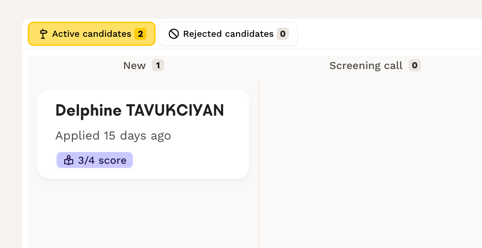
- In the recruitment pipeline, on each candidate card.
- On the candidate's detailed profile, with an explanatory tooltip on hover that details each evaluated criterion and explains why the score was assigned.
Best practices for defining your criteria
For reliable and fair results, your criteria should be specific, objective, and inclusive.
Specific and measurable:
- ✅ "Uses mockup design tools such as Figma."
- ✅ "More than 3 years of experience in Design."
- ❌ "Good designer" (too vague).
Objective and verifiable on the resume:
- ✅ "Responsible for the design of a B2B product for more than 3 years."
- ❌ Criteria based on personality traits or personal background.
Inclusive and non-discriminatory:
Avoid biases related to age, gender, origin, etc. Welcome AI also performs a safety check for possible biases or discriminatory elements when a job post is created.
Examples of good criteria
For a Senior Product Designer:
- "Product design experience exceeding 5 years."
- "Proficiency in UI/UX design tools (Figma, Sketch)."
For a Product Manager:
- "At least 5 years of experience in product management in the technology sector."
- "Knowledge of Agile and Scrum methodologies."
- "Proven experience in data analysis and data-driven decision making."
How to use screening on a daily basis?
Screening does not replace your judgment — the AI score only helps you prioritize your review time.
The score assigned by the AI analyzes only what is explicitly mentioned in the resume. A qualified candidate who has not optimized their resume could receive a lower score. That's why we recommend that you always review applications manually, even those with a lower score.
In addition, you retain full control over who progresses in your recruitment process.
💡 Good to know: Using automatic sorting remains optional — you can choose to activate screening only for certain job posts.
Editing your screening criteria
You can adjust your criteria at any time:
- Go to your job post from the "Job posts" page.
- Click the three dots "..." then "Edit job".
- Go to the "Automatic sorting" step.
- Edit, add, or delete criteria.
- Click "Publish changes".
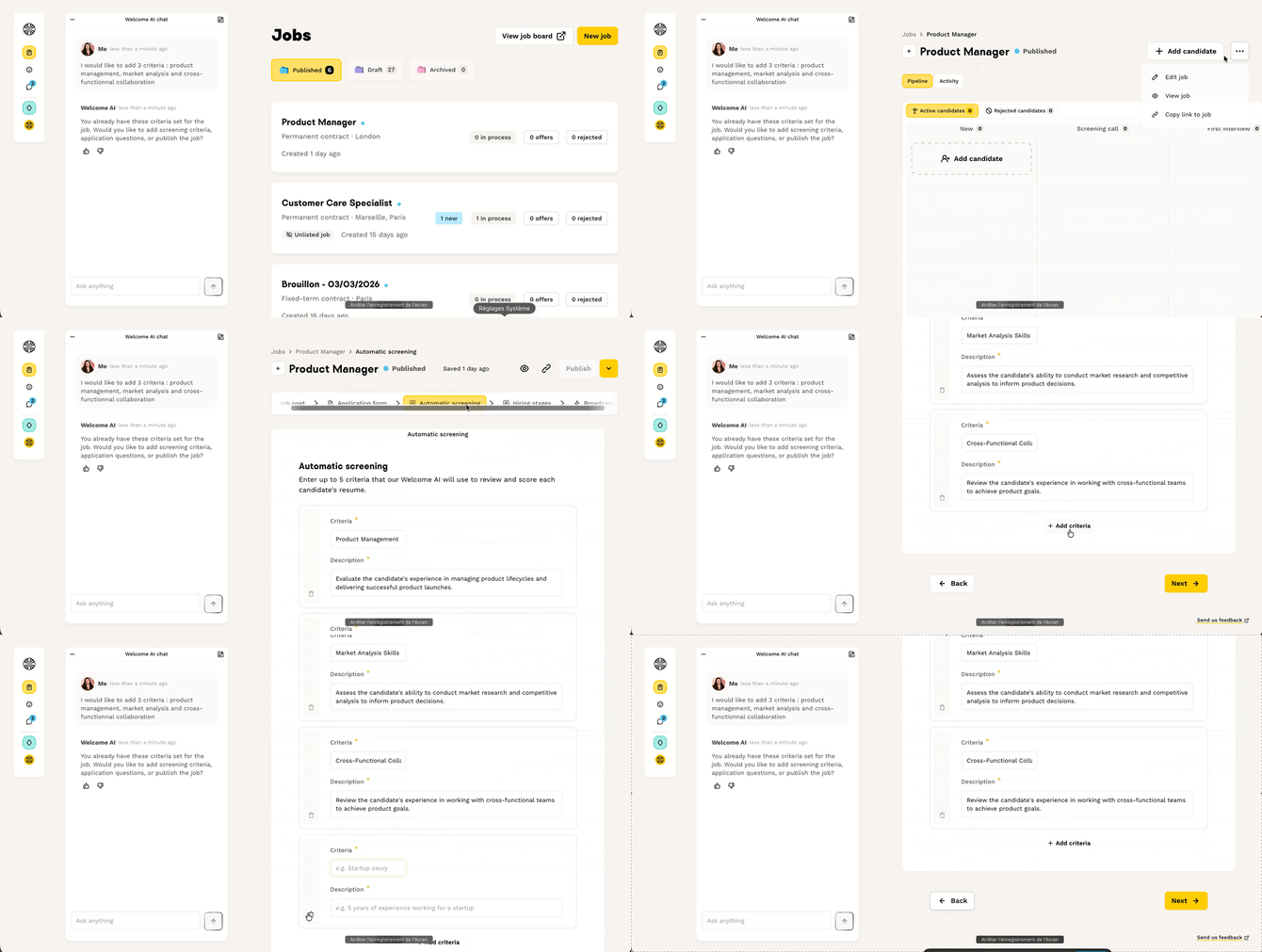
Changes to criteria apply to new applications as well as existing ones: Welcome AI will re-analyze existing applications to reassign a score based on the new criteria.
❓ FAQ
Is automatic screening mandatory? No, it's completely optional. You can create job posts without screening criteria and review all applications manually.
What does the candidate screening analyze? Automatic screening analyzes only the resume of candidates. Answers to custom questions in the application form are not taken into account.
How many criteria can I add? You can add up to 5 criteria maximum per job post.
Is the score updated if I edit my criteria? Yes, the score is updated on your existing candidate profiles based on the new criteria.
Can I see why a score was assigned? Yes, by hovering over the score with your cursor, a tooltip appears with the details of each evaluated criterion.
🆘 If you have any other questions, you can contact us via the support widget at the bottom right, or through the contact form at this link.