
Table of contents
- Receiving and approving your content
- Adding Photos and Videos to Your Profile
- Accessing the Profile Editor
- Inviting Team Members to the Profile Editor
- Adding Elements to Your Profile
- Adding a Cover Photo
- Adding Photos and Videos
- Adding or Modifying Your Organization’s Information
- Add a new tab to your profile (Pro/Pro+/Premium)
- Need to Update or Edit Your Profile?
✨ Are the photos and videos from your shoot ready? It’s now time to enrich your Welcome to the Jungle profile.
Receiving and approving your content
Our Onboarding team will send you the content created during your shoot by email within 10 days.
Once you've received this content, we’ll ask you to select your preferred photos. We recommend making your selection quickly, as this is a crucial step that will allow us to design the layout of your profile!
💡 The number of photos to select depends on your subscription plan.
After completing this step, our Onboarding team will review and give a first version of your profile.
Adding Photos and Videos to Your Profile
Accessing the Profile Editor
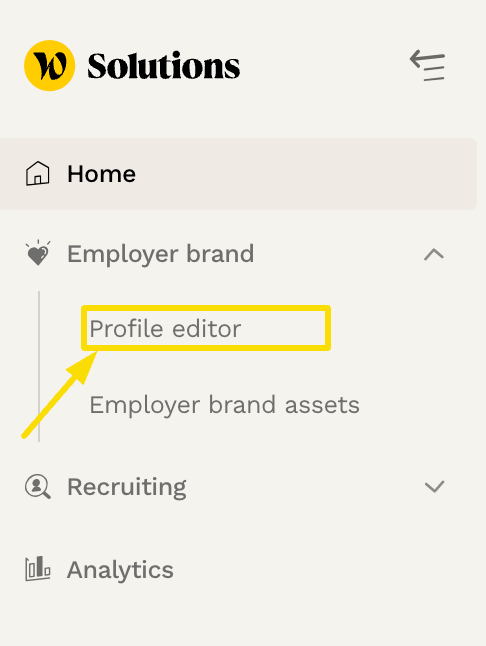
Once your profile is ready, you’ll be able to preview and edit it through the Profile Editor! To access the Editor, go to the "Employer Brand" section on the platform.
Inviting Team Members to the Profile Editor
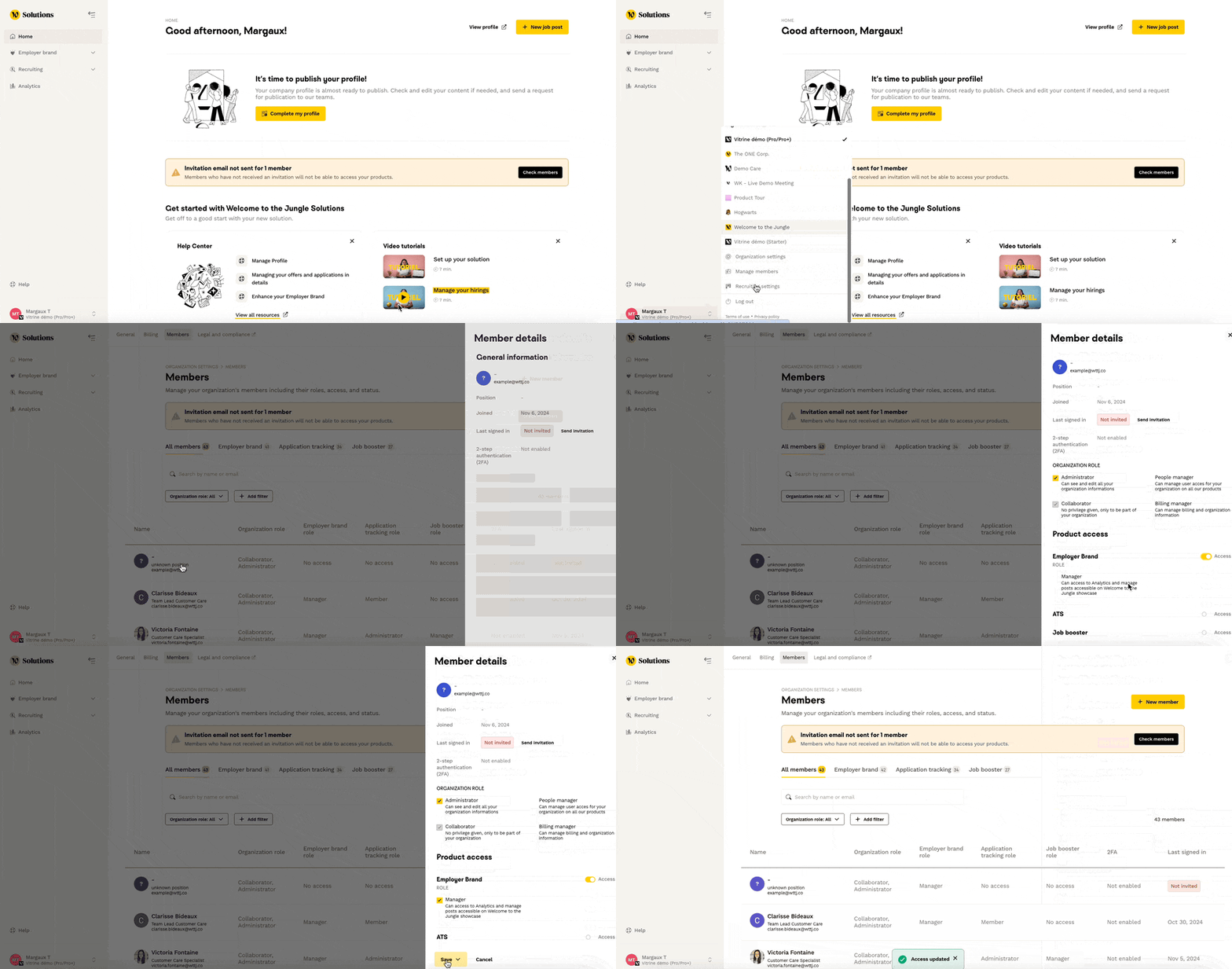
If you want other team members to have access to the Editor, you’ll need to grant them access to both the platform and the “Employer Brand” product:
- Go to the Admin Space
- In the lower-left corner, click on your avatar, then on the “Manage members” button
- Click on the team member you’d like to add
- In the dropdown on the right, click on the roles you wish to update
- Choose to grant access to the "Employer Brand" product
Adding Elements to Your Profile
You can now select the content to display on your profile! The content will be available from your content library. Depending on your subscription, you’ll have access to a set number of photos, videos, content blocks, and tabs.
Adding a Cover Photo
To add a cover photo, click on the block so that a sidebar appears on the right side of your screen. This sidebar will prompt you to choose a photo from your shoot!
Select the photo of your choice and click on the little arrow at the top to confirm your selection:
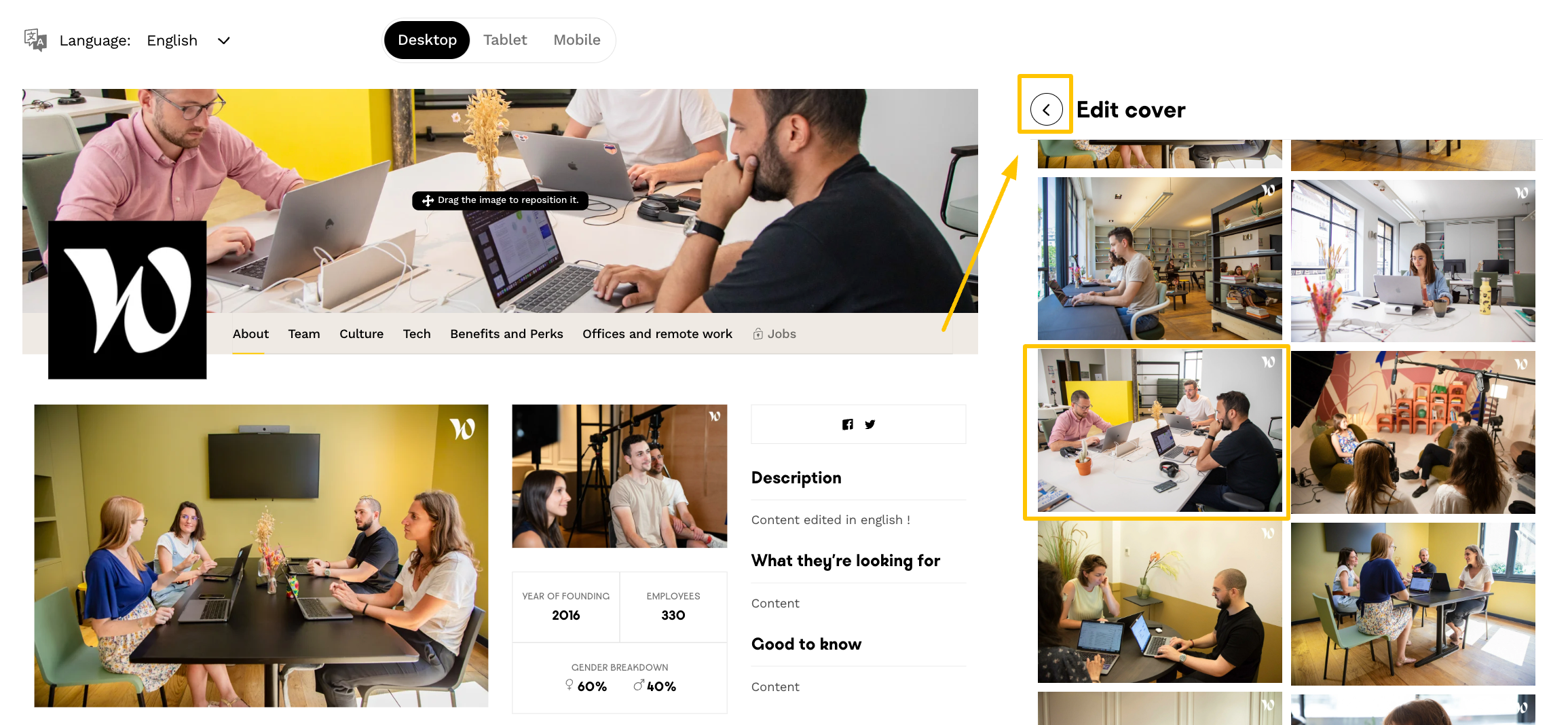
💡 Tip: You can reposition the cover photo by dragging it to adjust it as desired!
Adding Photos and Videos
To add photos or videos to your Profile page, click on the photo or video you wish to change, making the sidebar appear on the right side of the screen. Then, select a different photo/video from your gallery.
Finally, confirm your choice by clicking on the little arrow at the top of the sidebar and remember to save your changes.
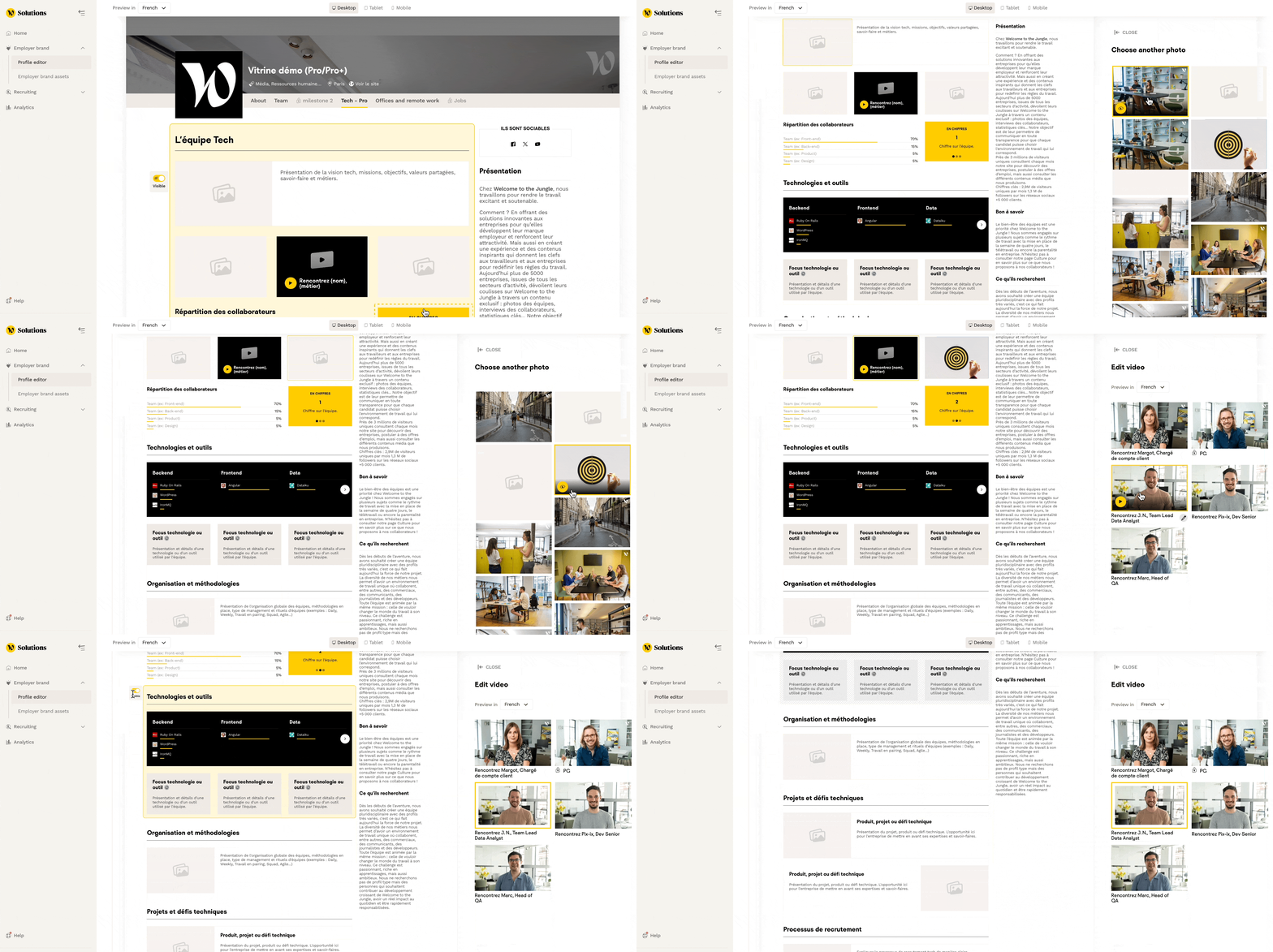
Note: You can only upload photos taken during the shoot.
Adding or Modifying Your Organization’s Information
You couldn’t include certain details about your company during the initial Onboarding phase? No worries, the Editor allows you to update your company’s description, key figures, and social media links.
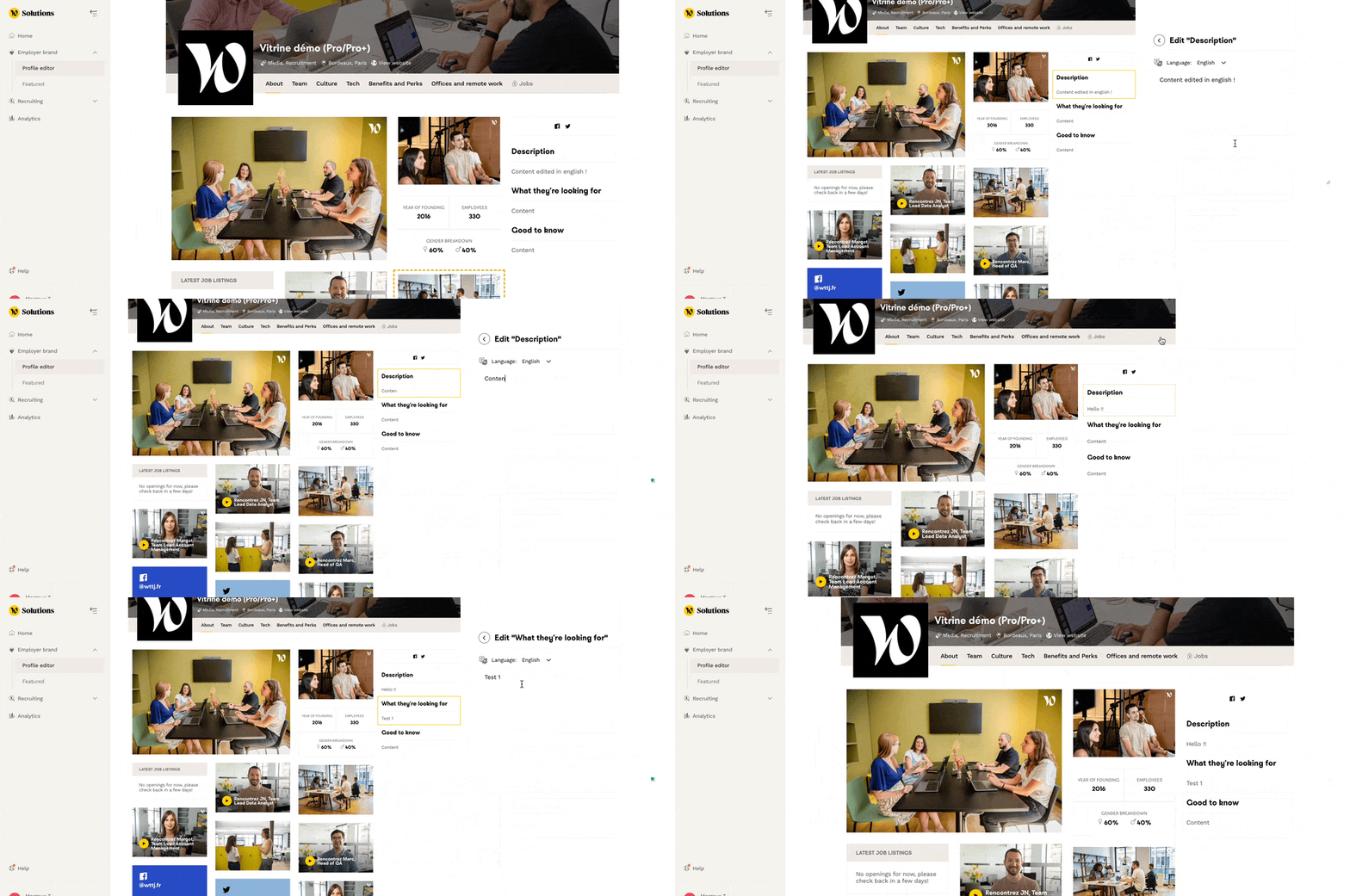
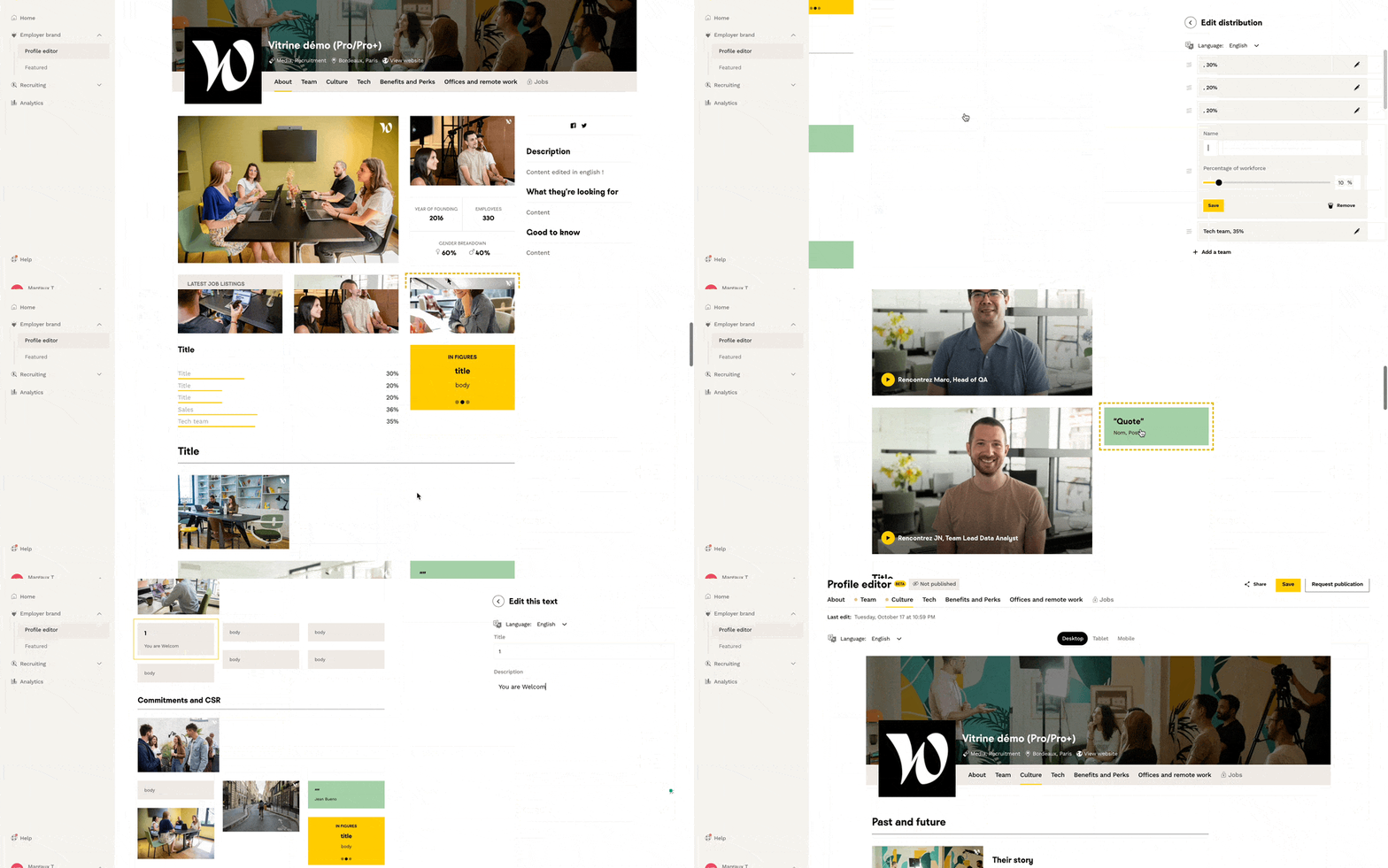
You can also edit the text in other tabs by clicking on the text blocks you want to modify:
Add a new tab to your profile (Pro/Pro+/Premium)
You can now add a new tab to your profile yourself!
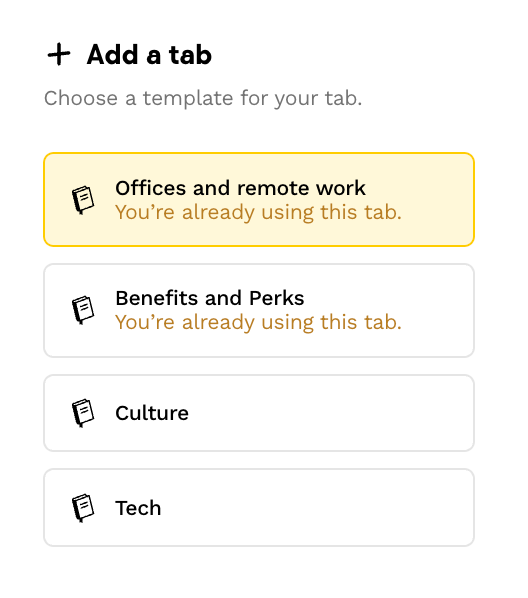
To do so, click on "Add a tab":

You'll have a choice of tabs to activate, and your subscription allows you a maximum of two:
You can also manage your tabs in the "Manage tabs" section:

Here you can add a new tab or delete an active one :
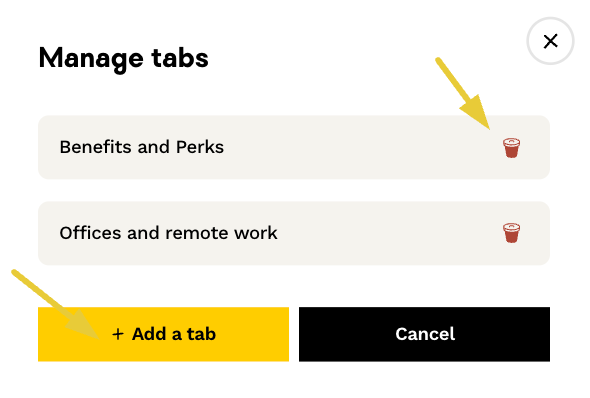
Be careful, if you delete a tab, you'll lose all associated content, and you won't be able to recover it.
You can leave your new tab "unpublished" until you're ready to publish it!

Once your profile is enriched, you can request its publication by clicking on the button at the top right corner of the Editor!
Need to Update or Edit Your Profile?
If you want to make changes to your profile later, this article will be useful: How to edit your company profile with the Welcome to the Jungle Profile editor? 👨💻
🆘 Our Care team is here to help if you have questions! To contact us, click the widget at the bottom right of this article or the "Help" button on the platform.