
Table of contents
💡 Now that you’ve understood how our Sourcing tool works, this guide explains how to engage with talents and track your contact requests.
Contacting a Talent via the Sourcing Tool
After entering your search criteria in Welcome Sourcing, you can explore the selection in our talent base or extended talent base.
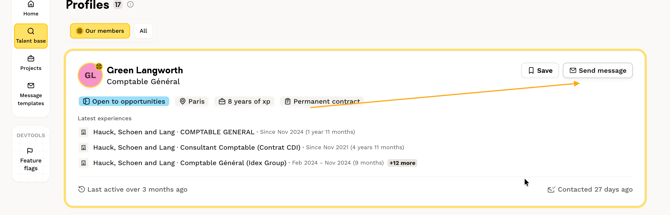
If you are interested in a profile, the Contact action is available in the top-left corner of the candidate profile.
How to write your message?
Once you click the Contact button, a panel opens. You can use it to send all the information the candidate needs to understand your opportunity.
This message is your first point of contact with the candidate. You can present the position, explain what caught your attention in the candidate’s profile, discuss compensation, describe the benefits offered by your company.
By clicking the Generate button, our AI creates a personalized message that includes information from the candidate’s profile and your job post.
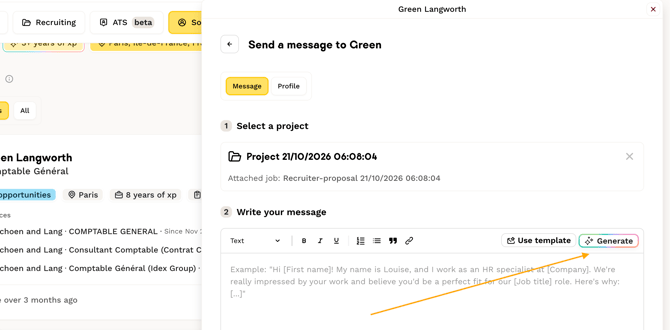
You can then adapt the message to your needs.
You can also add employer brand content and feature an interview with one of your employees who will work on the same team as the candidate.
💡 Important: You can send only one opportunity to a candidate for the same position. Make sure you select the right candidate and write a message that encourages them to respond.
What does the talent see?
Once the message is sent, the talent receives an email inviting them to review the proposal in their Talent space.

💡The candidate will also receive this e-mail as an automatic follow-up message in their inbox 7 days, then 14 days after your initial outreach.
When the talent clicks “View Proposal,” they will see the following in their candidate dashboard:

Contact a profile from the extended talent base
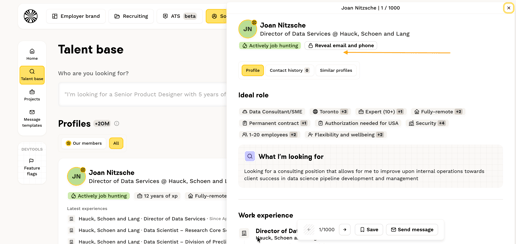
Candidates in the external talent base cannot be contacted directly on the platform because they do not have a Welcome to the Jungle account.Follow these steps:
- Click the “Reveal contact details” button: This button is located below the candidate’s name.
- For 100% of profiles, you can access the LinkedIn URL.
- For 39% of profiles, you can access the email address, phone number, or both, depending on what is publicly available.
- Contact the candidate outside the platform: Use the contact details you revealed, such as their email address or phone number. You can also contact the candidate directly through LinkedIn.
Tracking Your Contact Requests in the Sourcing Tool
All the talents you’ve contacted will appear in the “Follow-up” section for the relevant job post in your Sourcing space. This allows you to easily monitor responses.
To boost response rates, we’ve implemented two automatic reminders for talents who haven’t replied:
- After 7 days.
- After 14 days.
Talents can respond to proposals directly from their Welcome to the Jungle profile, centralizing feedback. You’ll see positive or negative responses updated in your tool automatically.
Their reply will also update the status of your leads and the candidate’s profile. Additionally, you’ll receive an email notification when a talent responds.
At the same time, a candidate record will be created on WttJ Solutions ATS, or your external ATS (if you have set up your integration with Kombo).
If you’d like to track your sourcing performance, check out this article.
Daily limits on talent actions
To protect our users from abusive practices, such as large-scale resume extraction or message spam, we apply daily limits per user to the following actions:
| Action | Daily limit |
|---|---|
| Resume previews and downloads | 100 per day |
| Messages sent | 100 per day |
| Contact details revealed | 100 per day |
How do these limits work?
- At 80% of the quota, a tooltip appears on the relevant button and shows you how many actions remain.
- Once you reach the limit, the button is disabled. The quota resets after 24 hours.
⚠️ Warning: Searches, profile views, and adding candidates to your favorites remain fully available without limits.
❓FAQ
- Can I send several messages to the same candidate for the same position? No. You can send only one opportunity to a candidate for the same position. Make sure you write your message carefully the first time.
- Does the candidate receive automatic follow-ups? Yes. Automatic follow-ups are sent 7 days, then 14 days after your initial contact if the candidate has not responded.
- Can I contact a candidate from the extended talent base directly on the platform? No. Candidates in the external talent base do not have a Welcome to the Jungle account. You can reveal their contact details by clicking Reveal contact details, then contact them outside the platform.
- Are there limits on my daily actions? Yes. Daily limits apply per user: 100 resume previews or downloads, 100 messages, 100 contact details revealed per day. A tooltip appears when you reach 80% of the quota. Once you reach the limit, the button is disabled until the quota resets after 24 hours.
🆘 If you still have questions or doubts, you can contact us via the chat widget on the button right, or via our contact form at this link