
Table of contents
- 🏷️ Understanding the Statuses Communicated to Candidates
- 📋 Efficiently Organizing Application Processing
- Customize Your Pipeline
- Manage Rejections
- ⚡ Optimize Your Time with Bulk Actions
- 📧 Efficiently Manage Rejection Notifications
- ❓ FAQ
💡 If you want to optimize the time you spend on processing applications, this article is for you! Discover our tips and features for efficiently managing a large volume of applications in the ATS.
🏷️ Understanding the Statuses Communicated to Candidates
It is essential to understand what your candidates see when they check the status of their application. Four main statuses are communicated to them:- Received: The candidate sees this status as soon as they send their application, before it is opened. They automatically receive an acknowledgment of receipt.
- In Progress: This status indicates to the candidate that their application is under review and has been viewed. It applies to all stages except "Rejected" and "Hired."
- Rejected and Hired: These two final statuses correspond to the columns with the same name in your pipeline. We recommend sending a personalized email before moving a candidate to these important columns.
📋 Efficiently Organizing Application Processing
Customize Your Pipeline
Manage Rejections
When you regularly receive many applications, use the "To Reject" column to ensure all candidates receive a response rather than leaving applications unanswered.⚡ Optimize Your Time with Bulk Actions
Bulk actions allow you to select multiple candidates simultaneously to perform common actions:- Comment on several applications
- Archive applications in bulk
- Send an identical email to multiple candidates
- Move several candidates to the same column
- Change the status of multiple applications
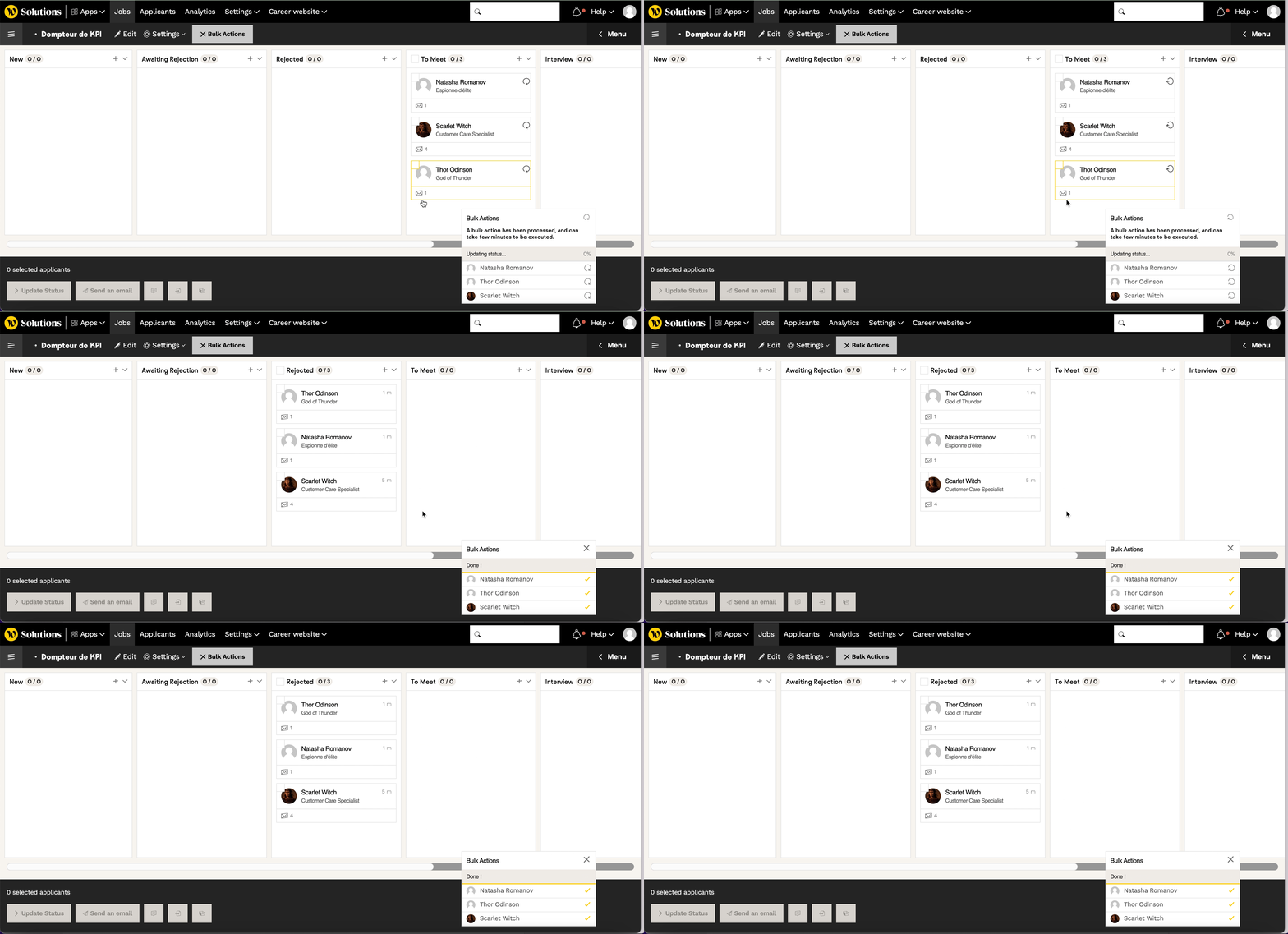 To use this feature, go to a job listing and click the "Bulk Actions" button.
📧 Efficiently Manage Rejection Notifications
No email is sent automatically upon a rejection, use the "Reject and Send Email" feature directly from the candidate's card. This action:- Automatically moves the candidate to the "Rejected" column
- Pre-fills the form with the rejection template
- Updates the status visible to the candidate
 Tip
Tip
❓ FAQ
Q: What does the candidate see when their application is "In Progress"?
A: The candidate understands that their application is under review by the company and has been viewed, regardless of the exact title of your internal column.
Q: How to send the same email to multiple candidates?
A: Use bulk actions: select the candidates concerned, choose "Write" and use a pre-configured template.
Q: Where to configure my email templates?
A: Go to Admin Area > Settings > Email Templates
Q: Why use "Reject and Send Email" rather than just moving the candidate?
A: This feature automates the sending of the rejection email and updates the status visible to the candidate, preventing oversights.
🆘 If you still have questions or doubts, you can contact us via the chat widget on the button right, or via our contact form at this link