
Table of contents
- 🔍 Reviewing New Applications
- Search by Job Offers
- Notification in the Dashboard
- Search in the Candidate Pool
- 🔔 Being Notified of New Applications Outside the ATS
- By Email
- By Slack
- 🗂️ Deciphering an Application: Understanding the Application Card
- Information Visible on the Card
- 📋 Detailed Architecture of an Application
- Permanent Banners
- The Four Detailed Tabs
- ❓FAQ
🔍 Reviewing New Applications
Search by Job Offers
the ATS You have two display modes:- Card mode: view in the form of cards with the number of new applications per offer
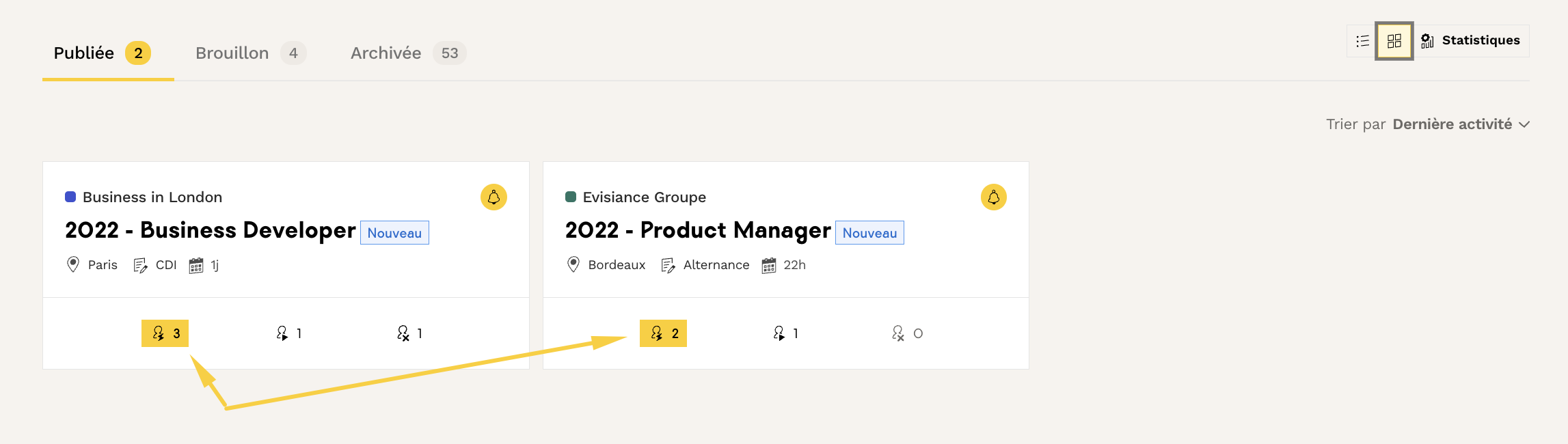
- List mode: detailed list display of your offers
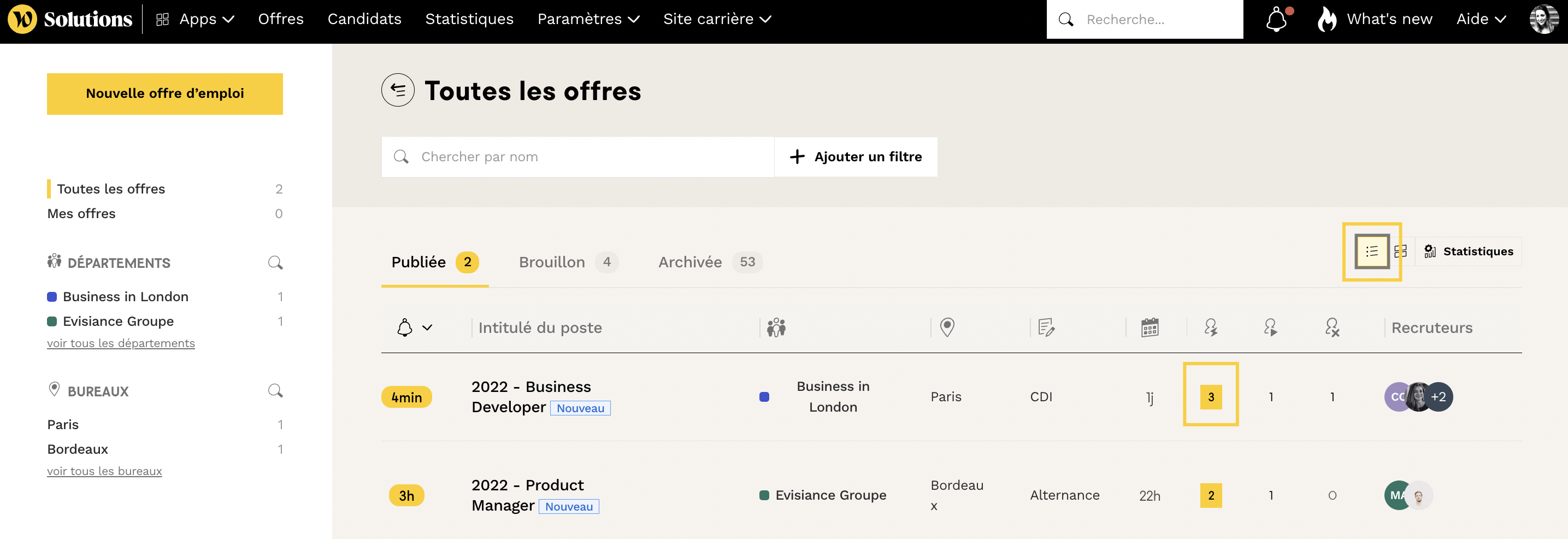
Notification in the Dashboard
the ATS
Search in the Candidate Pool
ATS New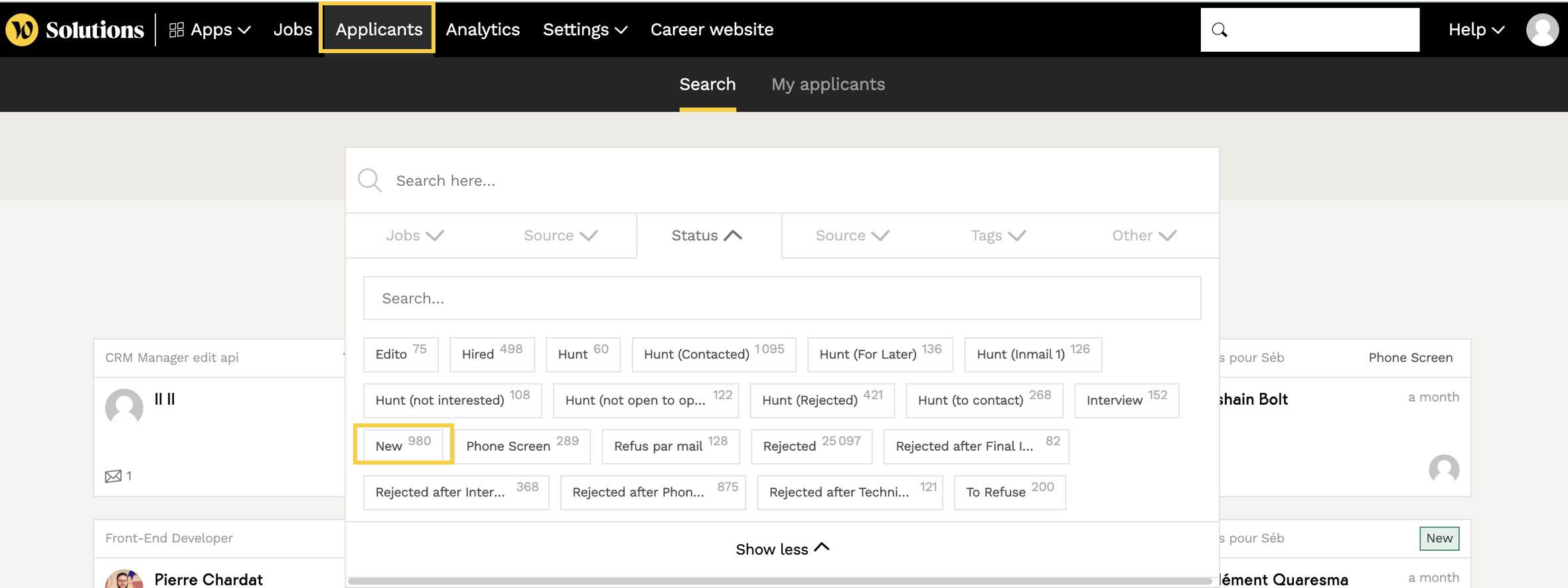
🔔 Being Notified of New Applications Outside the ATS
By Email
You can receive a daily summary of all activity that occurred in the tool over the past 24 hours on the offers you are following. Important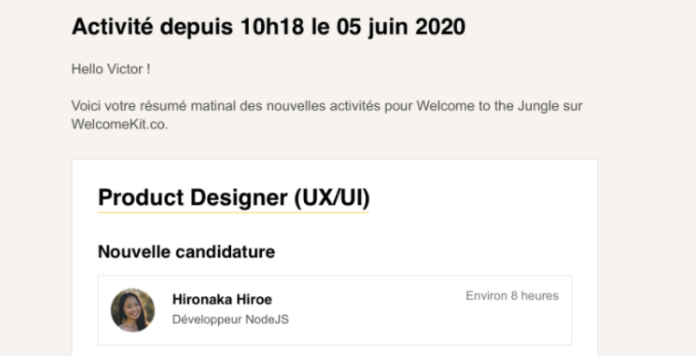
By Slack
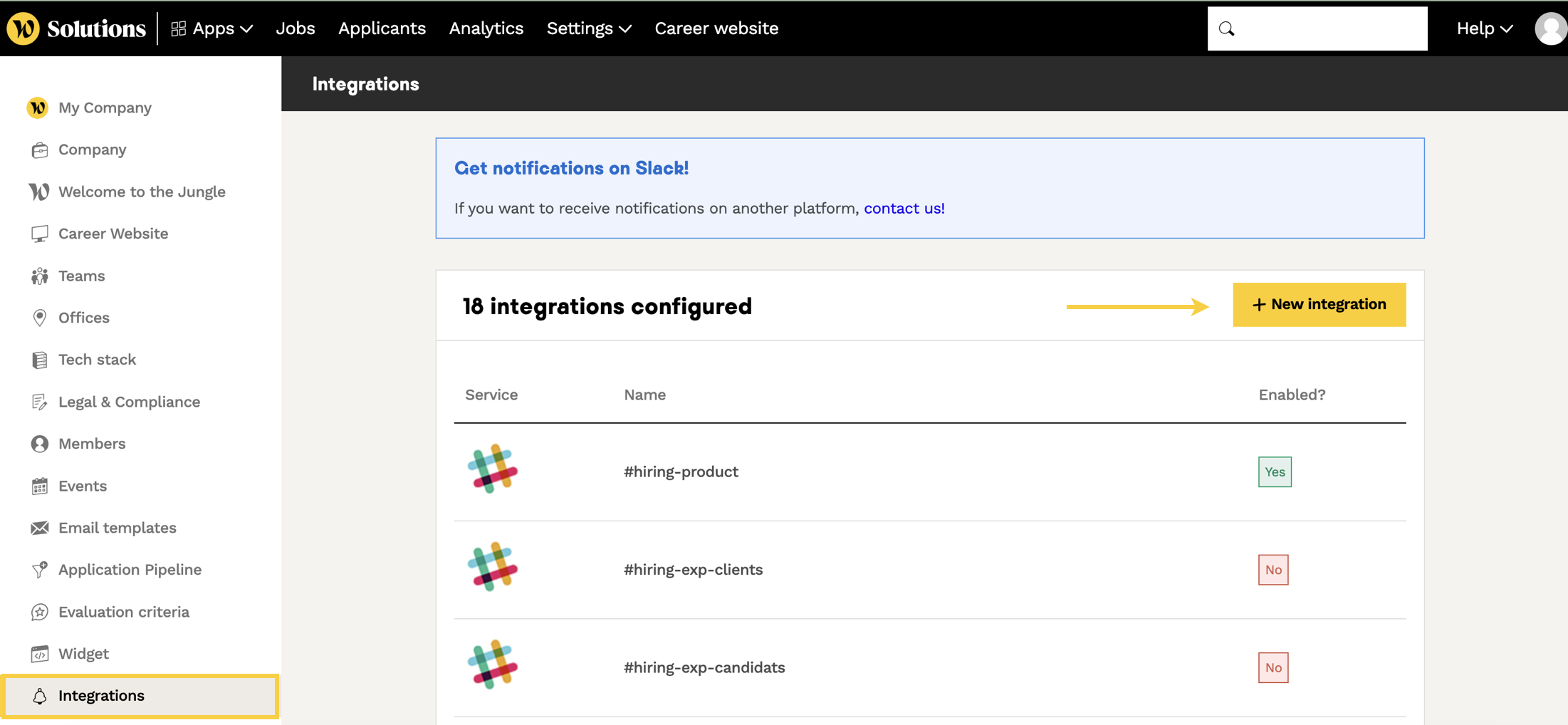
To be informed in real time, set up a Slack integration by clicking on your company's logo at the top left: Organization Settings > Integrations. To create a channel per offer:- Click on "New Service" to set up the Slack integration
- Link notifications for each offer to the relevant channel via point 4.2. External Services in the offer edit form
🗂️ Deciphering an Application: Understanding the Application Card
Information Visible on the Card
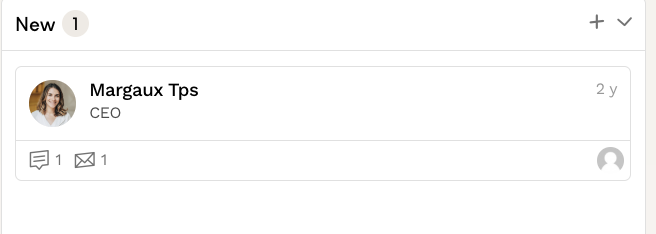
Even before opening an application, the card presents you with many elements:- Card Position: indicates the candidate's status (New, In Progress, Rejected, Hired)
- Naming: First and Last Name
- Job Title: current/previous position of the candidate
- Application Date: displayed on the right (d-days, m-months, y-years)
- Exchanges: if an email has been sent to the candidate or a comment has been added to their profile
- Recruiter Avatars: recruiters associated with the offer (hover to see names)
 Tip
Tip
📋 Detailed Architecture of an Application
Permanent Banners
- Top Banner: key information about the candidate (email, phone, job title, city, LinkedIn profile)
- Grayed Column on the Right: all actions performed by recruiters and associated comments
The Four Detailed Tabs
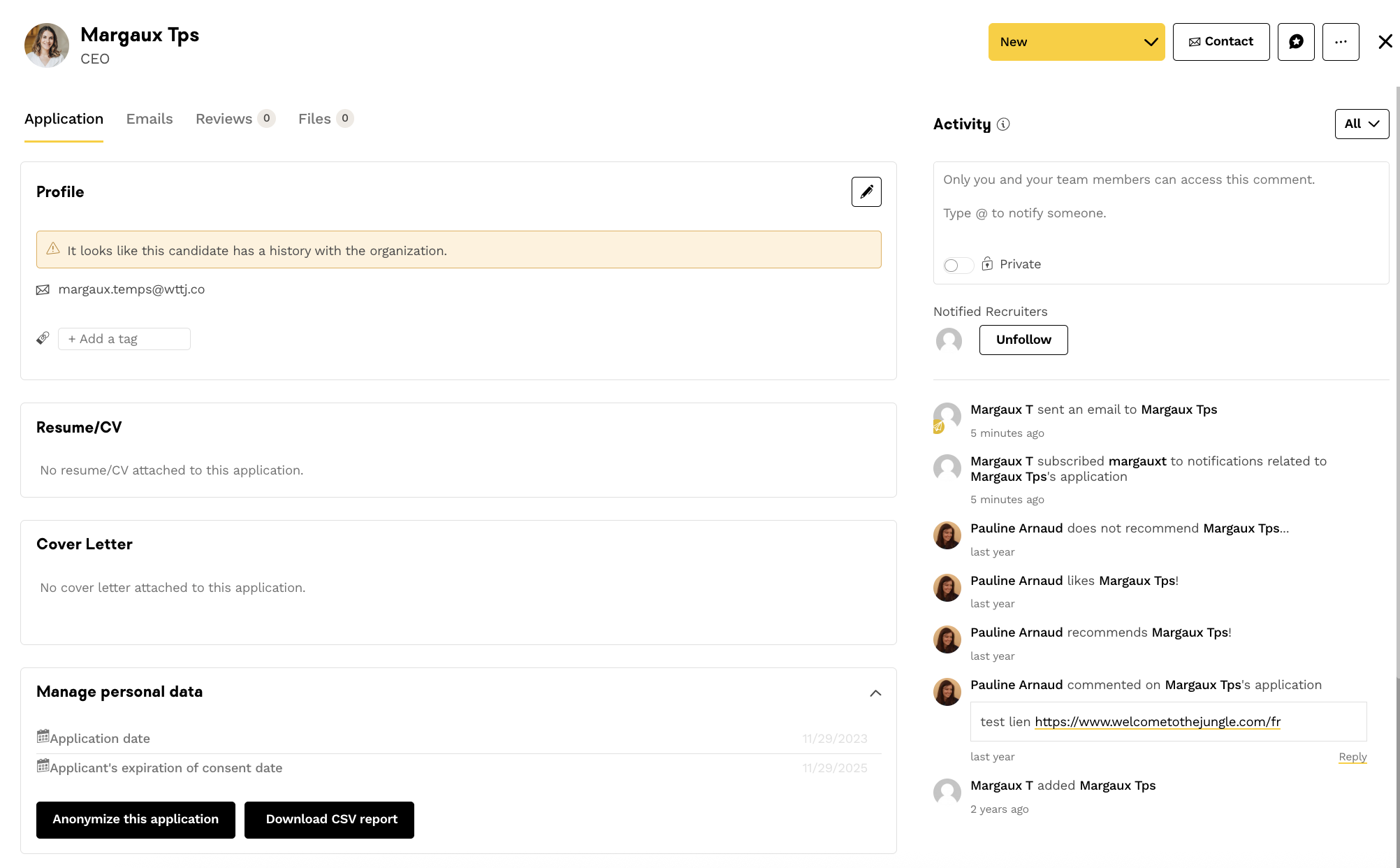
1. Application Tab
- Downloadable PDF resume
- Cover letter (non-downloadable text format)
- Answers to open questions asked to the candidate
- Management of personal data (application date and end of consent)
- Candidate history and past applications in your organization
2. Emails Tab
- Candidate/recruiter exchange space
- Markdown text editor for formatting
- Complete history of exchanges
- Recruiter email addresses encrypted for candidates
3. Evaluations Tab
- Evaluation grids for each recruiter
- Interview reports
4. Files Tab
- Additional files uploaded by the candidate (portfolio, letter of recommendation...)
- Documents added by the recruiter (customized interview grid, PDF report...)
❓ FAQ
How can I see the number of new applications? Can I receive an email for each new application? How can I filter new applications? Can I modify a candidate's information? How long is candidate data retained? 🆘 If you have any other questions, you can contact us via the support widget at the bottom right, or via the contact form at this link