
Table of contents
- 📝Create message templates
- Add variables to a template
- Edit a template
- 📨Insert a template in a message
- 🗑️Delete a message template
🔐 Please note that Talent Sourcing is a paid feature. To purchase your license, contact your account manager.
To communicate effectively with talent, message templates will save you time while allowing you to personalize your communications. This guide breaks down how to create, edit and use your templates on the Talent Sourcing platform.
📝 Create message templates
To use your different templates in your exchanges, you need to create them from the Talent Sourcing homepage.
- Click on the "Manage templates" button in your project list
- Once on the template management page, click on the "+ Create template" button in the top right corner of the screen
- You will be redirected to the template editing interface
- Once the template is ready, save it using the yellow button in the top right corner of the screen

💡 Make sure to give your message templates different names so that you can find them more easily
Add variables to a template
Different variables are available to help you create your templates.
These will automatically pre-fill your message with information about the talent or the job you are sourcing for.
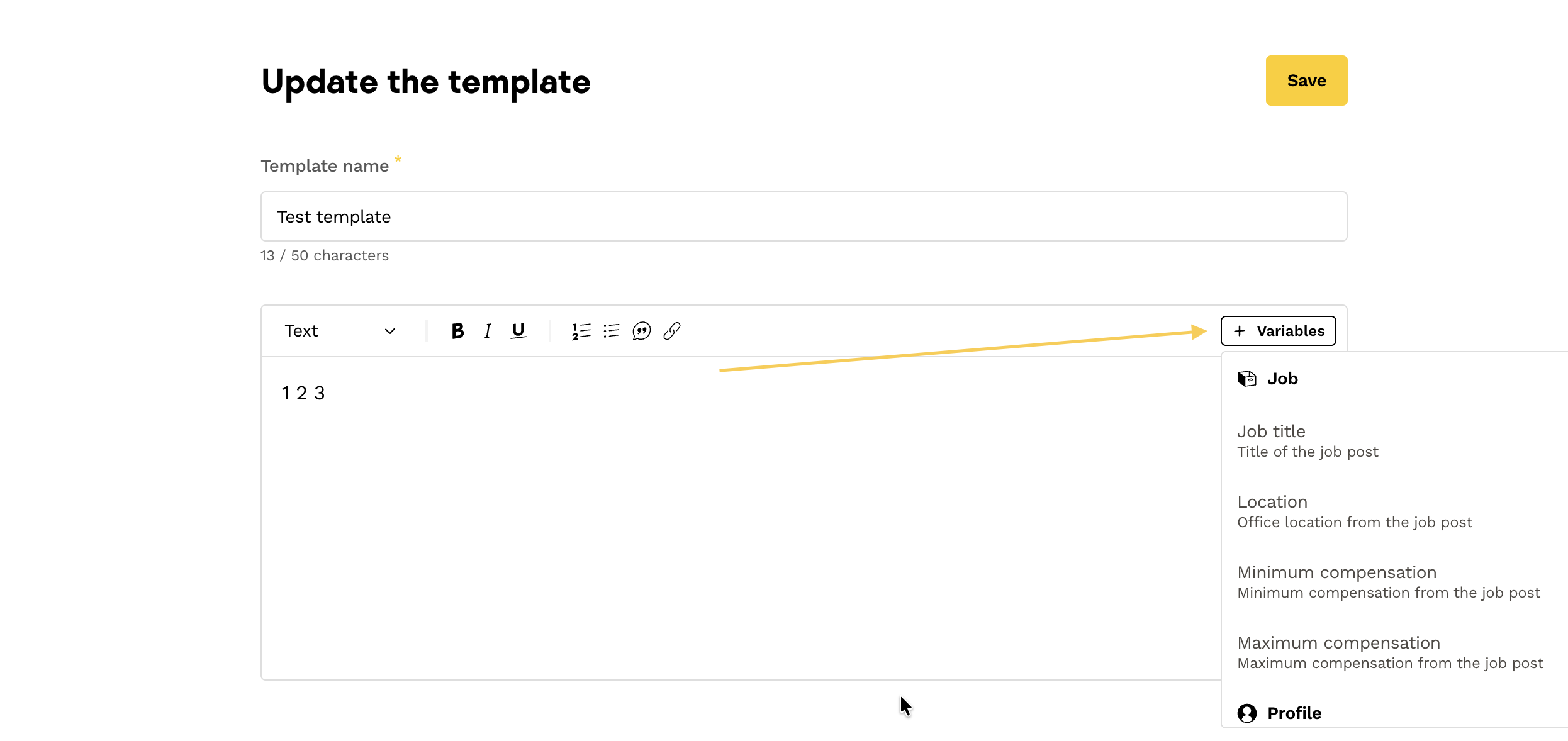
To add variables to your template, click on the "+variables" button to the right of your text box:
To add variables to your message template:
- Click on the "+variables" button to the right of your text box
- You will find several categories of predefined variables related to:
- The job
- The Talent Profile
- The recruiter (you)
Please note: Variable categories are not customizable, and you can't add any yourself.
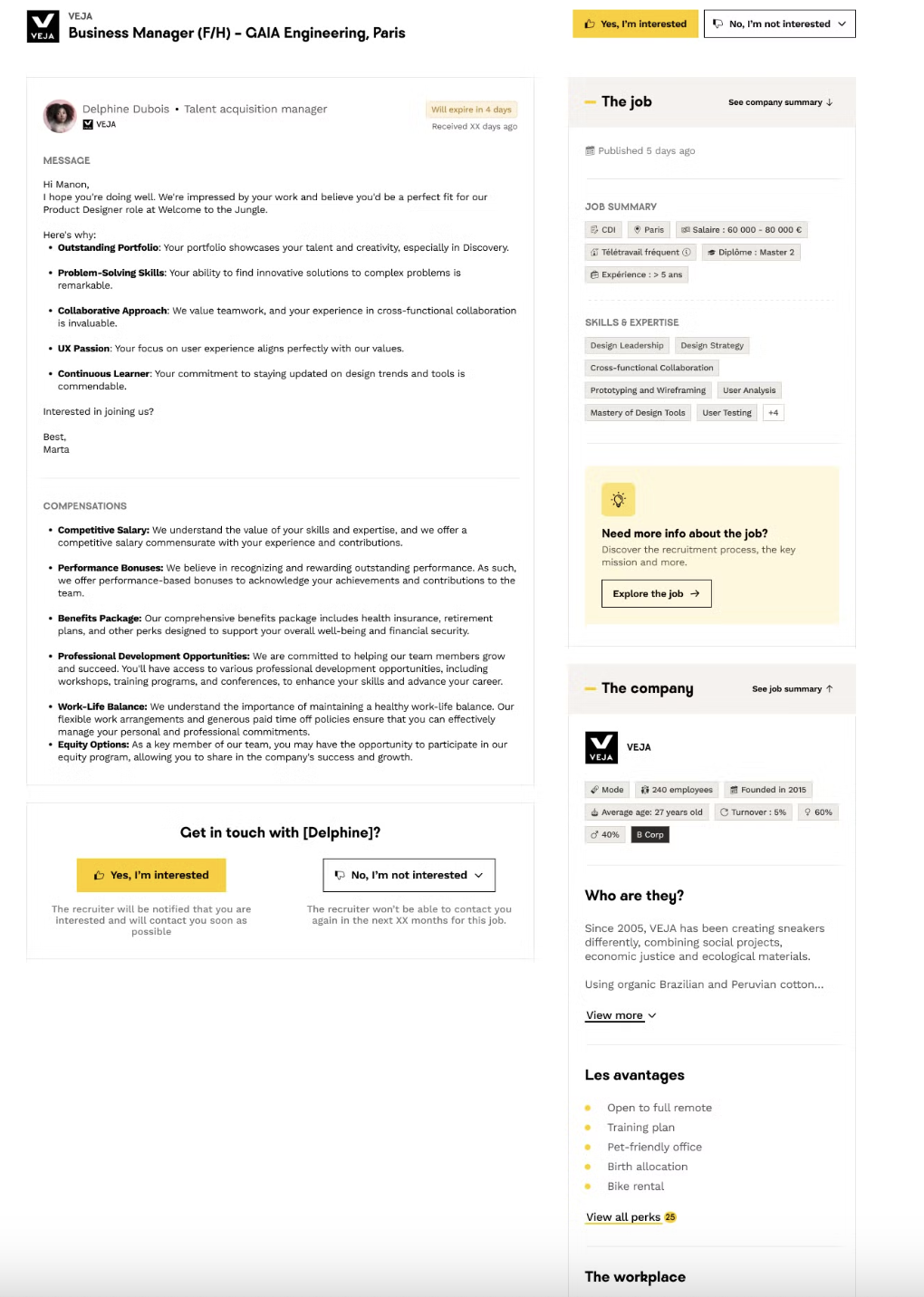
⚠️ Warning: We strongly advise against adding the link to the job post directly to your message template.
Indeed, to contact a talent, you must have a project associated with a job post: when the candidate receives your message, they will automatically see the link to the job post associated to the project.
Edit a template
To update a message template:
- Click on the "Manage your templates" button on the Talent Sourcing homepage
- You'll have access to a list of different message templates written by you and your colleagues
- From this list, you can:
- Edit message templates by clicking on the "pencil" icon
- Duplicate a template by clicking on the "double sheet" icon

📨 Insert a template in a message
Are your templates ready, and you can't wait to use them? It's easy!
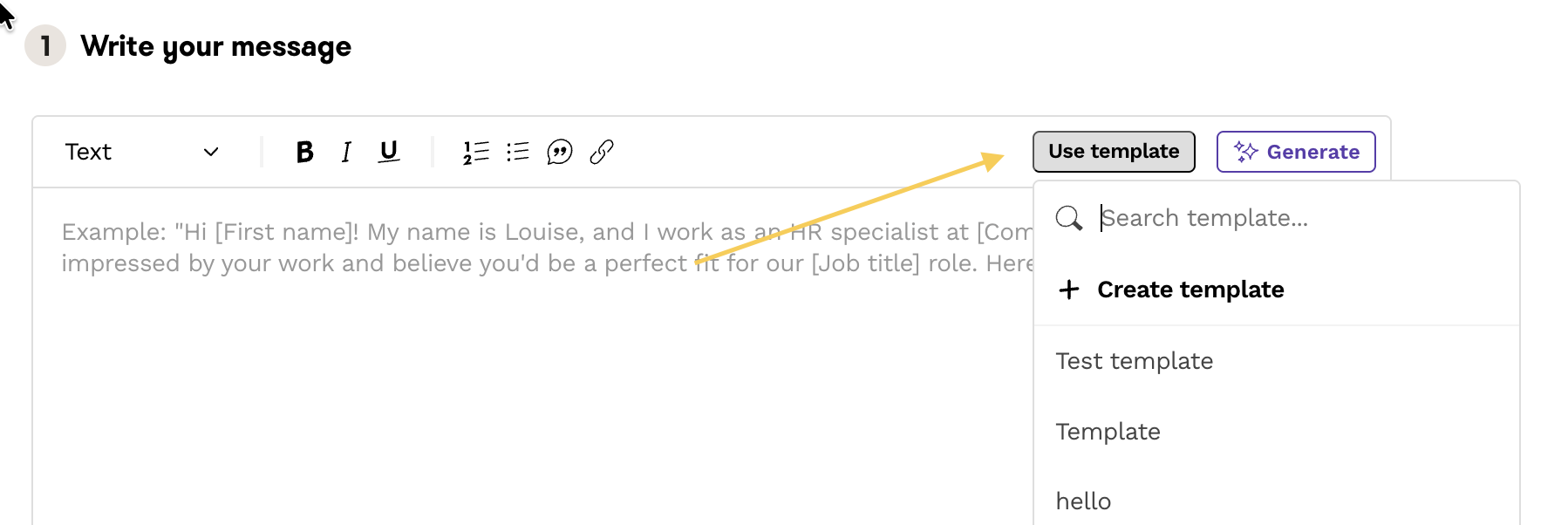
- Once in the messaging interface, in the "Write your message" section.
- Click on the "Use template" button
- You will find your list of ready-to-use templates!
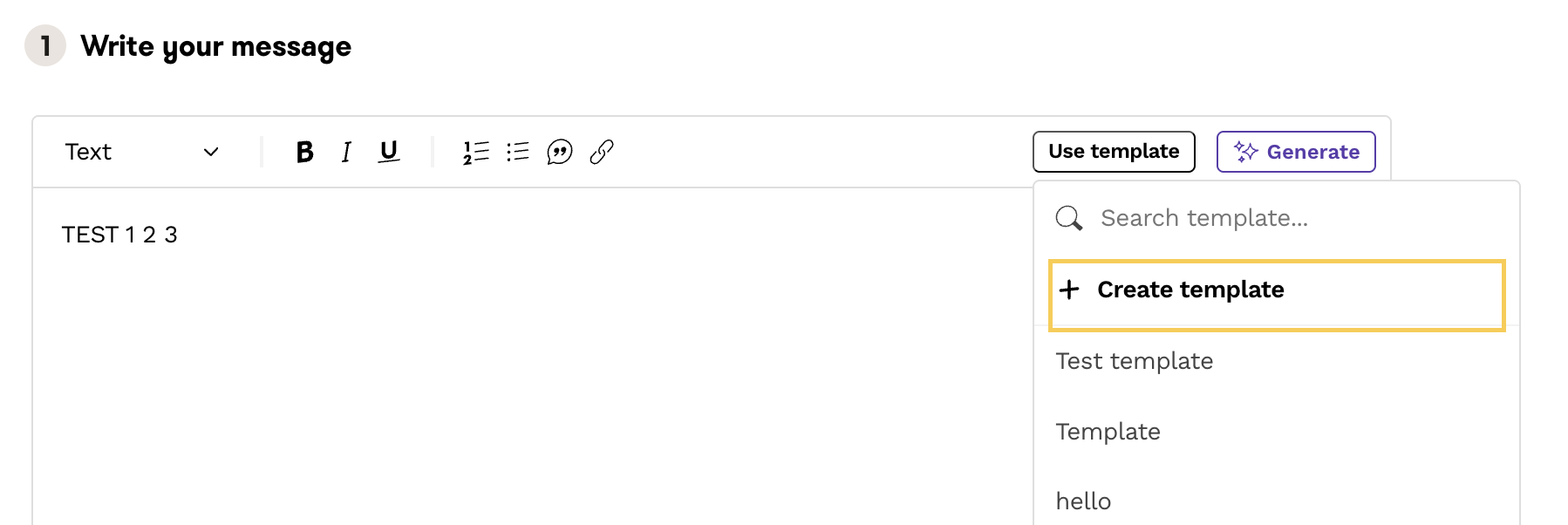
💡 Tip: You've written a message and want to save it as a message template? Click on the "Use template" option, then "+ create a template": your message will be saved, and all you have to do is name it and save it.
🗑️ Delete a message template
To delete a message template:
- Click on the "Manage your templates" button on the Talent Sourcing homepage
- Look for the template you want to delete
- Click on the "trash" button to the right of the line

⚠️ Warning: Deleting a template is irreversible.
❓ FAQ
- Q: Can I create custom variables in my templates?
A: No, variable categories are not customizable, and you can't add your own. - Q: Should I include the link to the job post in my template?
A: No, we don't recommend adding the link directly to the template. Talent will automatically see the link to the job post associated with the project when they receive your message. - Q : Can I recover a deleted template?
A : No, deleting a template is definitive and irreversible. - Q: How do I organize my templates?
A: Make sure you give your message templates different names so you can find them more easily in your list.
🆘 If you have any further questions, you can contact us using the support widget at the bottom right, or the contact form at this link