
Table of contents
- Access your talent pool
- View a complete candidate profile
- Display application details
- Add a new candidate
- Edit candidate information
- Link a job post to an existing candidate
- Add evaluations and comments
- FAQ
From the Welcome ATS, you can easily access all the key information for each candidate, track their progress through your recruitment processes, and centralize your exchanges. Find out how to make the most of candidate profile management.
Access your talent pool
From the Candidates page, accessible via the "smiley" icon, you can find your entire candidate database: sourced and manually added candidates, as well as all applicants who have applied to your job posts.
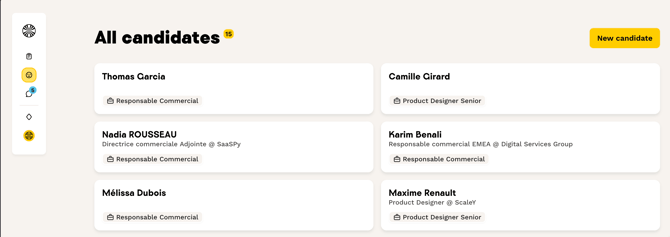
This centralized page gives you an overview of all the profiles available in your talent pool.
View a complete candidate profile
By clicking on a candidate card, you access their complete profile, which includes:
- All their personal information (name, email, phone number, LinkedIn profile, location, current position, etc.).
- The applications they have submitted (all ongoing or past recruitment processes).
- The message history exchanged with them.
- Their journey through your recruitment processes (stage movements, modification dates, etc.).
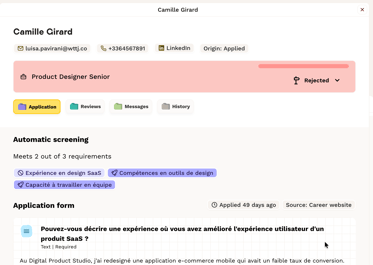
💡 Good to know: If a candidate has submitted multiple applications, this will be directly visible on their candidate card via a tag you can hover over to get more information.
Display application details
Click on an application to access all the key information:
Candidate information
- Name, email, phone number, LinkedIn profile.
- Job post they applied to.
- Current stage in the recruitment process.
- Application source: Welcome to the Jungle job platform, another site via multi-posting, or manual addition (event, internal mobility, recruitment agency, referral, sourcing, other).
Application details
- Automatic screening score: By hovering over a criterion with your cursor, you can see the breakdown of the score attribution (binary score 0–1). If the AI is unable to assign a score, this will be indicated directly. This score only analyzes the candidate's resume.
- Answers to questions from the custom application form (if you added questions when creating the job post).
- Resume, downloadable and viewable directly.
- Evaluations and comments: Each user can evaluate the candidate by clicking "Evaluate". Evaluations can be global or by pipeline stage (screening call, first interview, etc.), with a rating ranging from "very unfavorable" to "very favorable." An AI-generated summary of strengths, weaknesses, and key points is automatically produced to facilitate collective decision-making.
- Exchanged messages: Access to the complete history of your exchanges (the candidate receives messages by email on their end).
- Candidate history: Profile creation date, information updates, and stage movements within the recruitment process.
Add a new candidate
You can add a candidate to the ATS in two ways:
Option 1: Directly from a job post's pipeline
- Navigate to the relevant job post in the ATS.
- Click "New candidate".
- Enter the candidate's information (this automatically creates an application for the position).
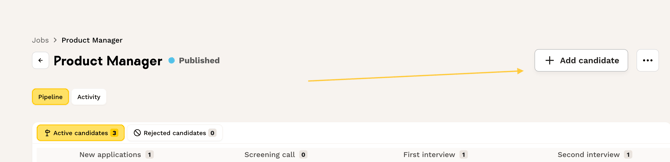
Option 2: From your candidate pool
- Click "Candidates" in the navigation bar.
- Click "New candidate".
- Enter the candidate's information (you can link a job post later).

Edit candidate information
To update an existing candidate profile, go to your candidate pool, then:
- Access the candidate's profile.
- Click the ✏️ (pencil) icon in the top right corner.
- Edit the desired information.
- Save.
Link a job post to an existing candidate
If you have manually added a candidate and want to link them to a job post so they appear in your recruitment pipeline:
- Create a new candidate card in the job post's pipeline.
- Enter the same email address as the candidate you want to add to the pipeline.
- The candidate card will update with the correct job post.
Add evaluations and comments
You can add comments to applications to record your thoughts or any information gathered during pre-selection and candidate interviews.
How to proceed:
- Open an application from the pipeline or the candidate profile.
- Go to the "Evaluations" tab.
- Click "Evaluate".
- Choose the type of evaluation:
- Global evaluation for a general opinion.
- Stage-based evaluation (screening call, first interview, second interview, etc.).
- Share your thoughts in the text field provided.
- Click "Save".
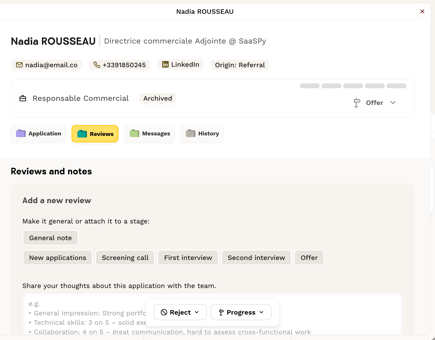
💡 You can edit your evaluation at any time by selecting the pencil icon.
All your previous evaluations will appear below, with the most recent at the top. An AI-generated summary compiles the strengths, weaknesses, and key points from all feedback to facilitate collective decision-making — currently available for global evaluations only.
⚠️ Please note: If you want to delete an evaluation, you can click the dedicated icon, but this action is irreversible.
❓ FAQ – Frequently asked questions
-
Where can I find all my candidates? From the Candidates page in the ATS, you can find your entire candidate database: those who have applied to your job posts and those you have added manually.
-
How do I view the details of a specific application? Click on the candidate card from the Candidates page or from a job post's pipeline. You will then access their complete profile. To view the details of a specific application, click directly on the relevant application.
-
Can I edit a candidate's information after they have been created? Yes, click the ✏️ (pencil) icon from the candidate's profile to edit their personal information, the linked job post, the pipeline stage, or their resume.
-
How do I add an evaluation to a candidate? From a candidate's profile, go to the "Evaluations" tab and click "Evaluate." You can choose between a global evaluation or a stage-based pipeline evaluation.
-
How do I delete an evaluation or a comment? You can click the delete icon associated with the evaluation. Please note that this action is irreversible.
🆘 If you have any other questions, you can contact us via the support widget at the bottom right, or using the contact form at this link.