
Table of contents
- Enable bulk selection using Welcome AI
- Enable bulk selection mode manually
- Select candidates
- Move candidates to the next stage
- Reject multiple candidates at once
- Reactivate candidates from the rejection pipeline
- FAQ
Bulk selection (or bulk actions) saves you valuable time by processing multiple candidates simultaneously from your recruitment pipeline. No more candidate-by-candidate actions: select several at once and apply a bulk action in just a few clicks.
Enable bulk selection using Welcome AI
Welcome AI can help you pre-select candidates in bulk, directly from the pipeline.
You have two options:
- Smart suggestions: Up to 3 suggestions are automatically displayed in the pipeline, based on your candidates' profiles. One click is all it takes to select the matching candidates.
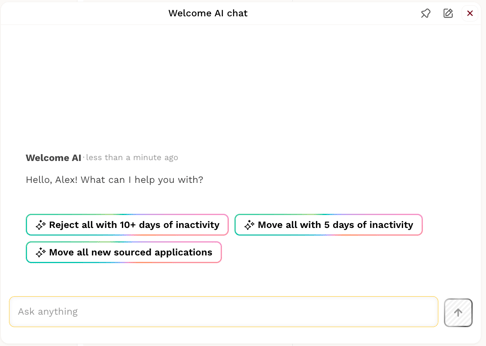
- Natural language selection: Describe what you're looking for directly in the chat (e.g., "candidates stuck for more than 10 days"), and Welcome AI makes the selection for you.
In both cases, no action is taken without your validation.
You can also ask Welcome AI to draft a message for the selected candidates, which you can then confirm or adjust.
All actions are tracked in the application history.
Enable bulk selection mode manually
To perform bulk actions from a job post, click the "Select applications" button at the top of your pipeline in the ATS.

Once enabled, several elements appear on screen:
- A checkbox per column to select all candidates in a stage.
- A checkbox on each candidate card for individual selection.
- A floating action bar at the bottom of the screen, displaying:
- The number of selected candidates.
- A button to clear the selection.
- A "Move stage" button (to move candidates forward).
- A "Reject" button.
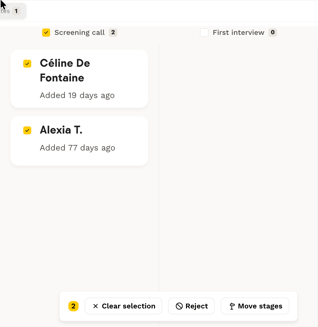
💡 As long as no candidate is selected, the counter displays 0 and the buttons remain inactive. They become active as soon as you select at least one candidate.
To disable bulk selection mode, click the "Selecting applications" button again at the top of the pipeline, or click the "Cancel" button in the floating action bar.
Select candidates
Check the boxes directly on the candidate cards you want to process, or select an entire column by checking the box at the top of it.
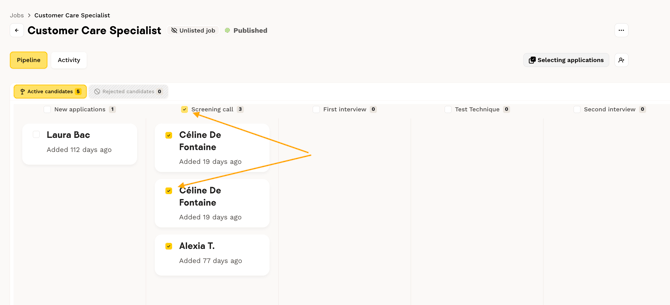
The counter in the floating bar updates automatically as you make your selection.
Move candidates to the next stage
Once your candidates are selected, click the "Move stage" button in the action bar at the bottom of the screen.
A panel opens on the right side, allowing you to:
- Choose the column to move the candidates to.
- Send an email to the selected candidates, using your saved templates or by writing a message directly in the dedicated field.
- Use Welcome AI to help you draft your email.
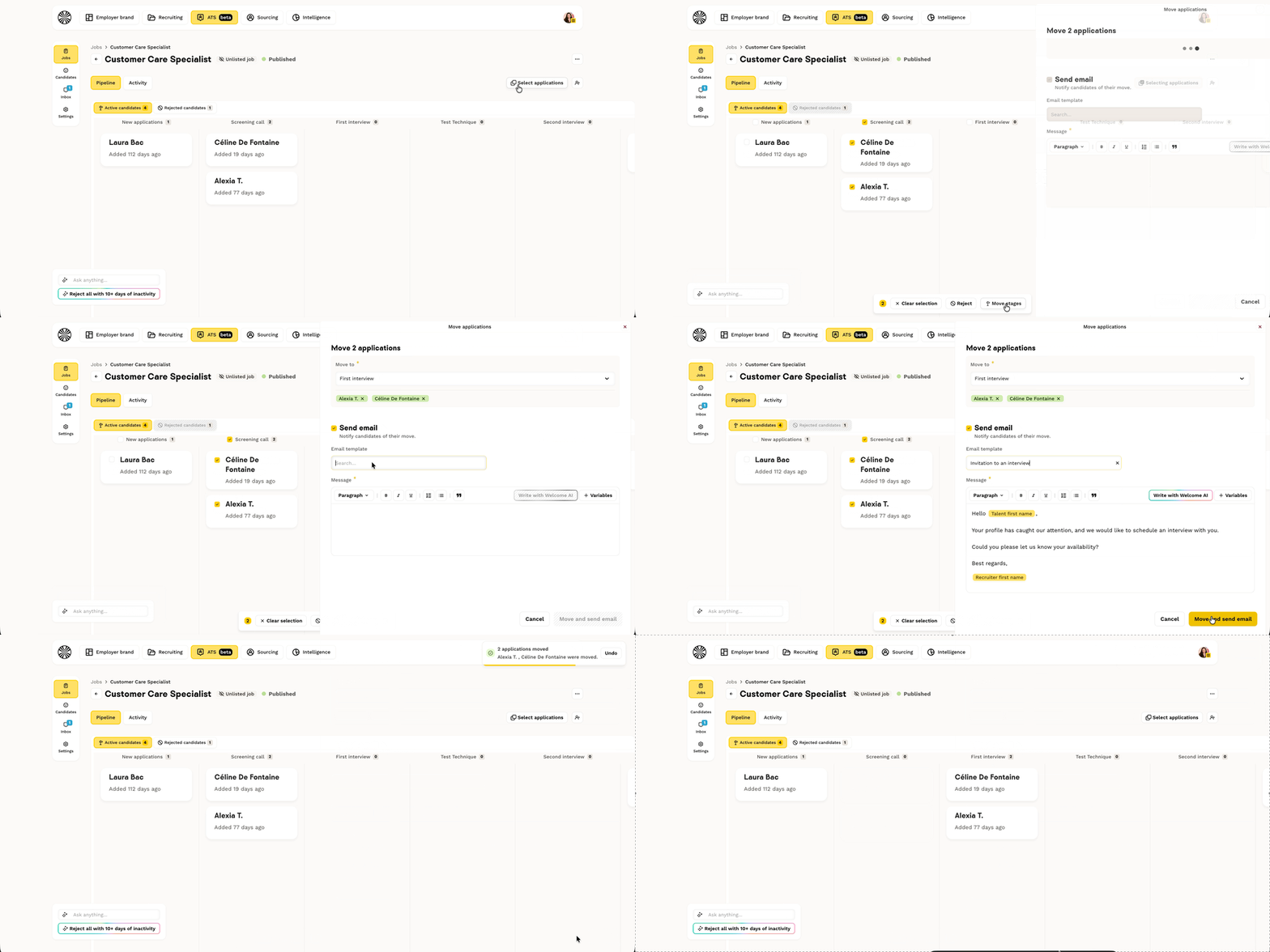
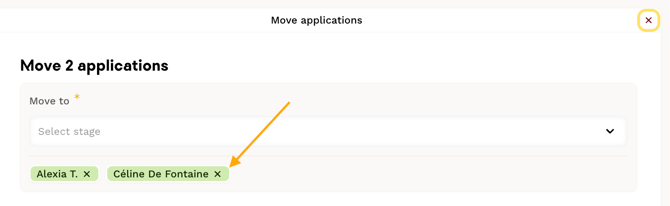
💡 If you checked a card by mistake, you can remove it from the action panel by clicking the X next to the candidate's name.
Reject multiple candidates at once
From the floating bar, click the "Reject" button to move the selected candidates to the rejection column.
A panel opens on the right side to confirm the action.
As with moving candidates forward, you can send an email to the rejected candidates using a saved template, by writing a message manually, or with the help of Welcome AI.
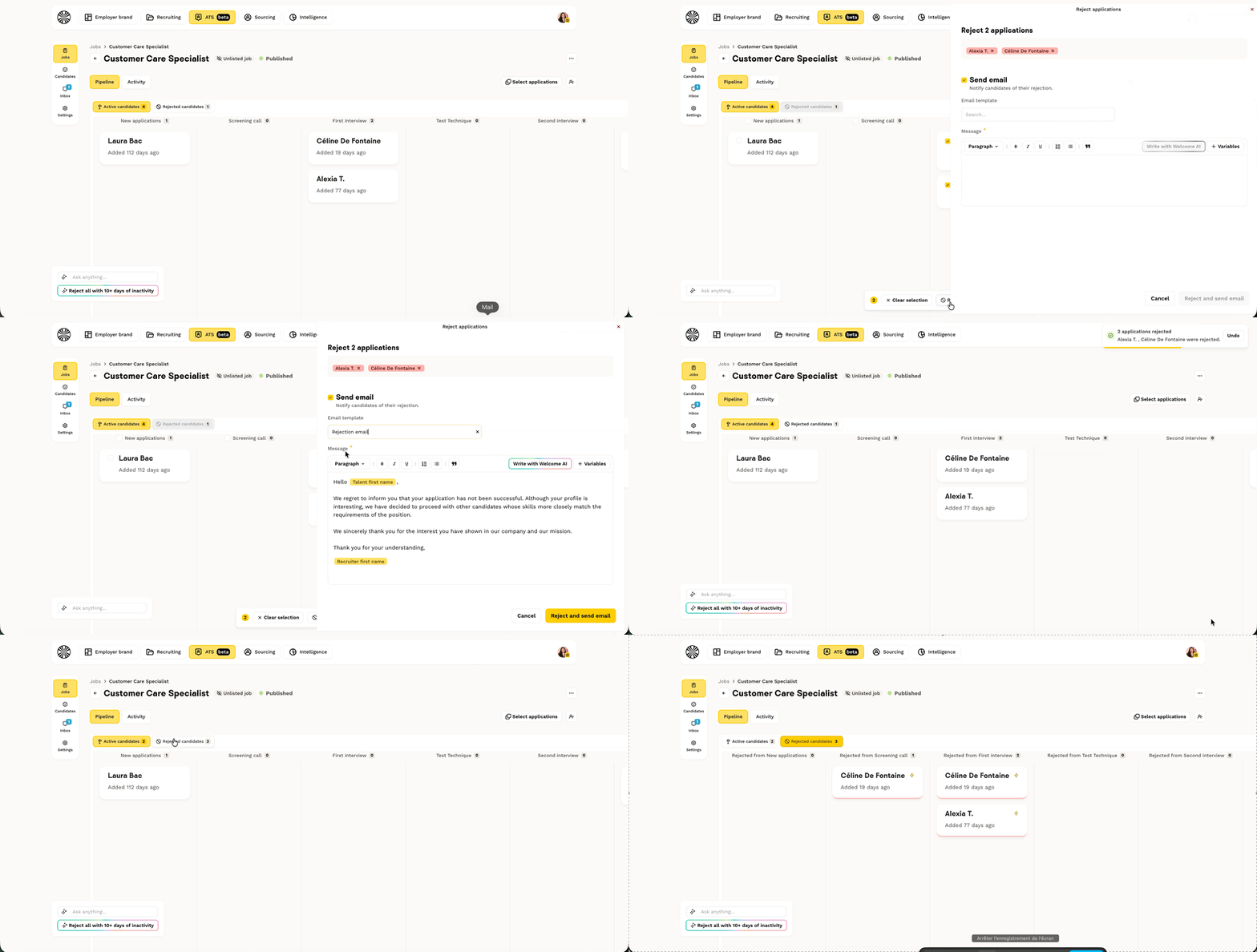
Rejected candidates are moved to the rejection pipeline, at the recruitment stage where their profile was originally located.
Reactivate candidates from the rejection pipeline
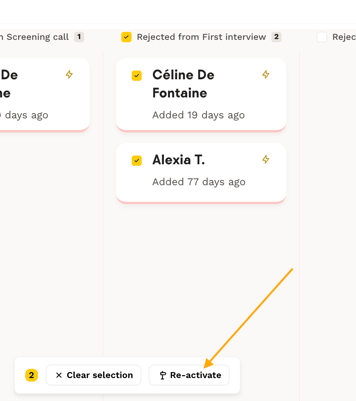
You can move candidates from the rejection pipeline back to the active pipeline using bulk selection.
To do so, select the relevant candidates and click the "Re-activate" button in the floating action bar.
FAQ
How do I enable bulk selection mode? Click the "Select applications" button at the top of your pipeline. Checkboxes appear on each candidate card and at the top of each column, and an action bar is displayed at the bottom of the screen.
Why are the action buttons grayed out? The buttons remain inactive as long as no candidate is selected. Select at least one candidate to activate them.
How do I fix a selection mistake? From the side action panel, click the X next to the name of the candidate you want to remove from your selection.
How do I disable bulk selection mode? Click the "Selecting applications" button again at the top of the pipeline, or click the "Cancel" button in the floating action bar.
Can I reactivate rejected candidates using bulk selection? Yes. From the rejection pipeline, select the relevant candidates and click "Re-activate" in the action bar to move them back to the active pipeline.
🆘 If you have any other questions, you can contact us via the support widget at the bottom right, or through the contact form at this link.