
Table of contents
💡 As soon as you log in to Welcome to the Jungle Solutions ATS the red bell at the top right of the dashboard informs you of unread notifications that concern you (a change of status of a job, a new application on a job you follow, a candidate you follow moved from one column to another, a comment from a recruiter, etc.).
In addition to these indicators on the Welcome to the Jungle Solutions ATS dashboard, you will receive via email:
A daily recap
Every morning, an email is sent from contact@welcomekit.co to all ATS administrators and members assigned to job offers as recruiters. This recap summarises the latest activity concerning the jobs you follow as a recruiter on the Welcome to the Jungle Solutions ATS (new application, email, rejection).
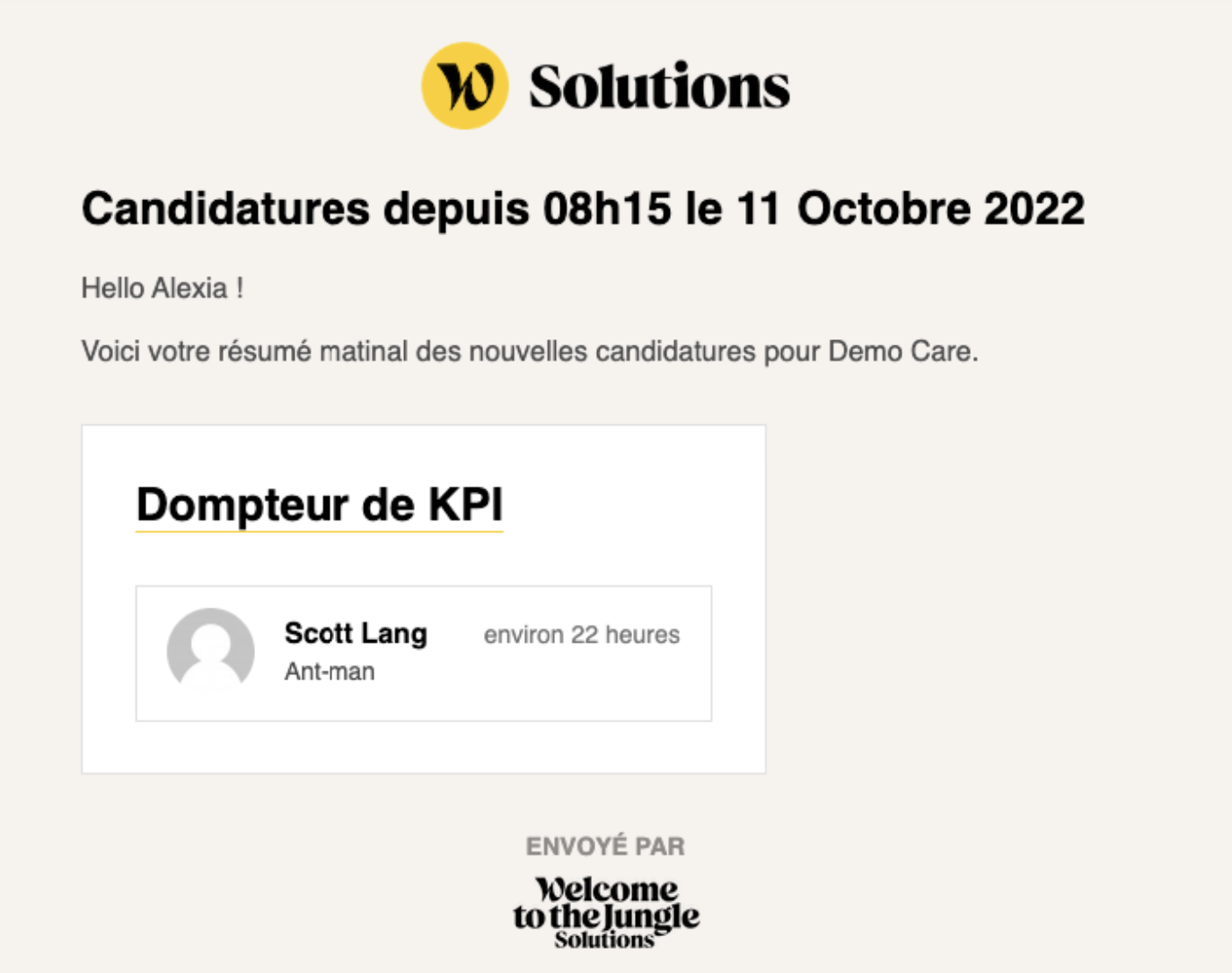
To receive daily summaries and notifications about job offers and be assigned to the offer as a recruiter in the recruitment team, there are two assignment methods:
- Via the ‘Activity’ menu on the right-hand side of the candidate pipeline
- Via step 4 of the job offer editing form (section ‘Recruitment process’)
⚠️ If you do not wish to receive this email, please let us know by contacting us using the Support button at the bottom right of your screen.
An email for each interaction with a candidate
Each time a mail exchange occurs with a candidate to whom you are assigned, you will be notified by email (more context in this article). To receive notifications about exchanges with a candidate, simply:
- Follow the application by ticking ‘Assign this application to me to be notified of future exchanges’ when sending an email.
If no one is following the application, notifications are sent to all members assigned to the offer (including restricted members).
An email for each comment mentioning you
Whenever one of your collaborators mentions you via "@Username" (More on information comments in this article).
⚠️ Finally, please note that it is not possible to receive an email for each new application.
💡 If you'd like to be notified in real time of all applications and events, you can set up a Slack integration by clicking on your company logo at the top left: Organization Settings > Integrations (the tool guides you through the steps to follow).
🆘 If you have any further questions, you can contact us using the support widget at the bottom right, or the contact format this link