
Table of contents
- 🎯 Add members to your organization
- ↔️ On the side of your employees
- ✏️ Modify member access and roles
- ❌ Remove a member from the organization
- ❓FAQ - Frequently Asked Questions
💡 This article guides you through the complete management of your organization's members: from adding to deleting, to modifying roles and access.
🎯 Add members to your organization
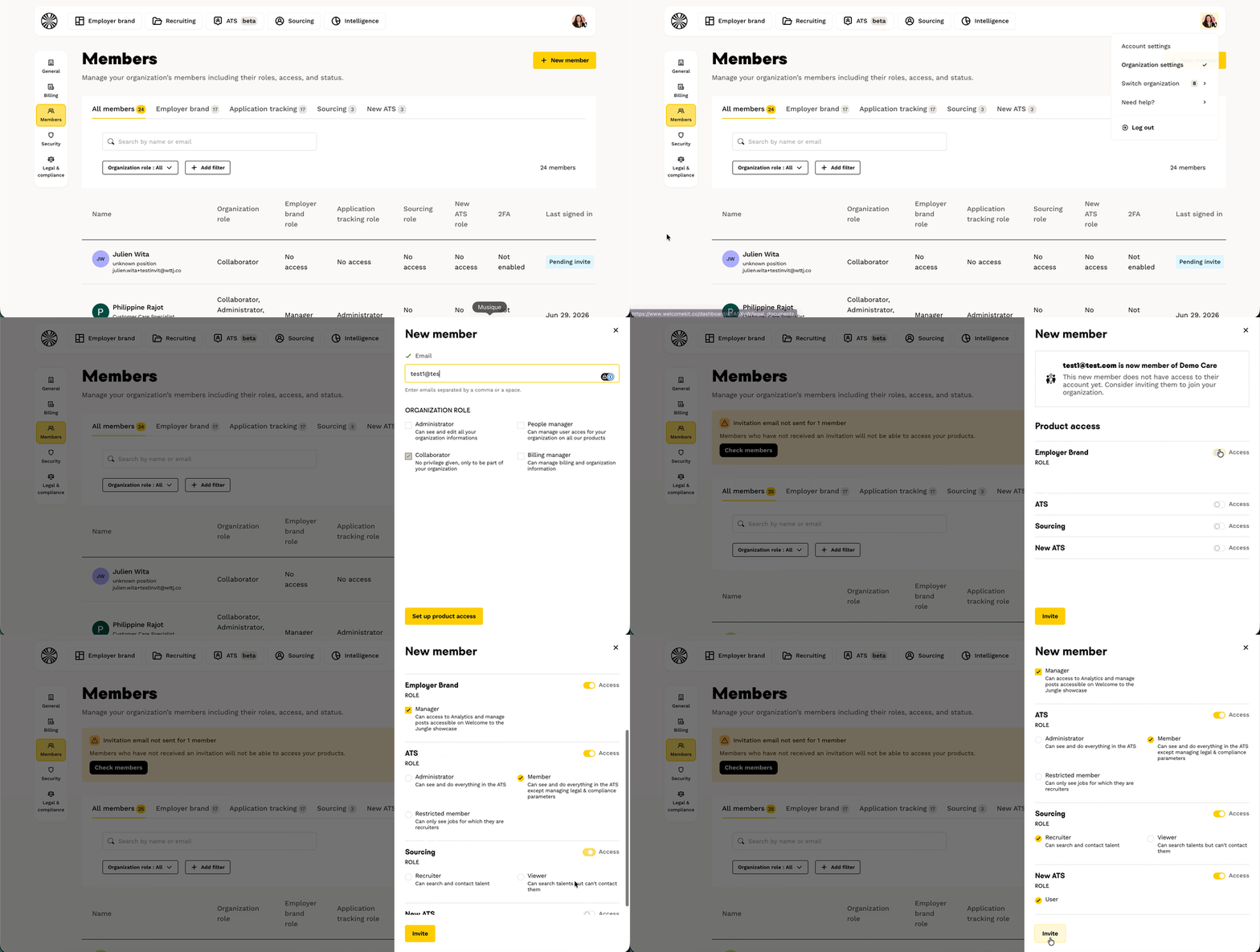
Adding a member to your products and in your organization is easy:
- Click on your avatar at top right
- Click on "Organization settings"
- Select "Members" tab
- Click on the "New member" button
- Fill in the email address of the member
- Choose the role to be given in the organisation
- Add them to the products that seem relevant to you
↔️ On the side of your employees
As soon as you have sent the invitation, an email will be sent to the relevant employee.
- The sending address is: contact@wttj.co
- The subject of the email is: Your invitation to access WTTJ services
- The screenshot below shows what the invitation looks like:

Your collaborator will have to accept the invitation, and will then be redirected to the administration centre, which will ask them to accept the T&Cs and confidentiality clauses, and to take note of the products to which the company has given them access.

And there you go... that's it 👏 !
✏️ Modify member access and roles
If you have Admin status, you can easily modify the rights of your collaborators:
- Access the "Manage members" tab by clicking on your photo icon, then "Organization settings".
- In the "Members" tab, you can :
Change your collaborators' roles
Modify product access
Remove members from your organization
❌ Remove a member from the organization
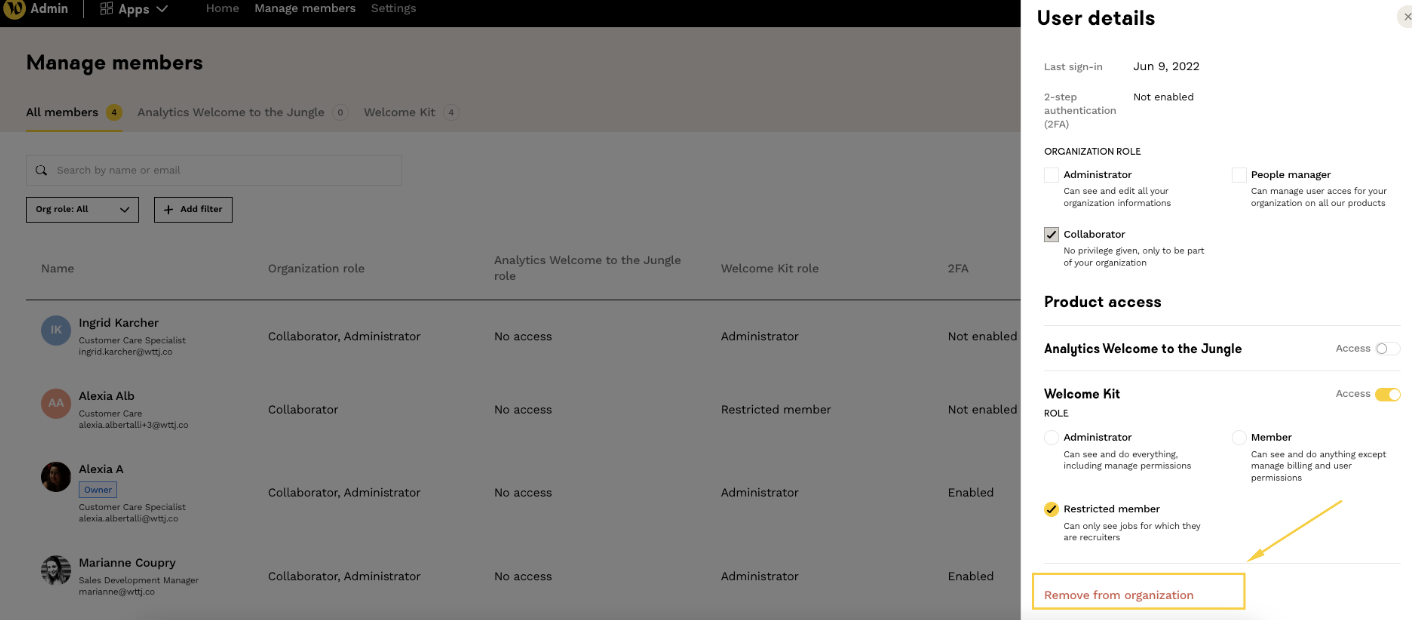
To permanently remove a member from your organization:
- Access the "Manage members" tab by clicking on your photo icon, then "Organization settings".
- In "Members", click on the profile of the member you wish to remove
- Select "Remove from organization" in the pop-up window on the right of the screen
- Confirm the removal
❓FAQ - Frequently Asked Questions
Q: How many members can I add to my organization?
A: The number of accounts and licenses is unlimited on Welcome to the Jungle Solutions.
Q: Who can add or remove members?
A: Only users with Admin status at organization level can manage members.
Q: What does a member receive when I invite him/her?
A: They receive an e-mail from contact@wttj.co with the subject "Your invitation to access WTTJ services" to confirm the creation of their account.
Q: Can I change roles after adding a member?
A: Yes, you can modify roles and product access at any time from the "Members" tab.
Q: How can a deleted member regain access?
A: A new invitation must be sent from an Administrator.
🆘 If you have any further questions, you can contact us using the support widget at the bottom right, or the contact form at this link