
Table of contents
- 🏢 Add a New Office
- 🗑️ Remove an Office
- 🏘️ Assign Multiple Offices to a Single Offer
- Remove Offices from an Offer
- ❓ FAQ
🏢 Add a New Office
To add an office, go to the ATS, and select Settings > Offices > Yellow "New Office" Button.
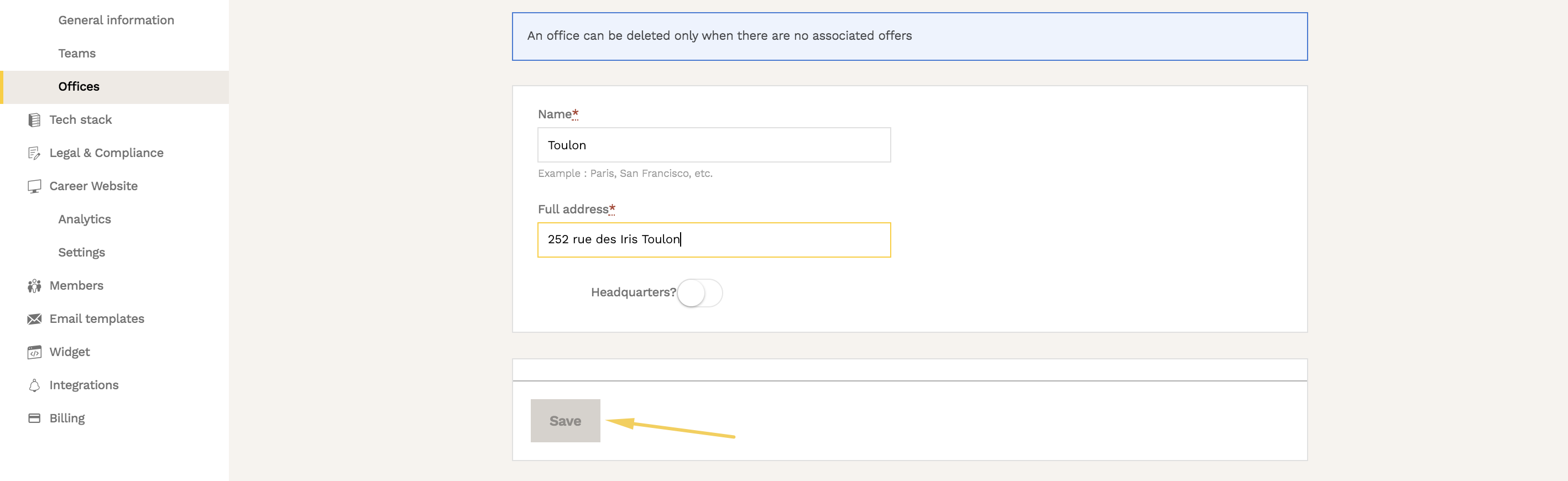 Note Once this new office is added, it will appear:
- In the header of your Welcome to the Jungle profile (if you have one and have activated this option)
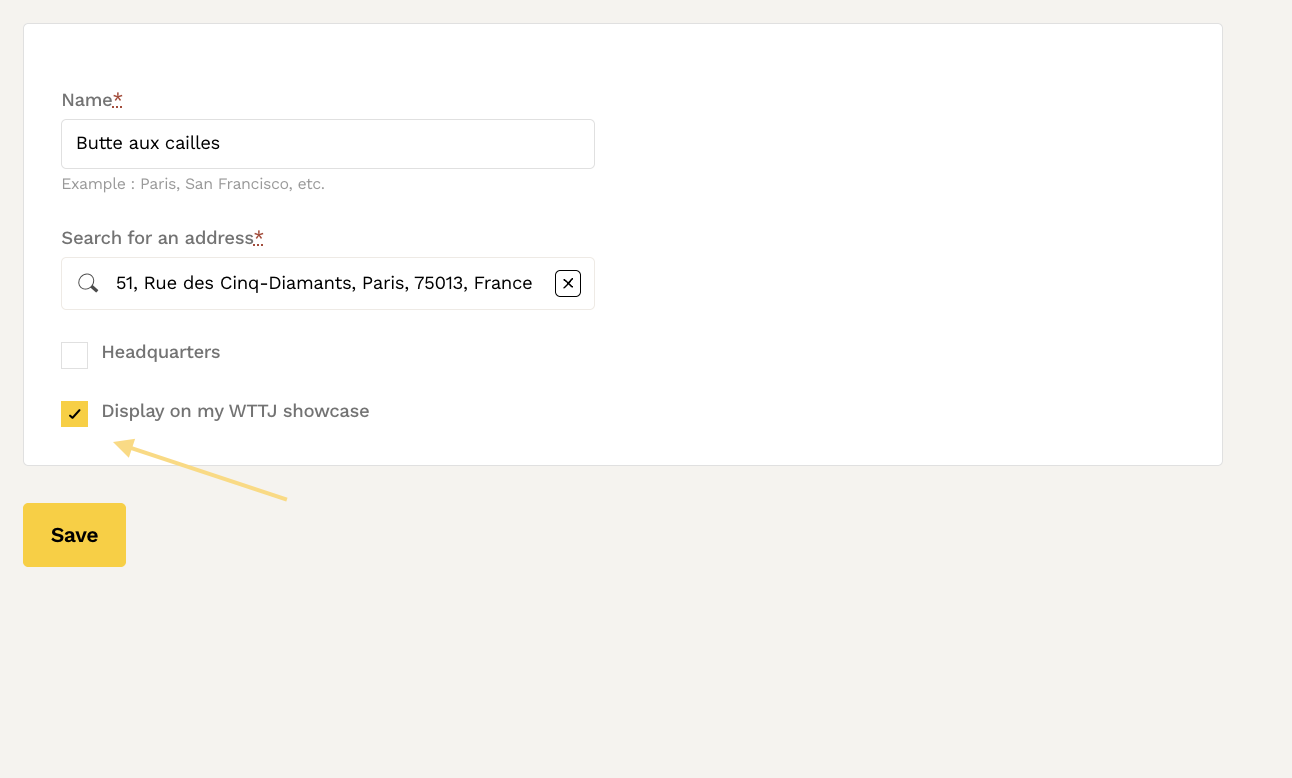
- Directly on the job thumbnails with this associated location, from the "Jobs" tab of your profile
- In the right banner of your job offers
- In the search engine filters in the location section
🗑️ Remove an Office
To delete an office, from the ATS, go to Settings > Company > Offices: 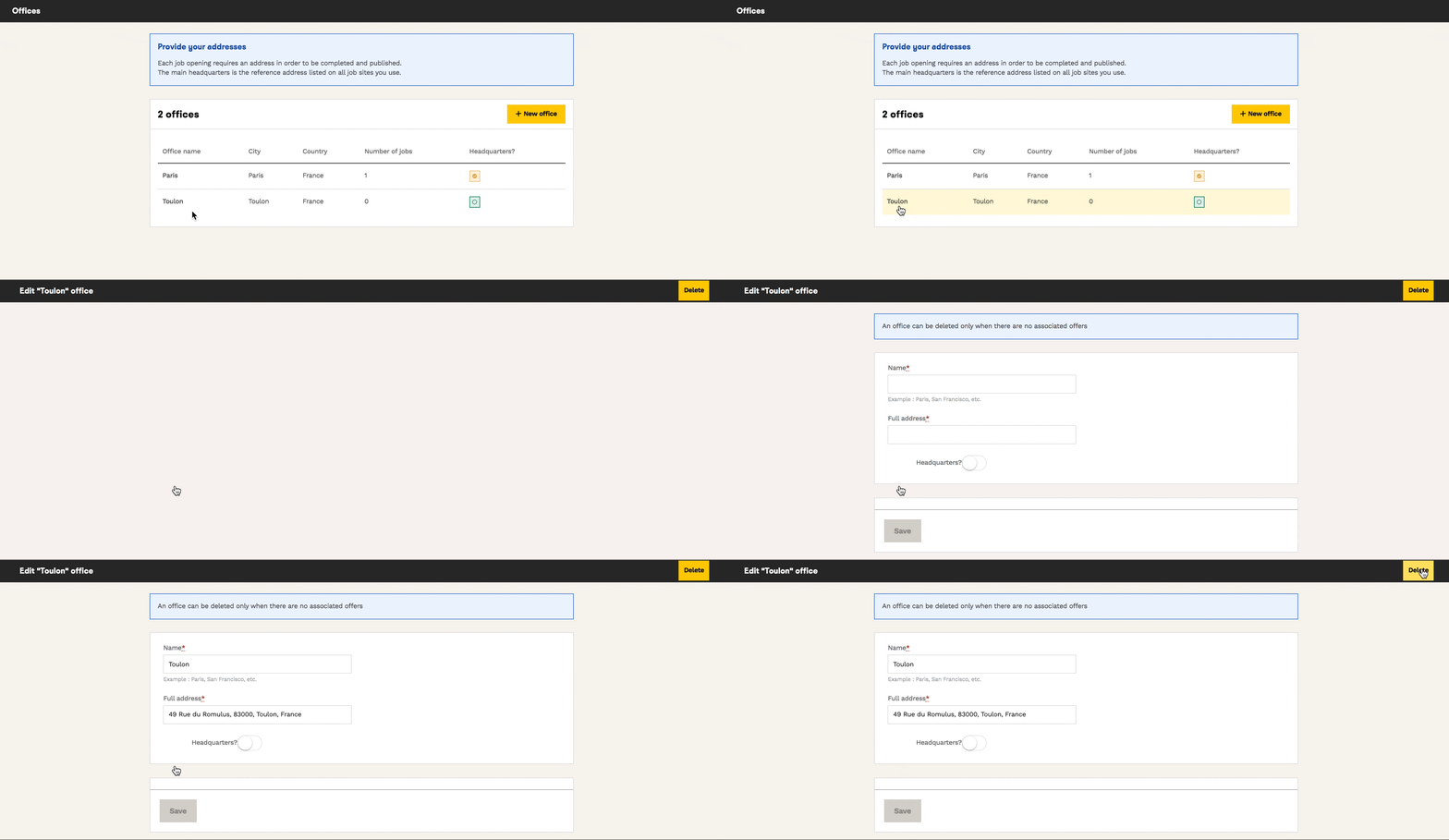 ⚠️ The “Delete” button will only appear if no job posting (published, draft, or archived) is associated with this office.
To check which jobs are linked to an office, go to the dashboard, then select the office you want to delete to access its details.
🏘️ Assign Multiple Offices to a Single Offer
To add multiple offices to a single offer, it's straightforward! When creating a new offer, in the first "job offer" tab in the gray column on the right of the screen, click on the "Offices" field and select your locations from the drop-down list: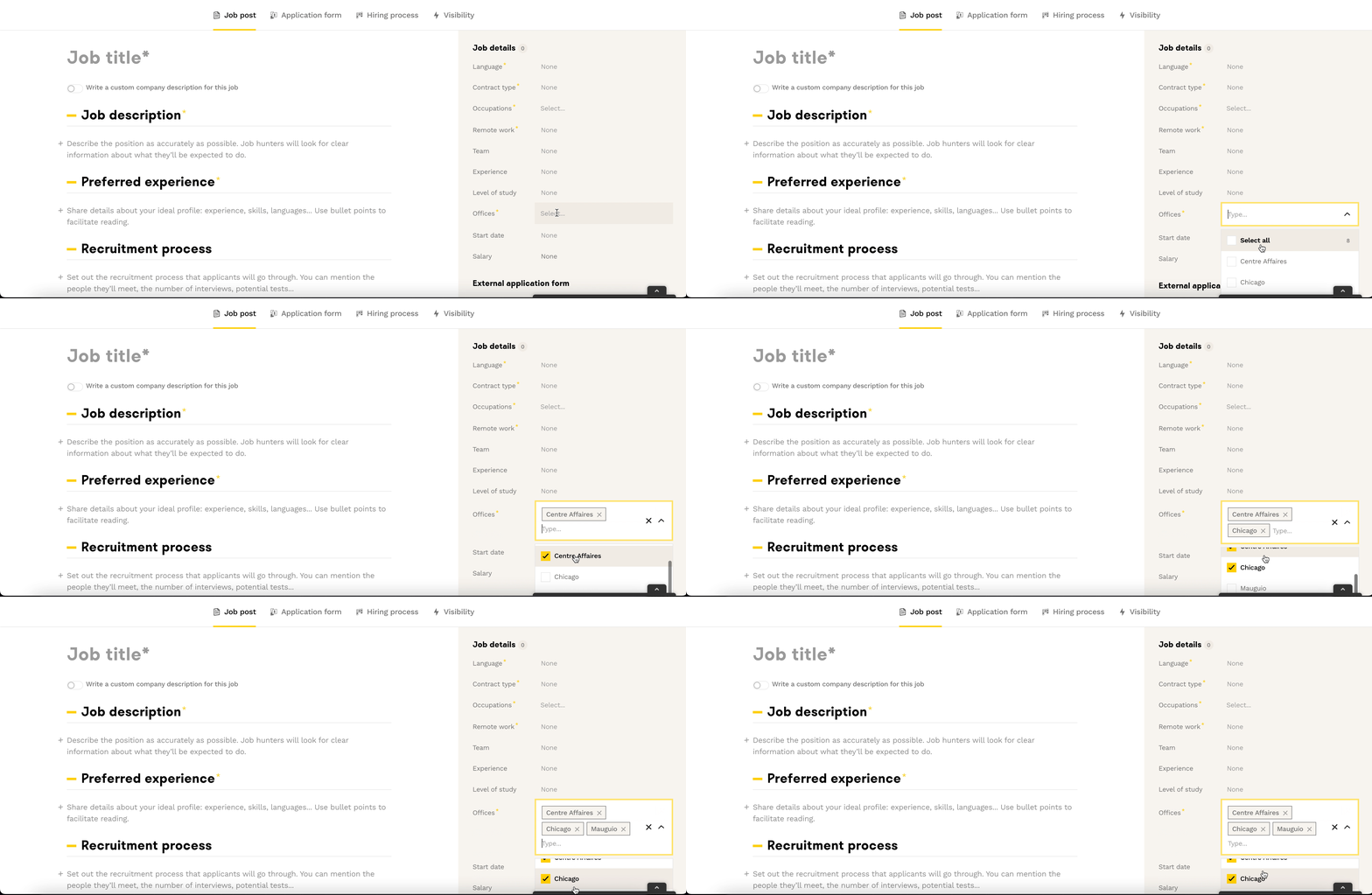
Remove Offices from an Offer
If you wish to remove one or more offices from the offer, click on the small cross to the right of the office: Once the offer is saved, the removed offices will no longer appear on your offer.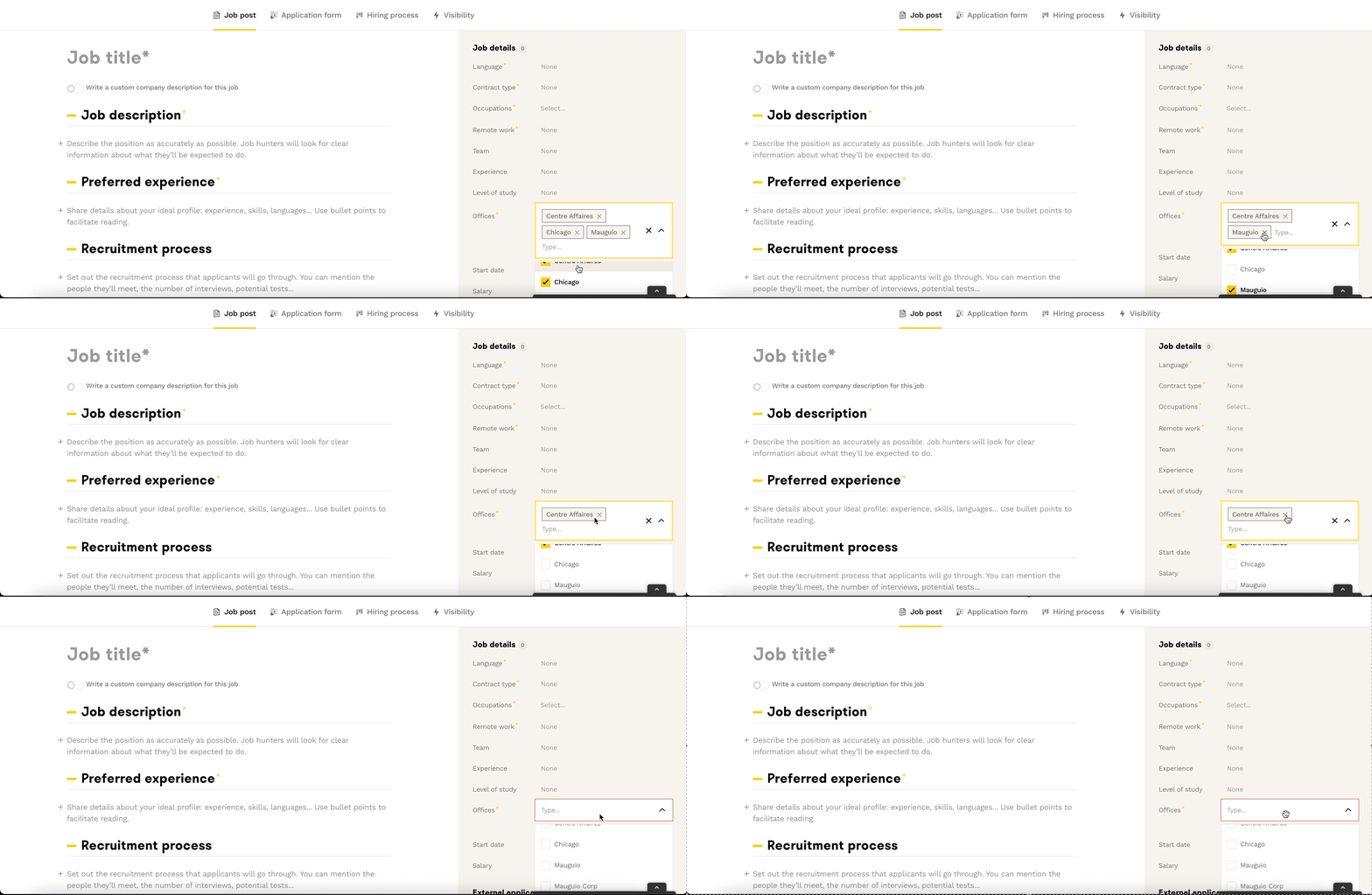
❓ FAQ
Q: Why is the "Save" button blocked when adding an office?
A: This is usually due to a location not recognized by Google Maps. Try removing the street number/road/boulevard from the address.
Q: Can I delete an office with associated offers?
A: No, you can only delete offices with no associated jobs, even archived offers must be reassigned to another office.
Q: Can I modify the offices of an already published offer?
A: Yes, you can modify an existing offer from the Candidate Pipeline by clicking "Edit".
🆘 If you have further questions, you can contact us via the support widget at the bottom right, or through the contact form at this link