
Table of contents
- View applications for a job post
- Edit the progression or rejection pipeline
- Update the status of an application
- Add a candidate manually
- Link a job post to an existing candidate
- View the history of a job post
- FAQ
Managing your recruitment pipeline and applications is at the heart of your recruitment process. This article guides you step by step to view, organize, and effectively track all your applications in the ATS.
View applications for a job post
To access the applications for a job post, there are two options:
From a candidate's profile:
- Go to the "Candidates" tab in the ATS.
- Select the candidate's profile.
- All their other applications will be listed at the bottom of the profile.
From a job post:
- Go to the Job posts tab in the ATS.
- Find the published job post: at a glance, you can see the number of candidates at each stage of the recruitment process.
- Click on the job post to open the pipeline and view all the applications linked to it.
Within each stage, applications are sorted by creation date, from most recent to oldest.
💡 Good to know: You can easily view the automatic screening score (N/max 5) directly on candidate cards to prioritize your reviews.
Edit the progression or rejection pipeline
To update the pipeline for your job post, click the "Edit job" button, then go to the "Hiring stages" tab:
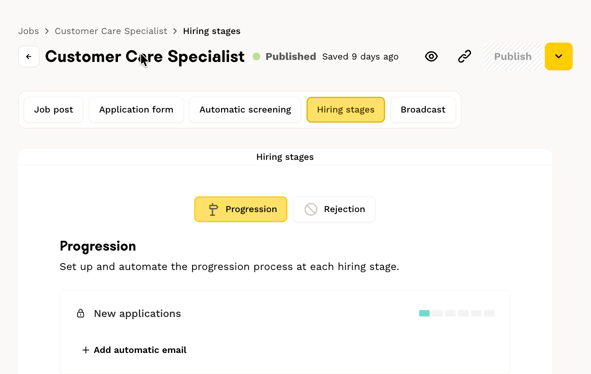
You can freely edit, rename, add, or delete stages to adapt your pipelines to your recruitment process (except for the "New", "Offer", and "Hired" columns).
⚠️ Please note: When you add a new stage to the progression pipeline, it is also duplicated in the rejection pipeline.
Update the status of an application
You have two methods to move a candidate forward in your pipeline:
Method 1: Drag and drop: Simply drag the candidate card from one pipeline column to another.
Method 2: From the candidate profile: Directly from the candidate's profile page, click on the current stage and select the new stage from the dropdown menu.
⚠️ Important recommendation: We recommend keeping a structured pipeline and moving candidates to the "Rejected" or "Hired" column based on your decision, so you can effectively track your recruitment performance over time.
Add a candidate manually
You can add candidates to your ATS in two ways:
Option 1: From a job post pipeline:
- Navigate to the relevant job post.
- Click New candidate.
- Enter the candidate's information.
- Select the source (event, internal mobility, recruitment agency, referral, sourcing, other).
- Add their resume using the "Browse" button.
- The candidate will automatically be linked to this job post.
Option 2: From your candidate pool:
- Click Candidates in the navigation bar.
- Click New candidate.
- Enter the candidate's information.
- You can link a job post later if needed.
Link a job post to an existing candidate
If you have manually added a candidate to your talent pool and want to associate them with a job post:
- Navigate to the Candidates page.
- Click on the candidate's card to open their profile.
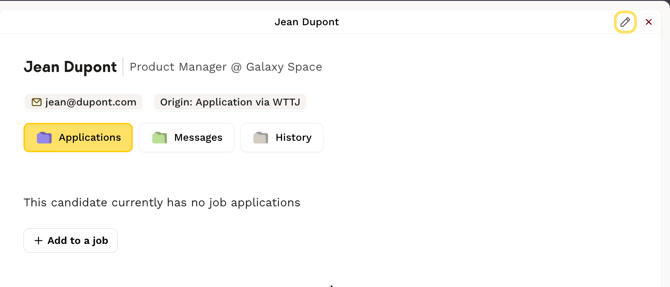
- Click Add a job post.
- Select the job post and the corresponding pipeline stage.
View the history of a job post
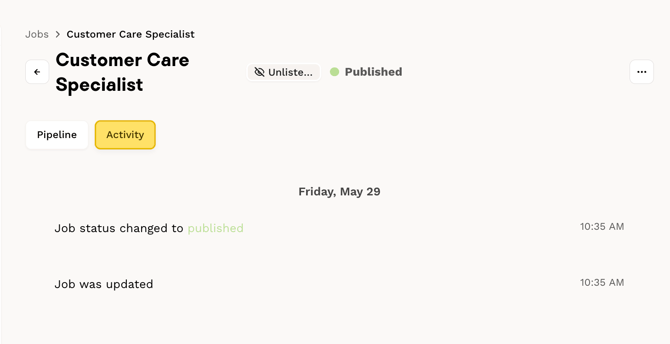
To track the progress of your recruitment process, go to the Activity tab from the job post pipeline. You will find:
- Job post creation date.
- Job post edit dates.
- Publication date.
- All key events in the process.
FAQ
- Can I customize the stages in my pipeline? Yes, pipeline can be customized except for the "New", "Offer" and "Hired" columns.
- How are applications sorted within each stage? Applications are automatically sorted by creation date, from most recent to oldest.
- Can I see if a candidate has applied for multiple jobs? Yes! If a candidate has submitted multiple applications, a tag will appear on their profile page. Hover over it to get the details of their other applications. You can also see this directly in the candidate's profile: click on the candidate's card to view all associated applications.
- Should I always formally reject unsuccessful candidates? We strongly recommend it. Moving candidates to the "Rejected" column allows you to track your recruitment performance over time and maintain a structured pipeline.
🆘 If you have any other questions, you can contact us via the support widget at the bottom right, or through the contact form at this link.