
Table of contents
- 📧 Accessing and Managing Your Email Templates
- 🧑🎨 Creating Custom Templates
- Personalize with Variables
- Share the Link to Your Welcome to the Jungle Showcase
- Use Markdown Syntax
- Use Variables
- 🗑️ Deleting Obsolete Templates
- How to Delete
- ❓ FAQ
📧 Accessing and Managing Your Email Templates
Welcome to the Jungle Solutions ATS admin area Settings Email Templates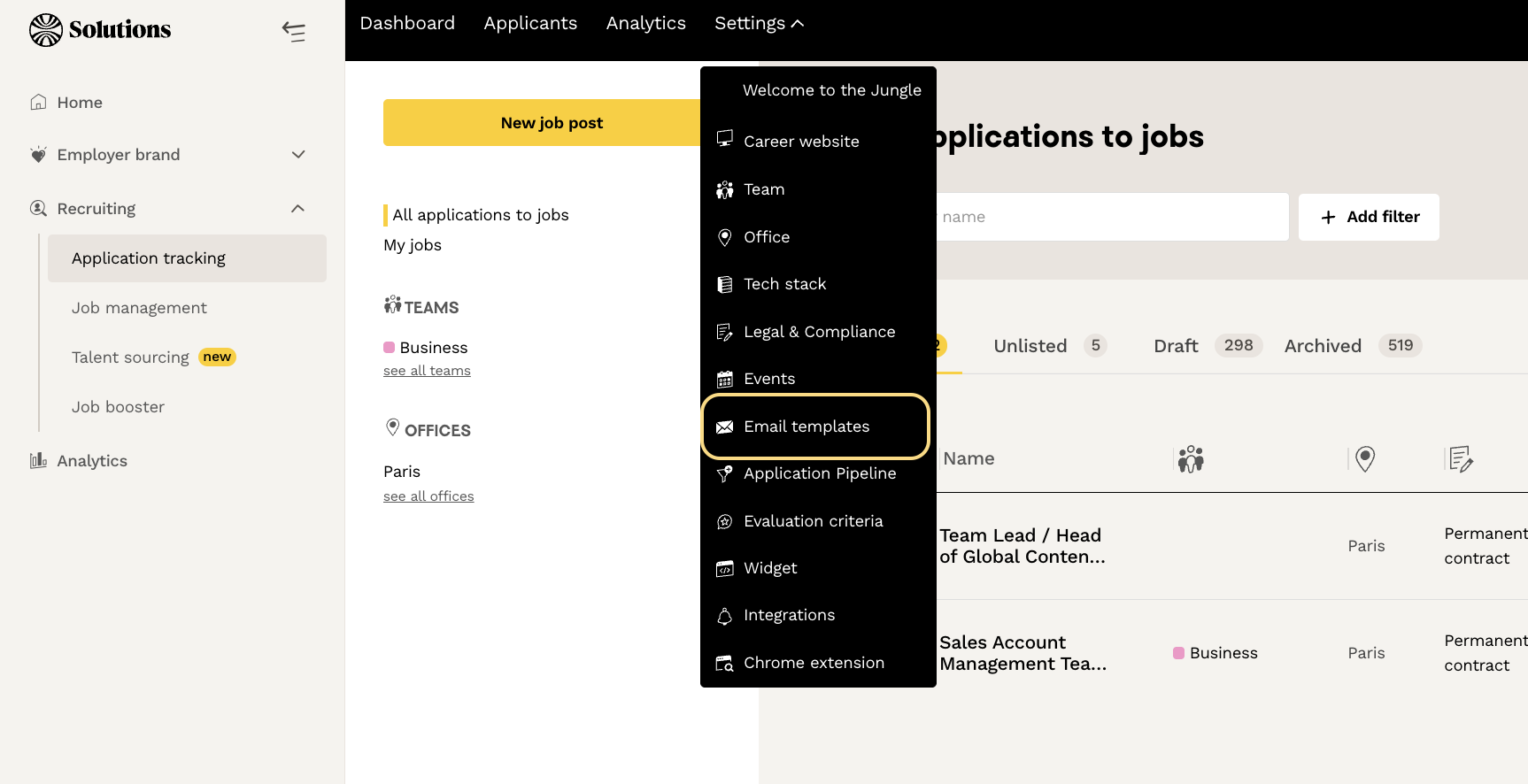 You will find all your existing templates organized within this interface. Two default templates are pre-configured:
- "Application Received" Template: automatically sent to all candidates who have applied
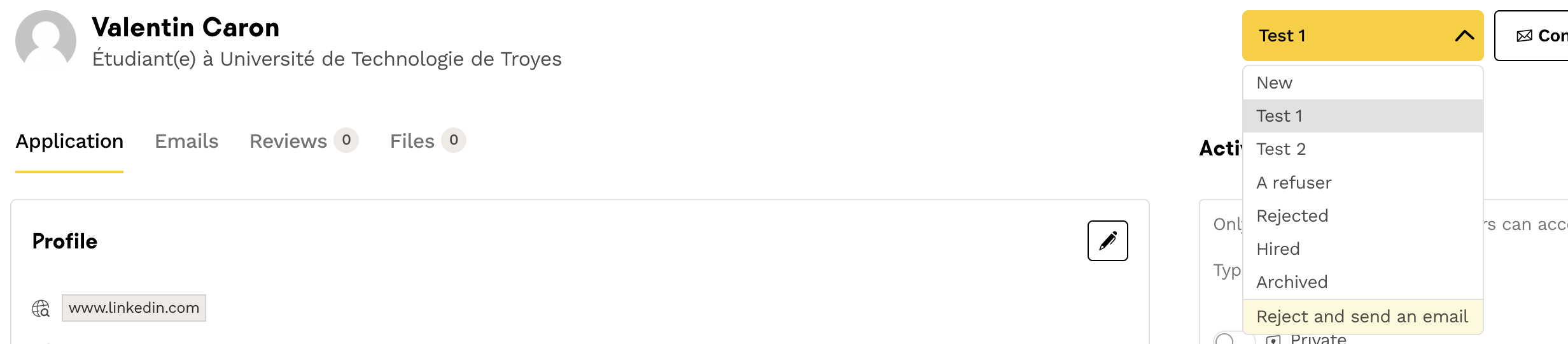
- "Default Rejection Email" Template: used with the "Reject and send an email" button available on each candidate profil
 Important ATS
🧑🎨 Creating Custom Templates
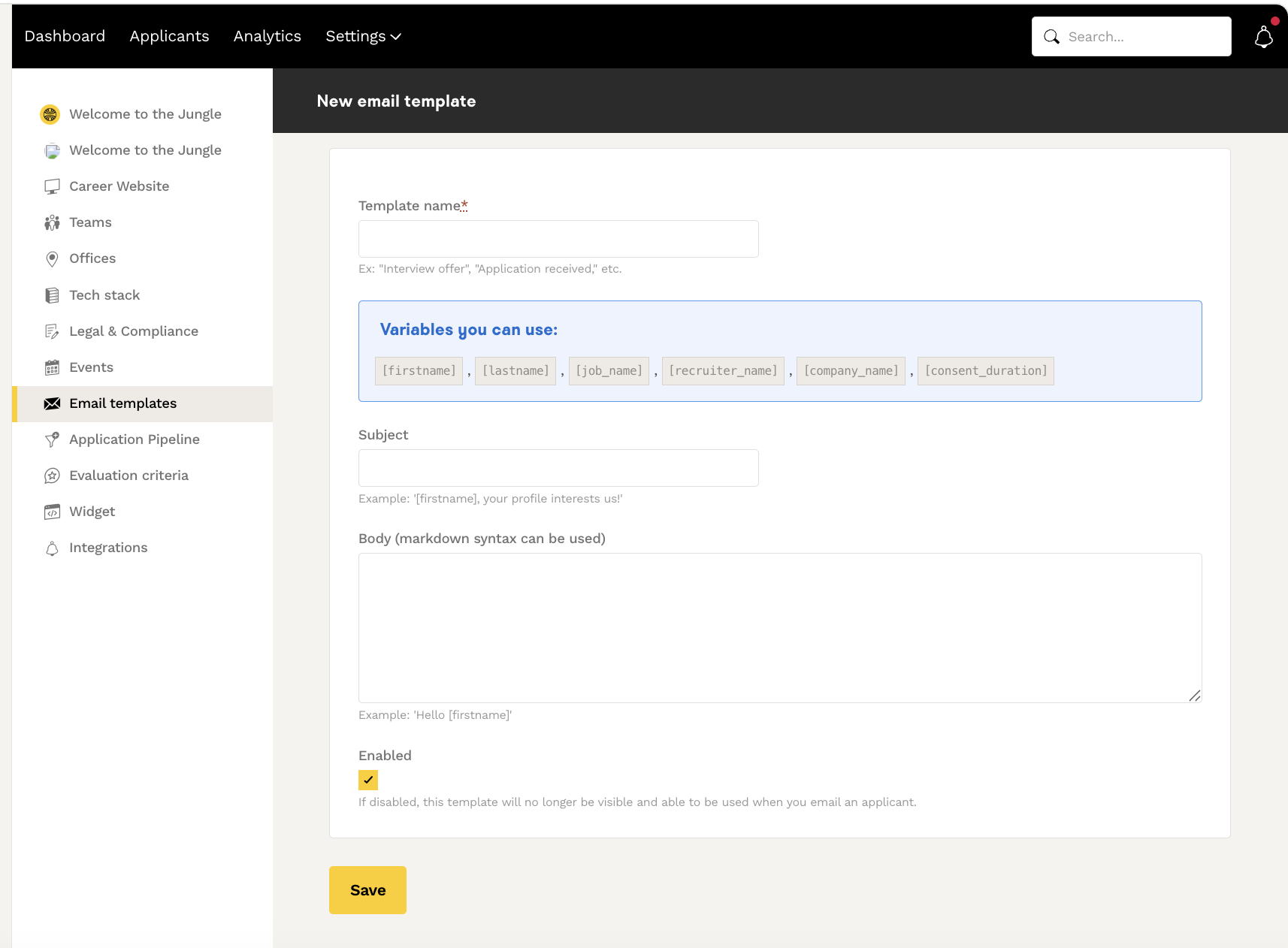
as many email templates Note that they are shared among all members of your organization. For better management, we recommend adopting a clear and precise naming convention shared with all recruiters.- For example, start with the outcome of the application: Yes or No, and the stages after which this decision was made. #No_CV; #No_Case_Study; #No_Interview; #Yes_Meeting; #Yes_Phone_Call; #No_Hired_Recently...
- For example, assign different templates to each recruiter: #Hermione_No_Screening; #Harry_Yes_Interview...
Personalize with Variables
Use the available variables to automatically personalize your emails (candidate's name, position, company, etc.).Share the Link to Your Welcome to the Jungle Showcase
hyperlink without space http://my-url.com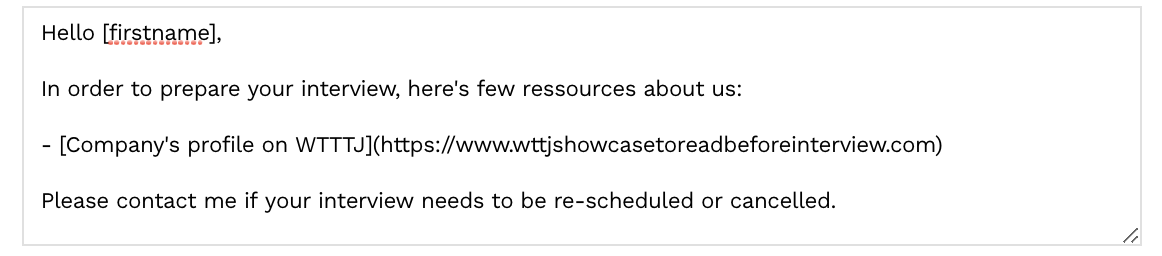
Use Markdown Syntax
For more information, see this article- To include an image or GIF, you must host it using a dedicated URL (via a service like Imgur or Lightshot) and use the following format, which contains no spaces.
- If your image does not have a name, you can leave the expression between brackets empty: []
Use Variables
In addition to saving time, using variables ensures your email is personalized for the candidate. Below are the different variables you can use!
🗑️ Deleting Obsolete Templates
How to Delete
- Go to Settings > Email Templates in the ATS
- Click on the template you wish to delete
- Click the "Delete" button in the top right corner
- Confirm by clicking "OK"
❓ FAQ
Q: How many templates can I create?
A: You can create as many templates as you wish.
Q: Are templates shared among team members?
A: Yes, all templates are shared with all members of your organization.
Q: Can I automate the sending of my custom templates?
A: No, only the "Application Received" template is automated. Other templates must be sent manually.
Q: How do I personalize my emails?
A: Use the available variables (candidate's name, position, company, etc.) and Markdown syntax for formatting.
Q: What happens if I accidentally delete a template?
A: Deletion is permanent and irreversible. Be cautious when performing this action.
🆘 If you have any further questions, you can contact us using the support widget at bottom right, or the contact form at this link