
Table of contents
- 🧐 What is Welcome Analytics?
- 🏘️ Structure of the Analytics Space
- 🙋🏻 Who Has Access to Welcome Analytics?
- 🔐 How to Grant Access to Welcome Analytics?
- 🧸 Grant Welcome Analytics Access to an Existing User
- ➕ Add a New Member with Welcome Analytics Access
- ❓ FAQ
Welcome Analytics is the performance measurement tool for your employer brand on Welcome to the Jungle. This feature allows you to analyze in real time the impact of your company profile and job postings, while gaining a better understanding of your audience to optimize your recruitment strategy.
🧐 What is Welcome Analytics?
Analytics helps companies with a profile on Welcome to the Jungle to understand their employer brand and analyze their performance by providing monthly updates on the latest statistics for their profiles and job listings. This feature enables you to access your performance data on Welcome to the Jungle at any time.
🏘️ Structure of the Analytics Space
The Analytics space is organized into four main sections:
- Overview: To see the number of unique visitors to your profile and your key figures.
- Employer Brand section: To analyze the visibility of your profile and your engagement performance.
- Recruitment section: To analyze how candidates are expressing interest in joining your team.
- Audience section: To analyze the profile of your visitors and better target your future candidates.
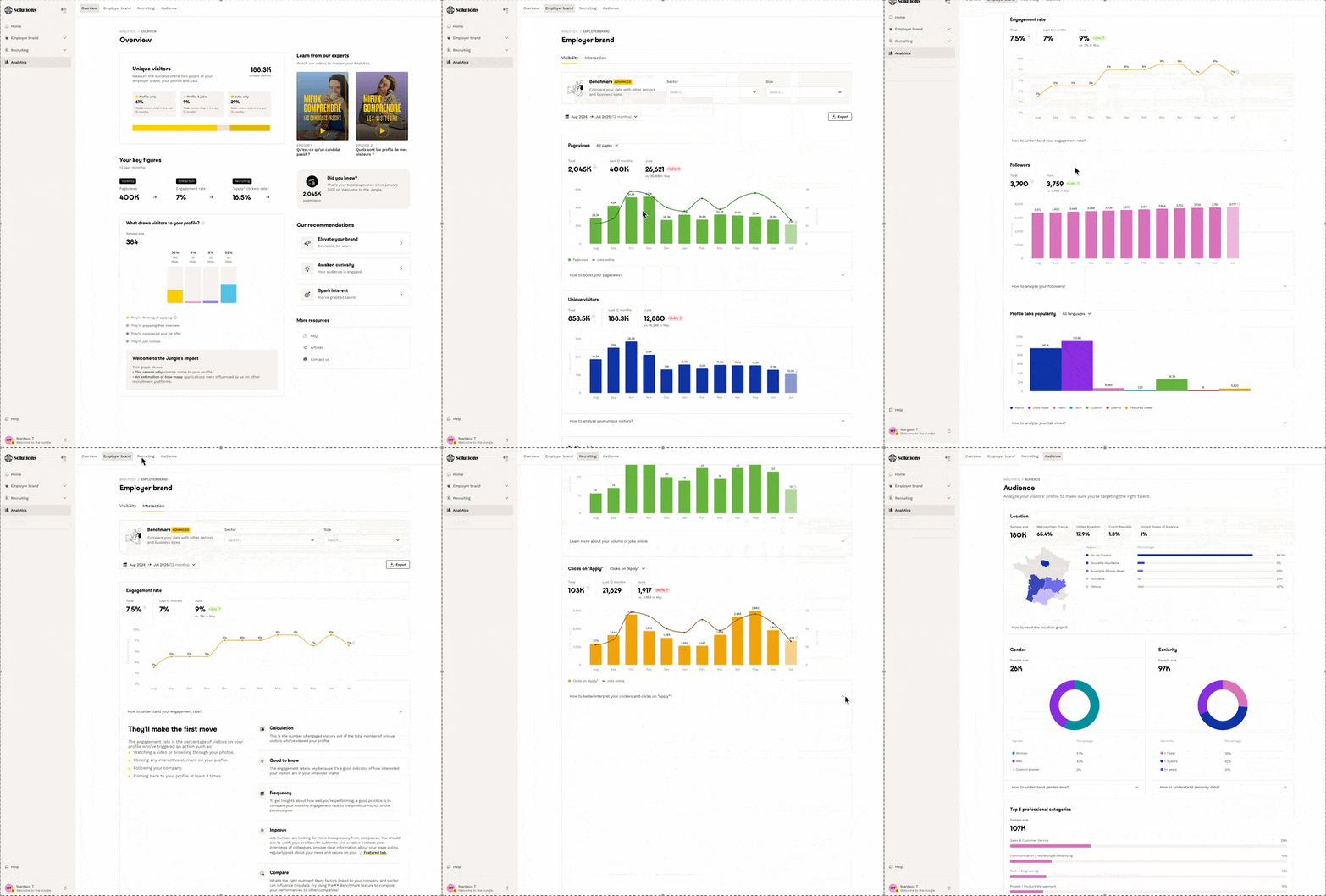
Below each chart, you have access to information and recommendations designed to guide you in understanding the results and improving your performance.
🙋🏻 Who Has Access to Welcome Analytics?
Access to the Analytics is by default granted to owners of the Welcome to the Jungle account, as well as to users with the Manager role for the Employer Brand product.
To check if you have access to Analytics, go to your account settings to verify your roles and permissions! This section is also accessible from the dropdown menu on the left side of your screen.
🔐 How to Grant Access to Welcome Analytics?
Would you like to share your employer brand statistics with your colleagues? You have two options.
🧸 Grant Welcome Analytics Access to an Existing User
⚠️ Note: To do this, you must be the account owner or have the "User Management" role.
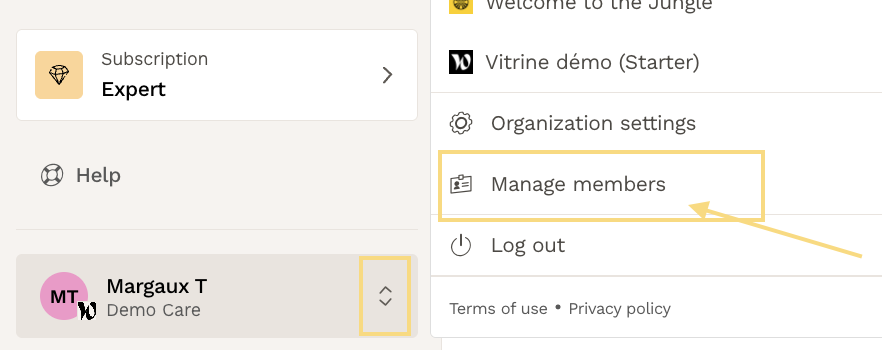
- Go to the "Manage Members" section from the dropdown menu at the bottom left of your screen:
- Click on the colleague you want to grant new access to.
- In the right-hand dropdown panel, click on the roles you want to modify.
- Choose to grant access to the Employer Brand product:
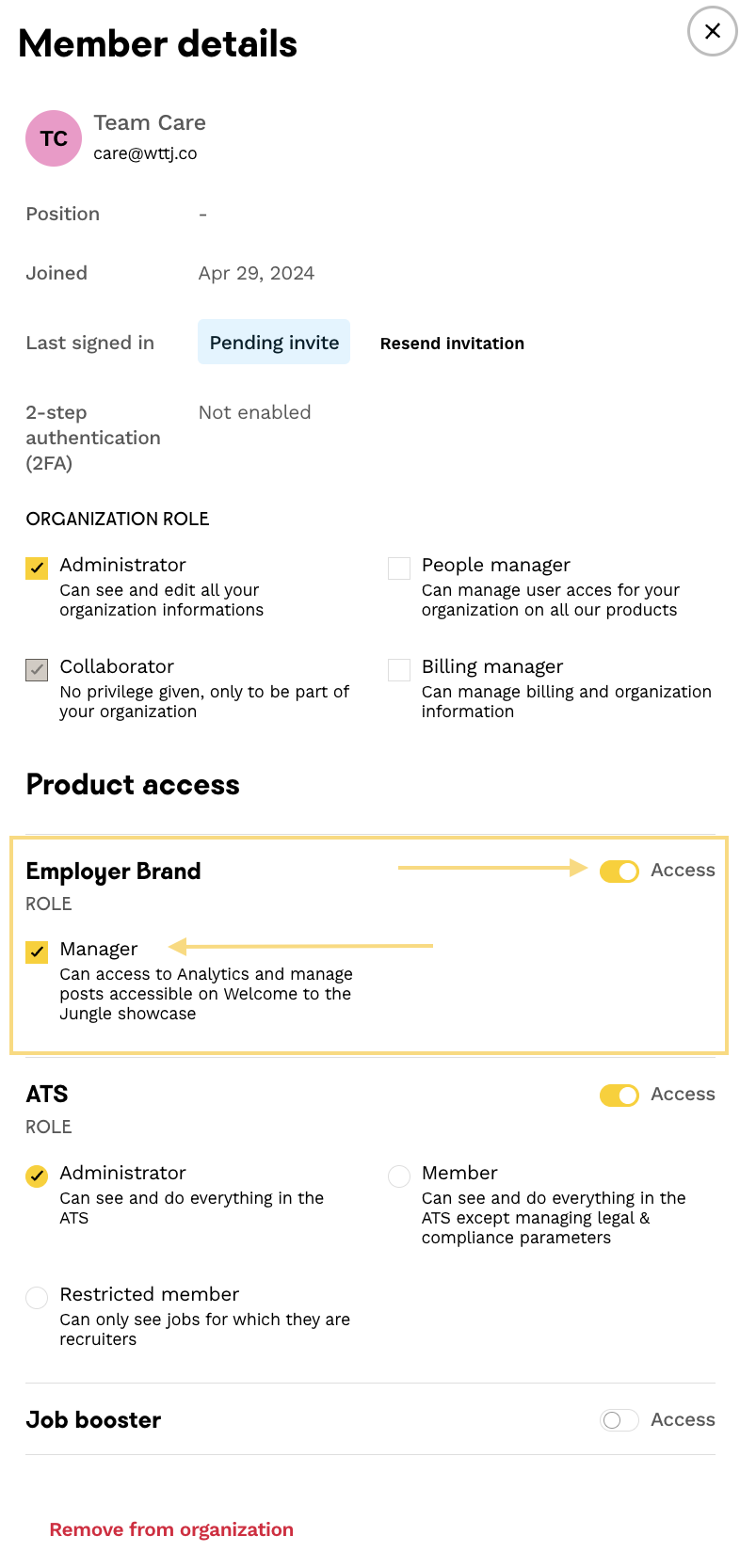
🎉 And there you go, your colleague now has access to Welcome Analytics!
➕ Add a New Member with Welcome Analytics Access
The procedure is almost the same as above; you just need to add a new member:
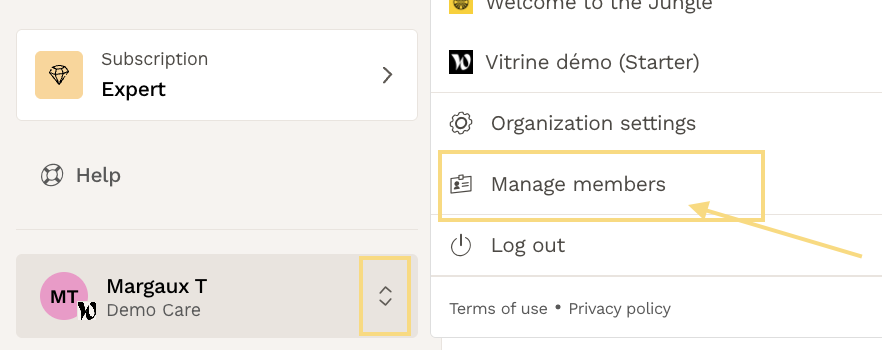
- Go to the "Manage Members" section:
- Click the "Add Member" button:

- Enter the professional email address of the person you want to grant access to.
- In the right-hand dropdown panel, click on the roles you want to assign at the organization level.
- Choose to grant access to the Employer Brand product.
🎉 And there you go, your colleague now has access to Welcome Analytics!
❓ FAQ
Q: How do I know if I have access to Welcome Analytics? A: Go to the Home of Welcome to the Jungle Solutions and look for the Analytics button in the menu on the left side of the screen.
Q: Who can grant access to Welcome Analytics? A: Only account owners, users with the "Administrator" role at the organization level, or those with the "User Management" role can grant access.
Q: How many sections are there in the Analytics space? A: The Analytics space is organized into four sections: Overview, Employer Brand, Recruitment, and Audience.
Q: Can I share my statistics with my colleagues? A: Yes, you can grant Welcome Analytics access to your colleagues by assigning them the Employer Brand product.
Q: Where can I find tips for interpreting my results? A: Below each chart, you’ll find info bubbles to guide you in understanding your results and improving your performance.
🆘 If you have any further questions, you can contact us on the support widget at bottom right!